# Installing WPF Edition
## Content
The easy way to install the **WPF** controls is through the **ComponentOneControlPanel** application. There are two methods for installing WPF controls using the ComponentOne ControlPanel : one is by using the "Install Selected Controls" option, and the other is by using the "Show Full Installer" option. To directly install the latest version of the controls, use the "**Install Selected Controls**" option, and to install the specific version of the controls, you can use the "**Show Full Installer**" option. In both the options, a trial version of the controls is installed, which is valid for 30 days. You can easily extend the usage of ComponentOne controls beyond **30 days** by activating the license using a serial key. The serial key can be purchased from the [Sales team](https://developer.mescius.com/componentone/pricing) or [Website](https://developer.mescius.com/componentone/pricing).
You can follow the below steps to install the **WPF** controls.
1. Download the **ComponentOneControlPanel** from [https://developer.mescius.com/componentone](https://developer.mescius.com/componentone) to install the latest edition of WPF controls.
2. Run the **ComponentOneControlPanel.exe** to open the control panel. The **User Account Control** dialog box appears, requesting your permission to initiate the installation process on your device.
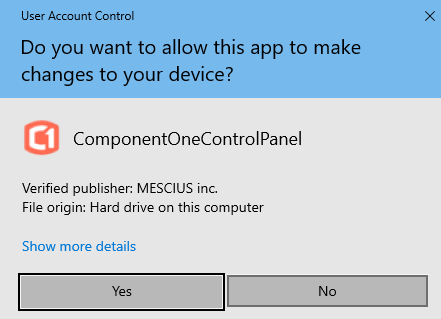
3. Click the **Yes** button in the **User Account Control** dialog box to initiate the installation of ComponentOne controls.
>type=note
> **Note**: Any running instances of **Visual Studio** must be closed.
The **ComponentOne 30-Day Free Trial** screen opens up with the list of ComponentOne products to install.
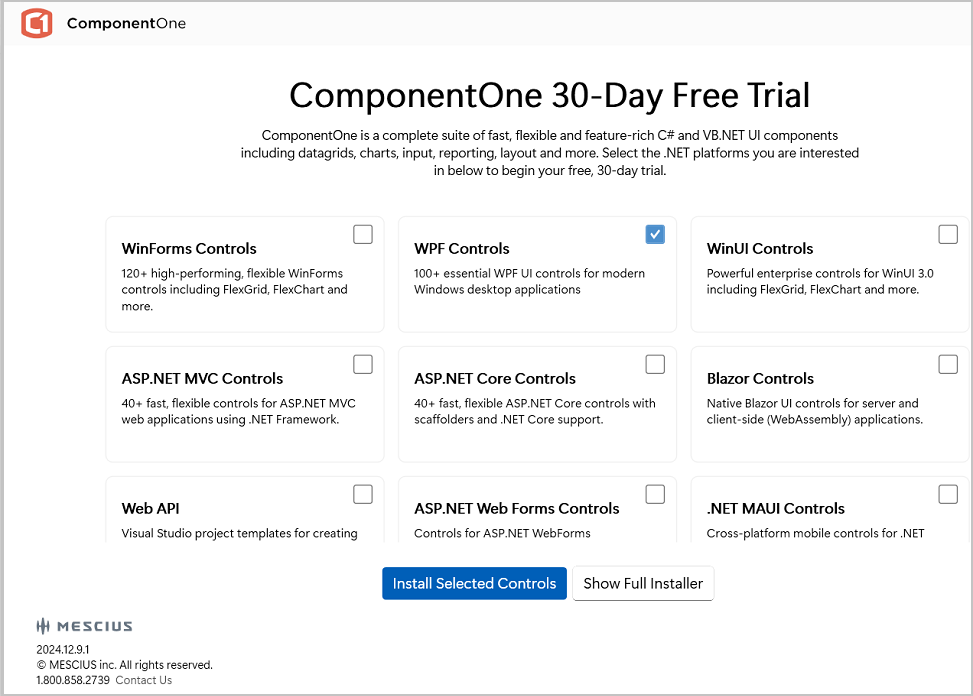
4. Select the checkbox in the **WPF Controls** tile to install the WPF controls. You can also install multiple controls by selecting the checkboxes against them.
5. Click one of the following available buttons to install the ComponentOne controls as per your requirements:
* **Install Selected Controls** – Allows you to install the latest version of ComponentOne controls
* **Show Full Installer** – Allows you to install the specific version of ComponentOne controls
Follow the next steps based on your selection. The detailed steps for each selection are given below:
**Install Selected Controls Option**
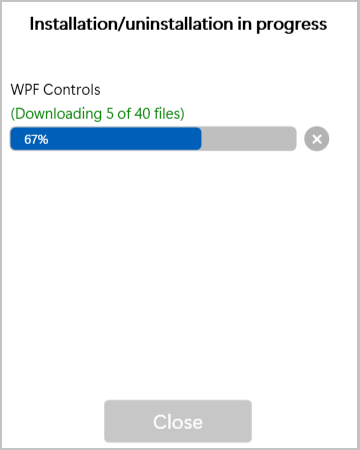
1. Click the **Install Selected Controls** button to start the installation of the WPF controls.
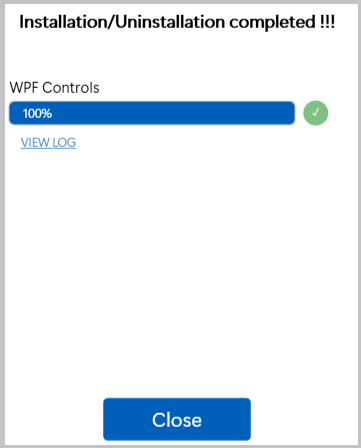
After installing the controls successfully, the installer displays the **"Installation/Uninstallation completed !!!"** message.
>type=info
> **Tip**: You can click the **VIEW LOG** link to view more details about the installation.
2. Click the **Close** button to close the installation screen once the installation is complete. The Free Trial screen shows the **Installed** label in green color in the **WPF Controls** tile:
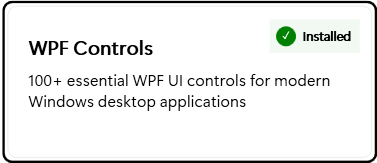
Now, you can use the ComponentOne controls in your **WPF** application.
**Show Full Installer Option**
1. Click the **Show Full Installer** button in the **ComponentOne 30-Day Free Trial screen** as shown above in **step 4** to open the Installation screen.
2. Select the checkbox and a specific version from the **Available versions** drop-down in the **WPF Controls** tile.
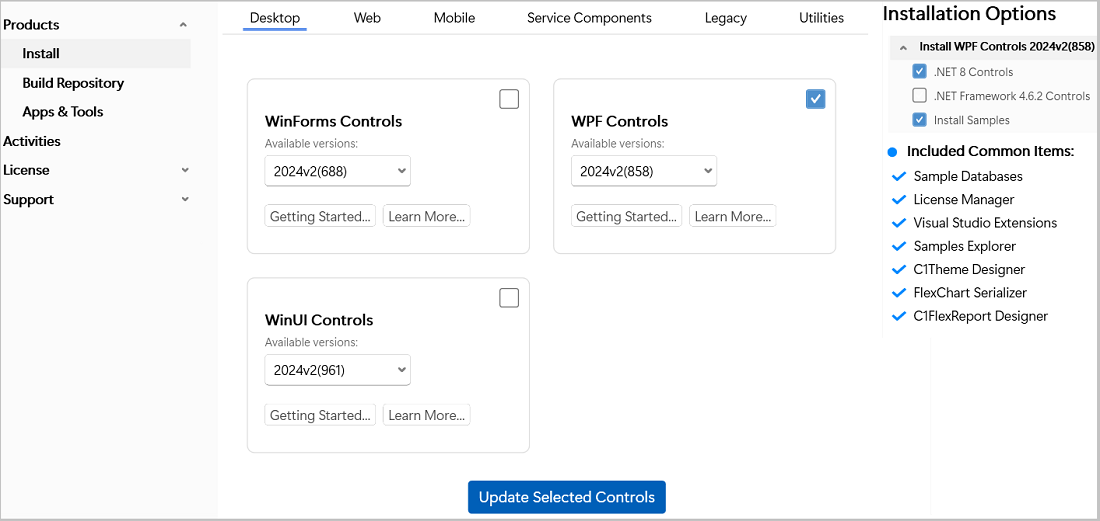
3. Click the **Update Selected Controls** button.
The **End User License Agreement (EULA)** screen appears. After accepting the EULA, the change directory settings screen appears. The Installation Directory contains all the DLLs, Samples Directory contains the samples from ComponentOne and the Download Directory contains the log files.
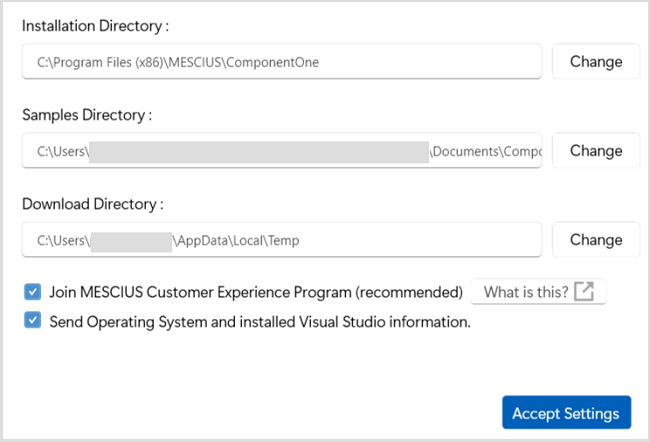
4. Modify the **Installation**, **Samples** and **Download** directories path, if required.
5. Click the **Accept Settings** button.
The installation of the WPF controls gets started, and the installer displays the "**Installation/ UnInstallation Completed**" message when the controls are installed successfully.
6. Click the **Close** button to complete the installation.
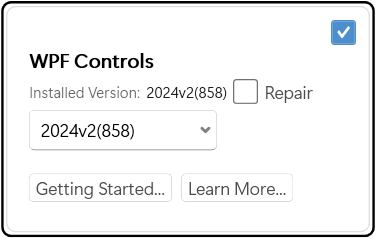
Observe that, the **installed version** details and **Repair** checkbox appear in the **WPF Controls** tile.
>type=info
> **Tip**: Using the **Repair** option, you can repair the installed version of controls in case of malfunctioning of the version.
**Additional Options in Full Installer**
The Full Installer screen displays different product categories, such as **Desktop**, **Web**, **Mobile**, **Service** **Components**, **Legacy**, and **Utilities** to install/update the controls. You can choose to install/update the required controls. Moreover, it also provides different options for various other purposes, which are as follows:
| **Options** | **Option Snapshot** | **Description** |
| ------- | --------------- | ----------- |
| **Build Repository** | 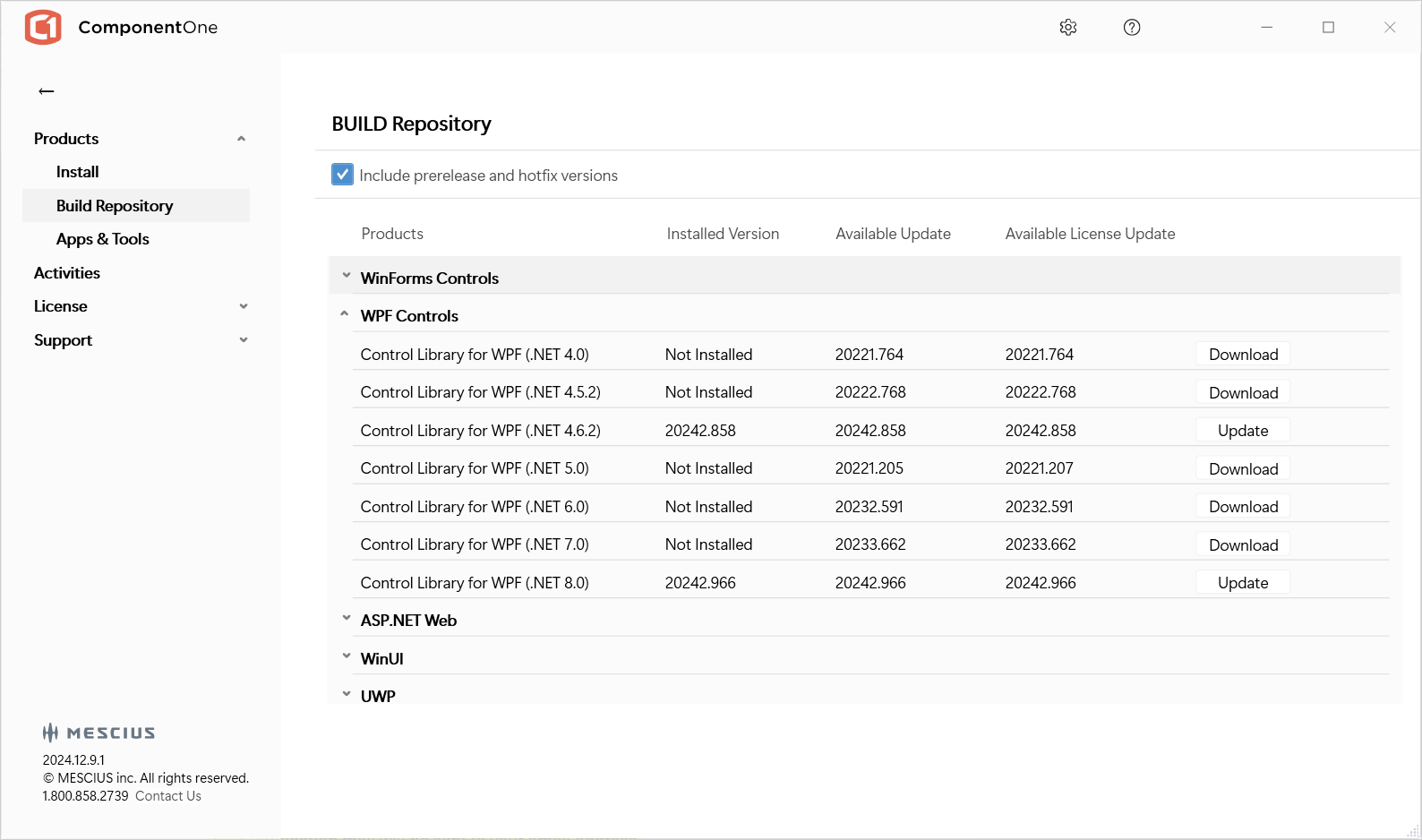 Build Repository | Allows you to install or update the build repositories of different controls. You can also view and install prerelease and hotfix versions of builds of different platforms. |
| **Apps & Tools** | 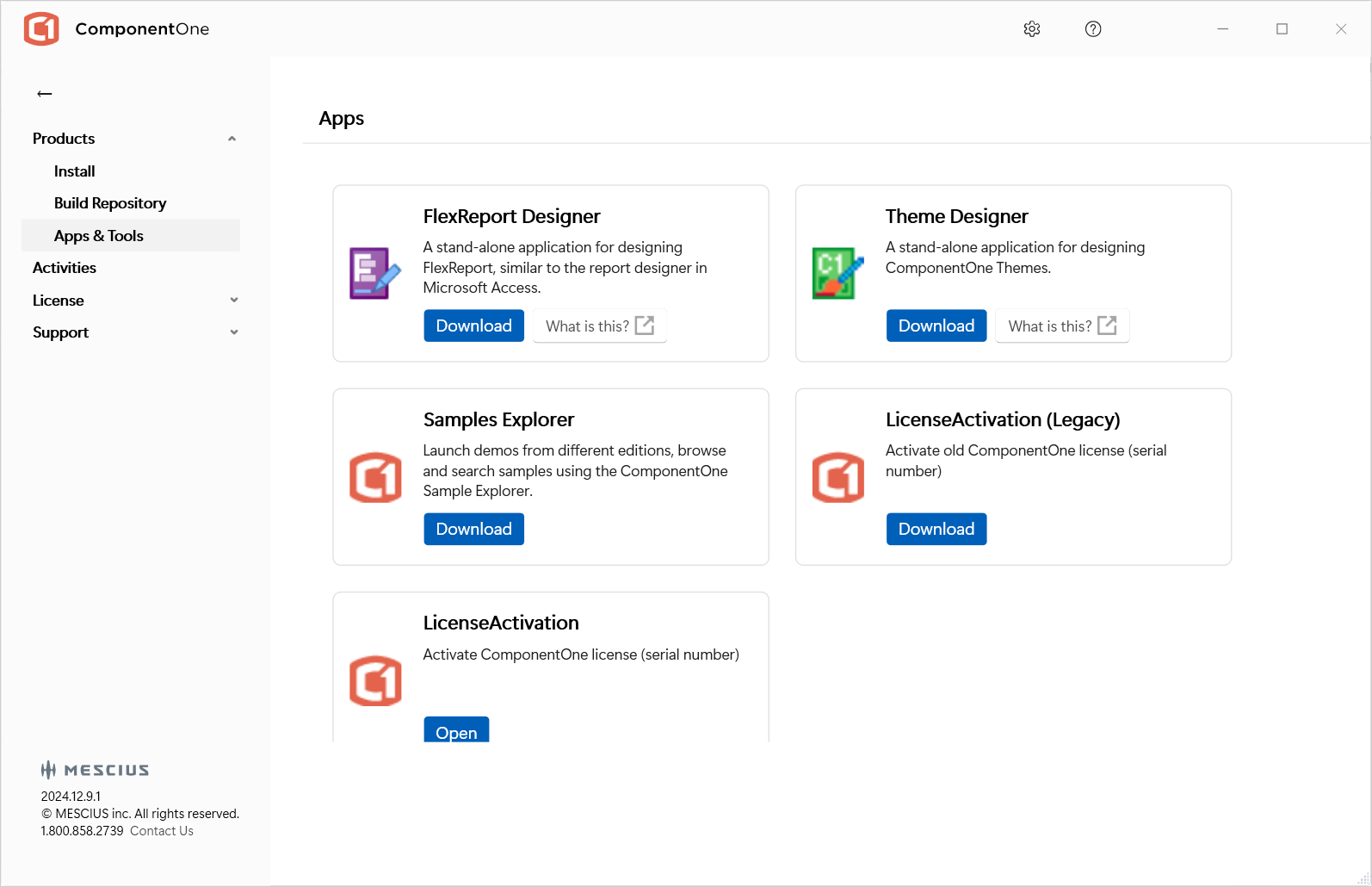 Tools | Allows you to install various applications and tools such as **FlexReport Designer**, **Theme Designer**, **Samples Explorer**, **LicenseActivation (Legacy)** and **LicenseActivation**. |
| **Activities** | 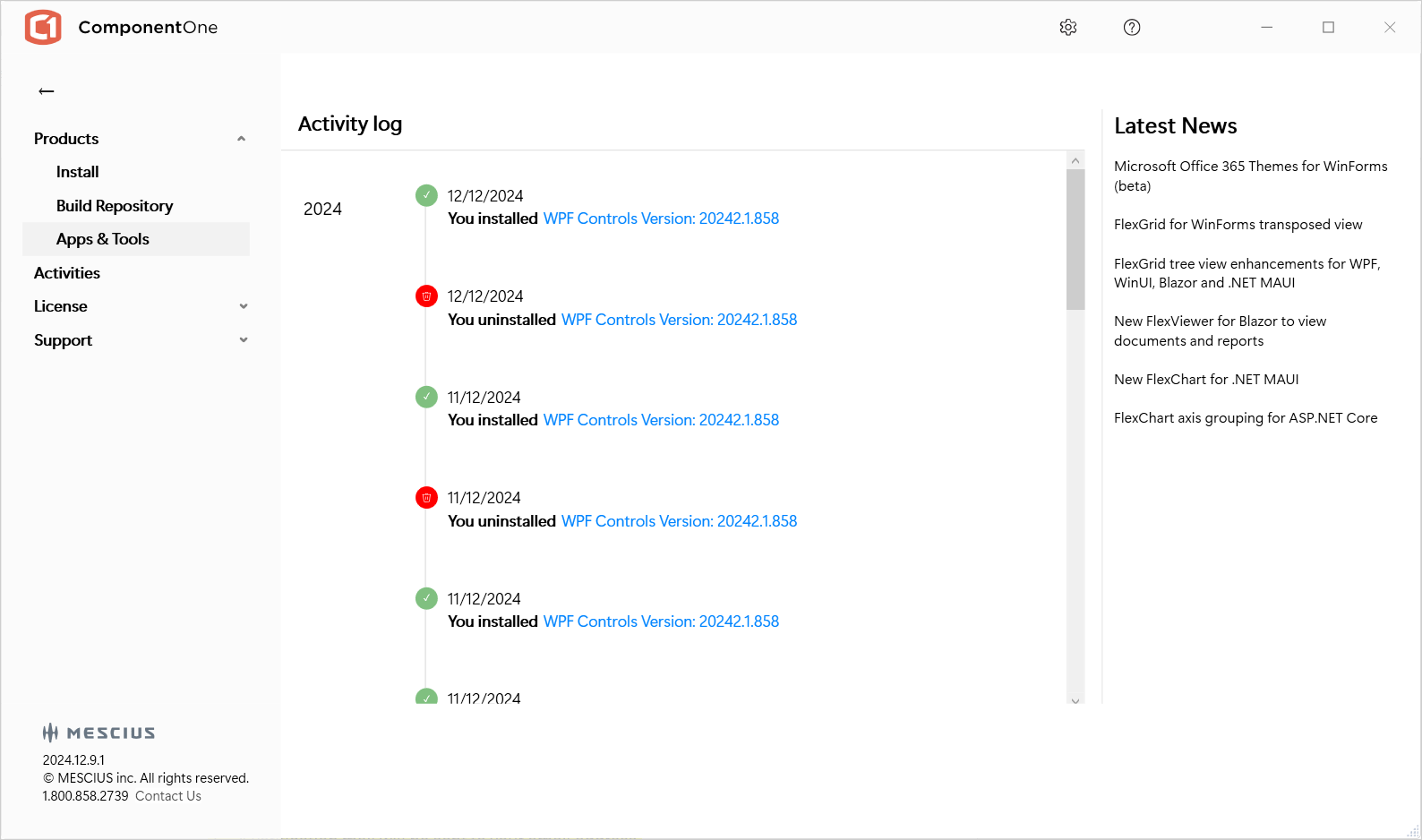 Activity Log | Enables you to track your activity related to installation of controls. |
| **License** | 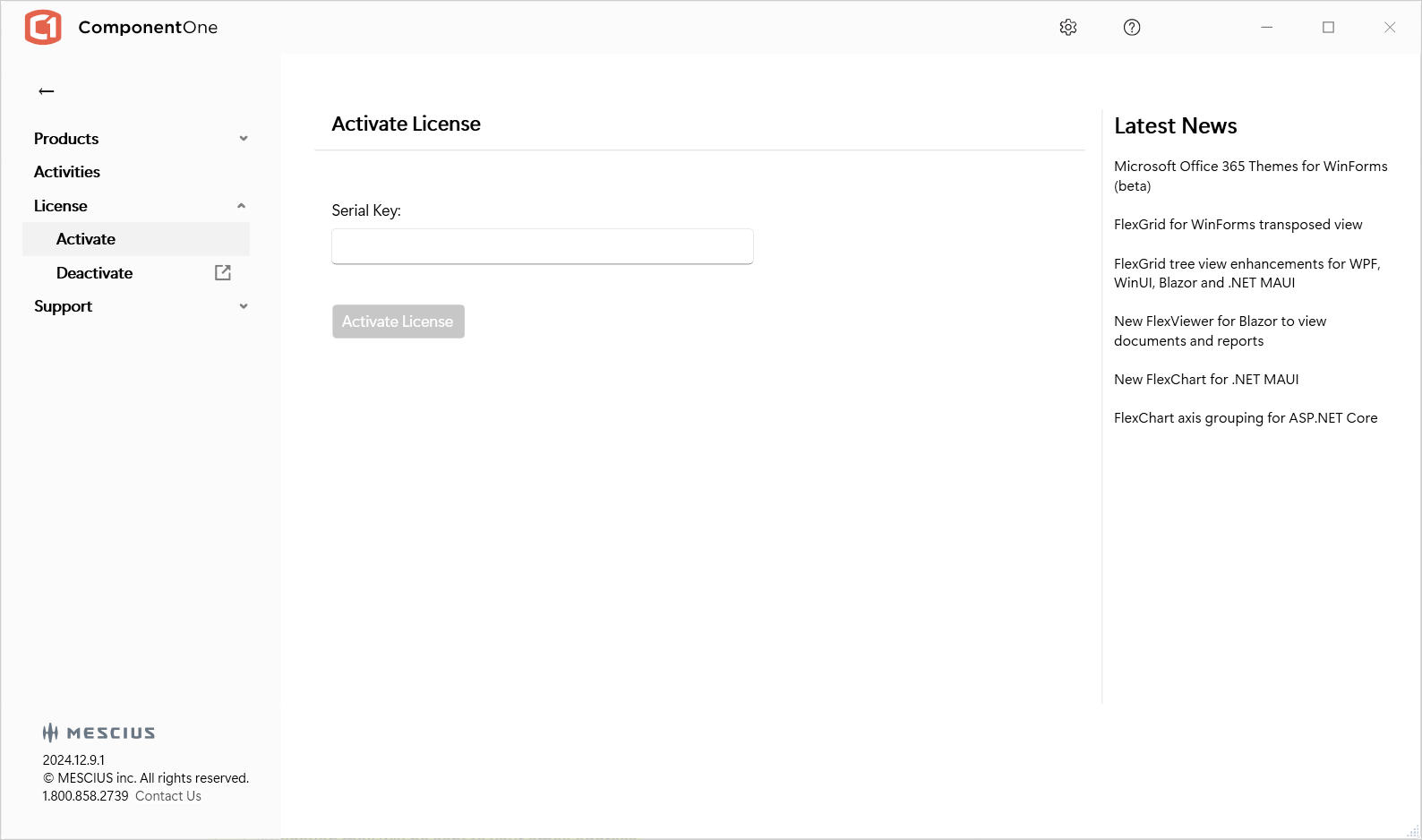 License | Allows you to quickly **Activate** and **Deactivate** the ComponentOne License. |
| **Support** | 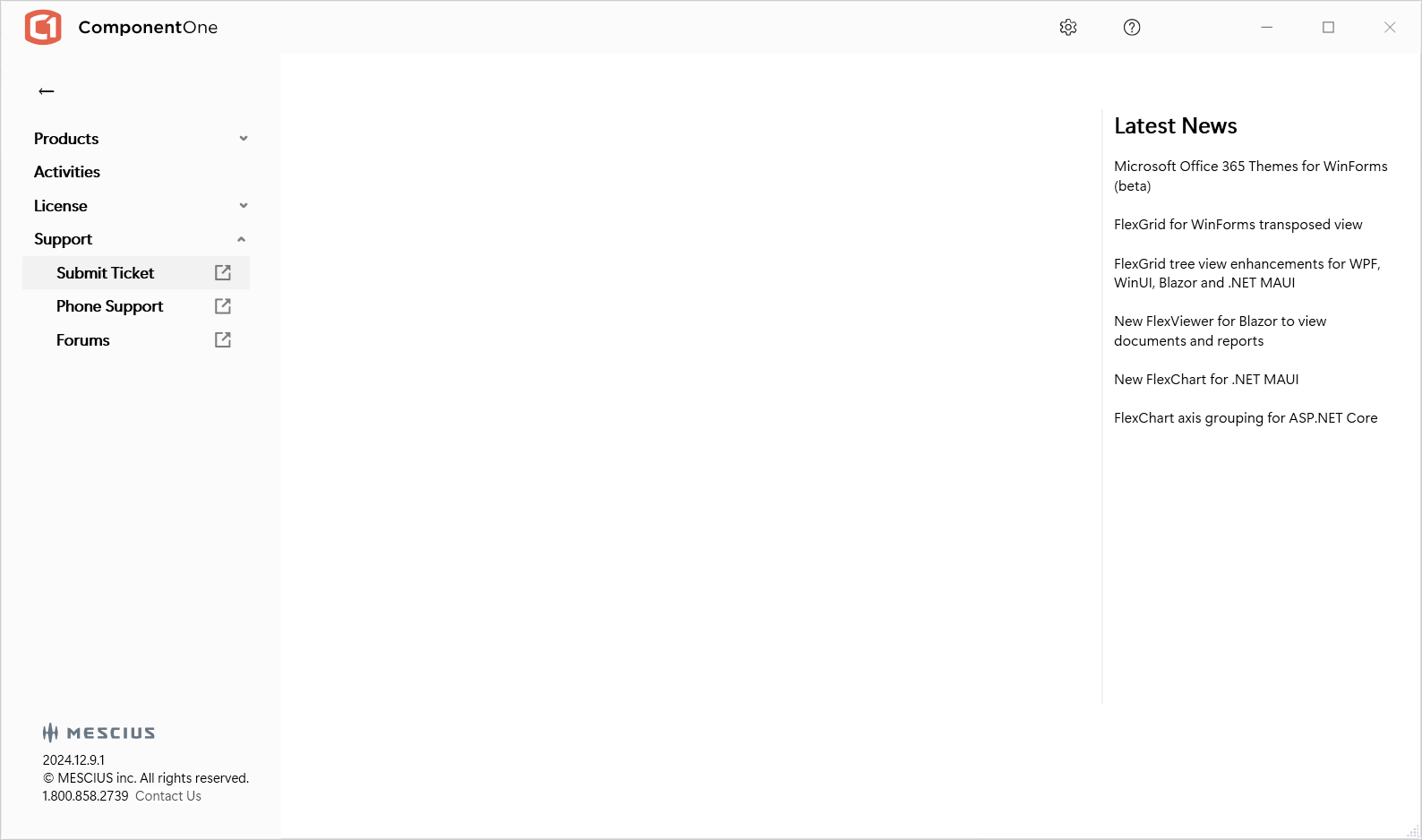 Support | Enables ticket submission, phone assistance, and access to forums for any issues that may arise after installing ComponentOne controls. |
| **Settings** | 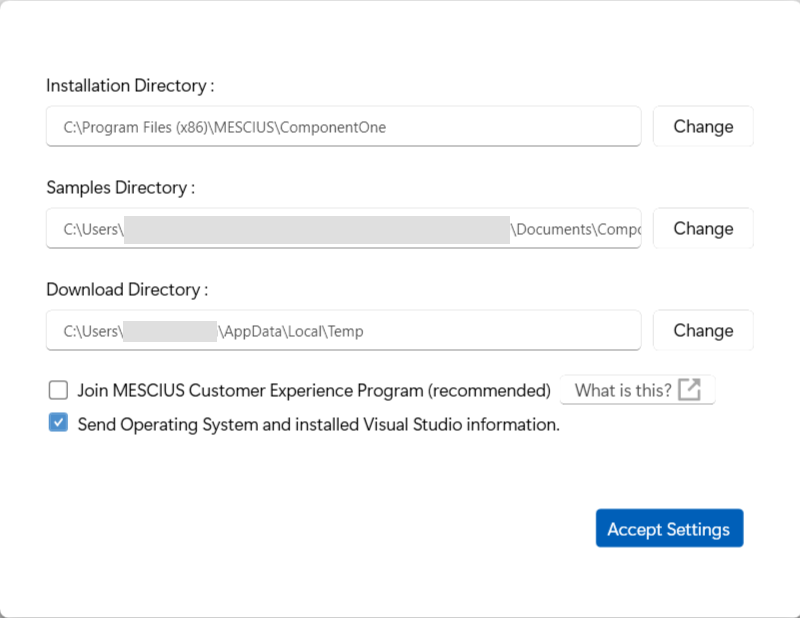 Settings | Allows you to change the installation directory of controls. |
>type=note
> **Note**: In case you want to uninstall WPF Edition, see [Uninstalling WPF Edition](/componentone/docs/wpf/online-studio/GettingStartedwithStudioforWPF/uninstalling-wpf-edition).