# How to integrate Rules Manager with DataGrid

## Content


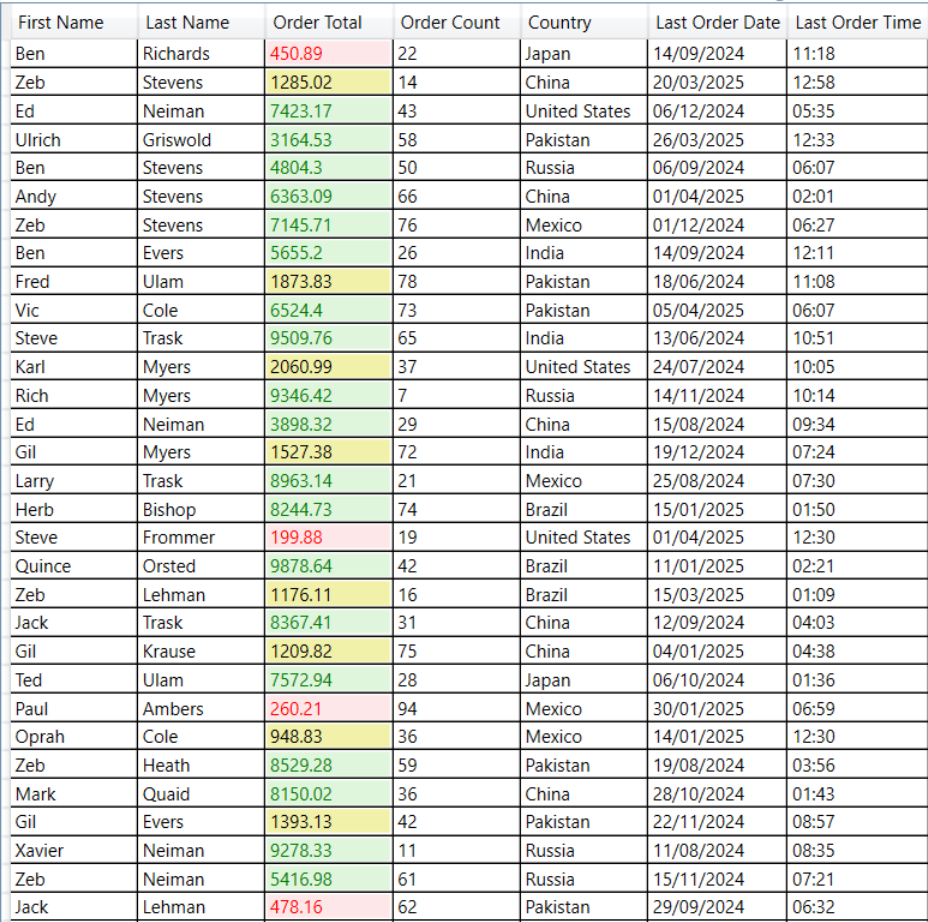
This is a step-by-step guide for applying conditional formatting to Microsoft DataGrid by integrating the Rules Manager control.
![](https://cdn.mescius.io/document-site-files/images/ac639fbf-046b-4a70-872a-c6393c366bf1/images/datagrid-integration.png)

### Set Up Application

1.  Create a WPF application
2.  Drag and drop **DataGrid** and **Rules Manager** on the form
3.  Bind the data using **ItemsSource** property

### Define Value Converters

Use the following code to implement two value converters.

*   **CountryConverter**
*   **DataGridValuetoBrushConverter**
    
    ```xml
    <local:CountryConverter x:Key="CountryConverter"/>
    <local:DataGridValueToBrushConverter x:Key="valueConverter" />
    ```
    

The **CountryConverter** displays a readable country name instead of a numeric ID whereas the **DataGridValuetoBrushConverter** converts a data value into a brush for cell styling.

### Integrate Rules Manager

Use the following code to integrate **Rules Manager** with **C1DataGrid** and add/edit the rules.

```xml
<c1:C1RulesEngine x:Key="rulesEngine" RulesChanged="C1RulesEngine_RulesChanged">
   <c1:RulesEngineSegmentsRule Ranges="[OrderTotal]">
       <c1:RulesEngineSegment Value="500.00">
           <c1:RulesEngineStyle Background="#FFFDE7E9" Foreground="Red"/>
       </c1:RulesEngineSegment>
       <c1:RulesEngineSegment Value="3000.00">
           <c1:RulesEngineStyle Background="#FFF2F1A9" Foreground="Black"/>
       </c1:RulesEngineSegment>
       <c1:RulesEngineSegment>
           <c1:RulesEngineStyle Background="#FFDFF6DD" Foreground="Green"/>
       </c1:RulesEngineSegment>
   </c1:RulesEngineSegmentsRule>
</c1:C1RulesEngine>
```

Use the following code to apply cell styling based on rules applied.

```xml
<DataGrid x:Name="grid" AutoGenerateColumns="False" Grid.Column="0" SelectionChanged="grid_SelectionChanged">
    <DataGrid.Columns>
        <DataGridTextColumn Binding="{Binding FirstName}" Header="First Name"/>
        <DataGridTextColumn Binding="{Binding LastName}" Header="Last Name"/>
        <DataGridTextColumn Binding="{Binding OrderTotal}" Header="Order Total"/>
        <DataGridTextColumn Binding="{Binding OrderCount}" Header="Order Count"/>
        <DataGridTextColumn Binding="{Binding CountryId, Converter={StaticResource CountryConverter}}" Header="Country"/>
        <DataGridTextColumn Binding="{Binding LastOrderDate, StringFormat={}\{0:dd/MM/yyyy\}}" Header="Last Order Date"/>
        <DataGridTextColumn Binding="{Binding LastOrderDate, StringFormat={}\{0:hh:mm\}}" Header="Last Order Time"/>
    </DataGrid.Columns>
    <DataGrid.CellStyle>
        <Style TargetType="DataGridCell" BasedOn="{StaticResource {x:Type DataGridCell}}">
            <Setter Property="Background">
                <Setter.Value>
                    <MultiBinding Converter="{StaticResource valueConverter}" ConverterParameter="Background">
                        <Binding RelativeSource="{RelativeSource Self}" />
                        <Binding RelativeSource="{RelativeSource Mode=FindAncestor, AncestorType=DataGrid}" />
                        <Binding Source="{StaticResource rulesEngine}" />
                    </MultiBinding>
                </Setter.Value>
            </Setter>
            <Setter Property="Foreground">
                <Setter.Value>
                    <MultiBinding Converter="{StaticResource valueConverter}" ConverterParameter="Foreground">
                        <Binding RelativeSource="{RelativeSource Self}" />
                        <Binding RelativeSource="{RelativeSource Mode=FindAncestor, AncestorType=DataGrid}" />
                        <Binding Source="{StaticResource rulesEngine}" />
                    </MultiBinding>
                </Setter.Value>
            </Setter>
        </Style>
    </DataGrid.CellStyle>
</DataGrid>
```

Use the following code to add a collapsible panel using C1Expander to show the Rules Manager control.

```xml
<c1:C1Expander Header="RulesManager" ExpandDirection="Left" ExpandIconAlignment="Left" HorizontalContentAlignment="Right" BorderThickness="0" Grid.Column="1">
    <c1:C1RulesManager x:Name="rulesManager" Engine="{StaticResource rulesEngine}" Width="400"/>
</c1:C1Expander>
```