# Hyperlinks
## Content
The [C1RichTextBox](/componentone/api/wpf/online-richtextbox/dotnet-api/C1.WPF.RichTextBox/C1.WPF.RichTextBox.C1RichTextBox.html) supports hyperlinks. As in regular HTML documents, this feature allows you to make certain parts of the document active. When the user clicks them, the application receives a notification and takes some action.
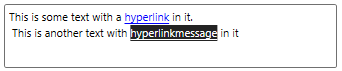
In the following section learn how to implement Hperlinks in RichTextBox .NET and .NET Framework versions.
### .NET Framework
The code below shows how you can create a hyperlink:
```vbnet
Public Sub New()
InitializeComponent()
' Set text
_rtb.Text = "This is some text with a hyperlink in it."
' Create hyperlink
Dim pos As Integer = _rtb.Text.IndexOf("hyperlink")
_rtb.[Select](pos, 9)
Dim uri = New Uri("https://developer.mescius.com", UriKind.Absolute)
_rtb.Selection.MakeHyperlink(uri)
' Handle navigation requests
_rtb.NavigationMode = NavigationMode.OnControlKey
AddHandler _rtb.RequestNavigate, AddressOf _rtb_RequestNavigate;
End Sub
```
```csharp
public MainPage()
{
InitializeComponent();
// Set text
_rtb.Text = "This is some text with a hyperlink in it.";
// Create hyperlink
int pos = _rtb.Text.IndexOf("hyperlink");
_rtb.Select(pos, 9);
var uri = new Uri("https://developer.mescius.com", UriKind.Absolute);
_rtb.Selection.MakeHyperlink(uri);
// Handle navigation requests
_rtb.NavigationMode = NavigationMode.OnControlKey;
_rtb.RequestNavigate += _rtb_RequestNavigate;
}
```
The code starts by assigning some text to the C1RichTextBox. Next, it selects the word "hyperlink" and calls the **EditExtensions.MakeHyperlink** method to make it a hyperlink. The parameter is a URI that is assigned to the new hyperlink's **C1Hyperlink.NavigateUri** property.
Then, the code sets the **NavigationMode** property to determine how the **C1RichTextBox** should handle the mouse over hyperlinks. The default behavior is like that of Microsoft Word and Visual Studio: moving the mouse over a hyperlink while holding down the CTRL key causes the cursor to turn into a hand, and clicking while the CTRL key is pressed fires the **RequestNavigate** event. This allows users to edit the hyperlink text as they would edit regular text.
The **RequestNavigate** event handler is responsible for handling the hyperlink navigation. In many cases this requires opening a new browser window and navigating to a different URL. This is illustrated below:
```vbnet
Private Sub _rtb_RequestNavigate(sender As Object, e As RequestNavigateEventArgs)
' Open link in a new window ("_self" would use the current one)
Dim target As String = "_blank"
System.Windows.Browser.HtmlPage.Window.Navigate(e.Hyperlink.NavigateUri, target)
End Sub
```
```csharp
void _rtb_RequestNavigate(object sender, RequestNavigateEventArgs e)
{
// Open link in a new window ("_self" would use the current one)
string target = "_blank";
System.Windows.Browser.HtmlPage.Window.Navigate(e.Hyperlink.NavigateUri, target);
}
```
Note that hyperlink actions are not restricted to URI navigation. You could define a set of custom URI actions to be used as commands within your application. The custom URIs would be parsed and handled by the **RequestNavigate** handler. For example, the code below uses hyperlinks to show message boxes:
```vbnet
Public Sub New()
InitializeComponent()
' Set text
_rtb.Text = "This is some text with a hyperlink in it."
' Create hyperlink
Dim pos As Integer = _rtb.Text.IndexOf("hyperlink")
_rtb.[Select](pos, 9)
Dim uri = New Uri("msgbox:Thanks for clicking!")
_rtb.Selection.MakeHyperlink(uri)
' Handle navigation requests
_rtb.NavigationMode = NavigationMode.OnControlKey
AddHandler _rtb.RequestNavigate, AddressOf _rtb_RequestNavigate
End Sub
Private Sub _rtb_RequestNavigate(sender As Object, e As RequestNavigateEventArgs)
Dim uri As Uri = e.Hyperlink.NavigateUri
If uri.Scheme = "msgbox" Then
MessageBox.Show(uri.LocalPath)
End If
End Sub
```
```csharp
public MainPage()
{
InitializeComponent();
// Set text
_rtb.Text = "This is some text with a hyperlink in it.";
// Create hyperlink
int pos = _rtb.Text.IndexOf("hyperlink");
_rtb.Select(pos, 9);
var uri = new Uri("msgbox:Thanks for clicking!");
_rtb.Selection.MakeHyperlink(uri);
// Handle navigation requests
_rtb.NavigationMode = NavigationMode.OnControlKey;
_rtb.RequestNavigate += _rtb_RequestNavigate;
}
void _rtb_RequestNavigate(object sender, RequestNavigateEventArgs e)
{
Uri uri = e.Hyperlink.NavigateUri;
if (uri.Scheme == "msgbox")
{
MessageBox.Show(uri.LocalPath);
}
}
```
The only change in the **EditExtensions.MakeHyperlink** code is the line that creates the URI. The **C1RichTextBox.RequestNavigate** handler uses the URI members to parse the command and argument. You could use this technique to create documents with embedded menus for example.
Note that the **CreateHyperlink** method is just a quick and easy way to turn an existing part of a document into a hyperlink. You can also create hyperlinks by adding [C1Hyperlink](/componentone/api/wpf/online-richtextbox/dotnet-api/C1.WPF.RichTextBox/C1.WPF.RichTextBox.Documents.C1Hyperlink.html) elements to **C1Document** objects. This is described in later sections.
### .NET
The code below shows how you can create a hyperlink.
```csharp
public Hyperlinks()
{
InitializeComponent();
// Set text
richTextbox.Text = "This is some text with a hyperlink in it. \n This is another text with hyperlinkmessage in it";
// Create hyperlink
int pos = richTextbox.Text.IndexOf("hyperlink");
richTextbox.Select(pos, 9);
var uri = new Uri("http://www.mescius.com", UriKind.Absolute);
richTextbox.Selection.MakeHyperlink(uri);
// Create message hyperlink
int pos2 = richTextbox.Text.IndexOf("hyperlinkmessage");
richTextbox.Select(pos2, 16);
var uri2 = new Uri("msgbox:Thanks for clicking!");
richTextbox.Selection.MakeHyperlink(uri2);
// enable hyperlink click on ctrl hold
richTextbox.NavigationMode = NavigationMode.OnControlKey;
// Handle navigation requests
richTextbox.RequestNavigate += RequestNavigate; ;
}
```
The code starts by assigning some text to the C1RichTextBox. Next, it selects the word "hyperlink" and calls the **EditExtensions.MakeHyperlink** method to make it a hyperlink. The parameter is a URI that is assigned to the new hyperlink's **C1Hyperlink.NavigateUri** property.
Then, the code sets the **NavigationMode** property to determine how the **C1RichTextBox** should handle the mouse over hyperlinks. The default behavior is like that of Microsoft Word and Visual Studio: moving the mouse over a hyperlink while holding down the CTRL key causes the cursor to turn into a hand, and clicking while the CTRL key is pressed fires the **RequestNavigate** event. This allows users to edit the hyperlink text as they would edit regular text.
The **RequestNavigate** event handler is responsible for handling the hyperlink navigation. In many cases this requires opening a new browser window and navigating to a different URL. This is illustrated below:
```csharp
private void RequestNavigate(object sender, RequestNavigateEventArgs e)
{
Uri uri = e.Hyperlink.NavigateUri;
if (uri.Scheme == "msgbox")
{
// Hyperlink used for performing commands here
MessageBox.Show(uri.LocalPath);
}
else
{
// Normal hyperlink
Process.Start("explorer.exe", e.Hyperlink.NavigateUri.AbsoluteUri);
}
```
Note that hyperlink actions are not restricted to URI navigation. You could define a set of custom URI actions to be used as commands within your application. The custom URIs would be parsed and handled by the **RequestNavigate** handler. For example, the code below uses hyperlinks to show message boxes.
The only change in the **EditExtensions.MakeHyperlink** code is the line that creates the URI. The **C1RichTextBox.RequestNavigate** handler uses the URI members to parse the command and argument. You could use this technique to create documents with embedded menus for example.
Note that the **CreateHyperlink** method is just a quick and easy way to turn an existing part of a document into a hyperlink. You can also create hyperlinks by adding **C1Hyperlink** elements to **C1Document** objects. This is described in later sections.