# Quick Start

## Content


The following quick start guide is intended to get you up and running with **WPF Ribbon**. In this quick start, you'll start with Visual Studio and create a new project, add **WPF Ribbon** to your application, and other elements as shown in the image below.
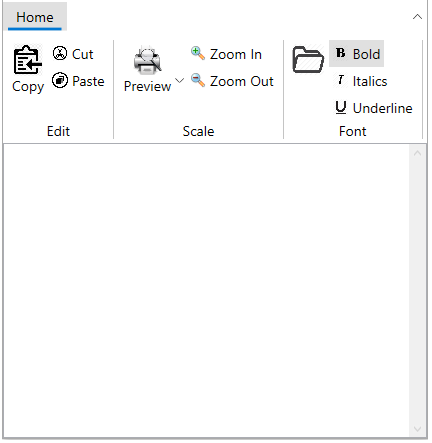
![Image showing ribbon application with tab, groups, buttons, togglebuttons and dropdown tool.](https://cdn.mescius.io/document-site-files/images/ff434f23-5223-494e-9580-3dd8a227b884/images/quickstart-ribbon-wpf.png)

To set up your project and add a C1Ribbon control to your application, complete the following steps.

1.  Create a new **WPF project** in Visual Studio.
    
2.  Add a reference to the **C1.WPF.Ribbon** assembly. Add the **C1Ribbon** control to the XAML designer using [C1Ribbon](/componentone/api/wpf/online-ribbon5/dotnet-api/C1.WPF.Ribbon/C1.WPF.Ribbon.C1Ribbon.html) class.
    
    ```xml
    <c1:C1Ribbon FontSize="14" SelectedIndex="0">
    </c1:C1Ribbon>
    ```
    
3.  Add a ribbon tab "Home" using [RibbonTabItem](/componentone/api/wpf/online-ribbon5/dotnet-api/C1.WPF.Ribbon/C1.WPF.Ribbon.RibbonTabItem.html) class. In the tab, add ribbon group "Edit" using [RibbonGroup](/componentone/api/wpf/online-ribbon5/dotnet-api/C1.WPF.Ribbon/C1.WPF.Ribbon.RibbonGroup.html) class.
    
    ```xml
    <c1:C1Ribbon FontSize="14" SelectedIndex="0">
                <c1:RibbonTabItem Header="Home">
                    <c1:RibbonGroup Header="Edit">
                        </c1:RibbonGroup>
                </c1:RibbonTabItem>
            </c1:C1Ribbon>
    ```
    
4.  In the next step, you can add different elements to Ribbon, such as Ribbon button using [C1ButtonTool](/componentone/api/wpf/online-ribbon5/dotnet-api/C1.WPF.Ribbon/C1.WPF.Ribbon.C1ButtonTool.html) class, Ribbon Toggle button using [C1ToggleButtonTool](/componentone/api/wpf/online-ribbon5/dotnet-api/C1.WPF.Ribbon/C1.WPF.Ribbon.C1ToggleButtonTool.html) class and drop down item using [C1DropDownTool](/componentone/api/wpf/online-ribbon5/dotnet-api/C1.WPF.Ribbon/C1.WPF.Ribbon.C1DropDownTool.html) class.
    
    ```xml
    <c1:C1Ribbon FontSize="14" SelectedIndex="0">
               <c1:RibbonTabItem Header="Home">
                   <!-- Adding first group -->
                   <c1:RibbonGroup Header="Edit">
                       <c1:C1ButtonTool Label="Copy">
                               <c1:C1ButtonTool.IconTemplate>
                                   <c1:C1IconTemplate>
                                       <c1:C1BitmapIcon Source="/copy.png"/>
                                   </c1:C1IconTemplate>
                               </c1:C1ButtonTool.IconTemplate>
                           </c1:C1ButtonTool>
                           <c1:C1ButtonTool Label="Cut">
                               <c1:C1ButtonTool.IconTemplate>
                                   <c1:C1IconTemplate>
                                       <c1:C1BitmapIcon Source="/cut.png" />
                                   </c1:C1IconTemplate>
                               </c1:C1ButtonTool.IconTemplate>
                           </c1:C1ButtonTool>
                       <c1:C1ButtonTool Label="Paste">
                           <c1:C1ButtonTool.IconTemplate>
                               <c1:C1IconTemplate>
                                   <c1:C1BitmapIcon Source="/paste.png"/>
                               </c1:C1IconTemplate>
                           </c1:C1ButtonTool.IconTemplate>
                       </c1:C1ButtonTool>
                   </c1:RibbonGroup>
                   <!-- Adding second group -->
                   <c1:RibbonGroup Header="Scale">
                       <c1:C1DropDownTool Label="Preview">
                           <c1:C1DropDownTool.IconTemplate>
                               <c1:C1IconTemplate>
                                   <c1:C1BitmapIcon Source="/preview.png"/>
                               </c1:C1IconTemplate>
                           </c1:C1DropDownTool.IconTemplate>
                       </c1:C1DropDownTool>
                       <c1:C1ButtonTool Label="Zoom In">
                           <c1:C1ButtonTool.IconTemplate>
                               <c1:C1IconTemplate>
                                   <c1:C1BitmapIcon Source="/zoom_in.png" />
                               </c1:C1IconTemplate>
                           </c1:C1ButtonTool.IconTemplate>
                       </c1:C1ButtonTool>
                       <c1:C1ButtonTool Label="Zoom Out">
                           <c1:C1ButtonTool.IconTemplate>
                               <c1:C1IconTemplate>
                                   <c1:C1BitmapIcon Source="/zoom_out.png"/>
                               </c1:C1IconTemplate>
                           </c1:C1ButtonTool.IconTemplate>
                       </c1:C1ButtonTool>
                   </c1:RibbonGroup>
                   <!-- Adding third group -->
                   <c1:RibbonGroup Header="Font">
                       <c1:C1ButtonTool>
                           <c1:C1ButtonTool.IconTemplate>
                               <c1:C1IconTemplate>
                                   <c1:C1BitmapIcon Source="/open.png"/>
                               </c1:C1IconTemplate>
                           </c1:C1ButtonTool.IconTemplate>
                       </c1:C1ButtonTool>
                       <c1:C1ToggleButtonTool Label="Bold" IsChecked="True">
                           <c1:C1ToggleButtonTool.IconTemplate>
                               <c1:C1IconTemplate>
                                   <c1:C1BitmapIcon Source="/bold.png"/>
                               </c1:C1IconTemplate>
                           </c1:C1ToggleButtonTool.IconTemplate>
                       </c1:C1ToggleButtonTool>
                       <c1:C1ToggleButtonTool Label="Italics">
                           <c1:C1ToggleButtonTool.IconTemplate>
                               <c1:C1IconTemplate>
                                   <c1:C1BitmapIcon Source="/italic.png"/>
                               </c1:C1IconTemplate>
                           </c1:C1ToggleButtonTool.IconTemplate>
                       </c1:C1ToggleButtonTool>
                       <c1:C1ToggleButtonTool Label="Underline">
                           <c1:C1ToggleButtonTool.IconTemplate>
                               <c1:C1IconTemplate>
                                   <c1:C1BitmapIcon Source="/underline.png"/>
                               </c1:C1IconTemplate>
                           </c1:C1ToggleButtonTool.IconTemplate>
                       </c1:C1ToggleButtonTool>
                   </c1:RibbonGroup>
               </c1:RibbonTabItem>
           </c1:C1Ribbon>
    ```
    
    Here, there are three groups, **Edit**, **Scale** and **Search**. The **Edit** group has three buttons, **Copy**, **Cut** and **Paste**, the **Scale** group has a **Preview** dropdown tool, **Zoom In** and **Zoom Out** buttons and the **Font** group has three toggle button tools, **Bold**, **Italics** and **Underline** and a **color-picker** button tool.
    

Congratulations! You've now completed creating a basic ribbon user interface.