# Ribbon Group

## Content


All Ribbon Tabs contain Item Groups that can keep many tools together. Grouping related commands in a RibbonGroup makes it easier to discover and locate the commands.

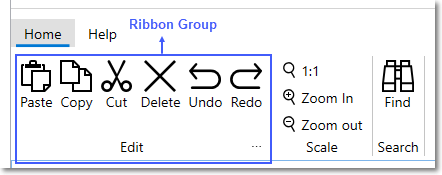
The user can add a Group of tools with the help of the [RibbonGroup](/componentone/api/wpf/online-ribbon5/dotnet-api/C1.WPF.Ribbon/C1.WPF.Ribbon.RibbonGroup.html) class of C1Ribbon. When you add ribbon tools to the RibbonGroup the child items appear grouped in a rectangular box as shown in the image below.
![](https://cdn.mescius.io/document-site-files/images/ff434f23-5223-494e-9580-3dd8a227b884/images/ribbongroup.png)

To add the Ribbon Group programmatically, use the code shown below.

```xml
<c1:C1Ribbon FontSize="14" SelectedIndex="0">
           <c1:RibbonTabItem Header="Home">
               <!-- Adding first group -->
               <c1:RibbonGroup Header="Edit">
               </c1:RibbonGroup>
           </c1:RibbonTabItem>
       </c1:C1Ribbon>
```

You can add items like button, dropdown tool, toggle button etc. to the Ribbon Group as shown in the code below:

```xml
<c1:C1Ribbon FontSize="14" SelectedIndex="0">
            <c1:RibbonTabItem Header="Home">
                <!-- Adding first group -->
                <c1:RibbonGroup Header="Edit">
                    <c1:C1ButtonTool Label="Copy">
                            <c1:C1ButtonTool.IconTemplate>
                                <c1:C1IconTemplate>
                                    <c1:C1BitmapIcon Source="/copy.png"/>
                                </c1:C1IconTemplate>
                            </c1:C1ButtonTool.IconTemplate>
                        </c1:C1ButtonTool>
                        <c1:C1ButtonTool Label="Cut">
                            <c1:C1ButtonTool.IconTemplate>
                                <c1:C1IconTemplate>
                                    <c1:C1BitmapIcon Source="/cut.png" />
                                </c1:C1IconTemplate>
                            </c1:C1ButtonTool.IconTemplate>
                        </c1:C1ButtonTool>
                    <c1:C1ButtonTool Label="Paste">
                        <c1:C1ButtonTool.IconTemplate>
                            <c1:C1IconTemplate>
                                <c1:C1BitmapIcon Source="/paste.png"/>
                            </c1:C1IconTemplate>
                        </c1:C1ButtonTool.IconTemplate>
                    </c1:C1ButtonTool>
                    <c1:C1ButtonTool Label="Delete">
                        <c1:C1ButtonTool.IconTemplate>
                            <c1:C1IconTemplate>
                                <c1:C1BitmapIcon Source="/delete.png" />
                            </c1:C1IconTemplate>
                        </c1:C1ButtonTool.IconTemplate>
                    </c1:C1ButtonTool>
                    <c1:C1ButtonTool Label="Redo">
                        <c1:C1ButtonTool.IconTemplate>
                            <c1:C1IconTemplate>
                                <c1:C1BitmapIcon Source="/redo.png" />
                            </c1:C1IconTemplate>
                        </c1:C1ButtonTool.IconTemplate>
                    </c1:C1ButtonTool>
                    <c1:C1ButtonTool Label="Undo">
                        <c1:C1ButtonTool.IconTemplate>
                            <c1:C1IconTemplate>
                                <c1:C1BitmapIcon Source="/undo.png" />
                            </c1:C1IconTemplate>
                        </c1:C1ButtonTool.IconTemplate>
                    </c1:C1ButtonTool>
                </c1:RibbonGroup>
```

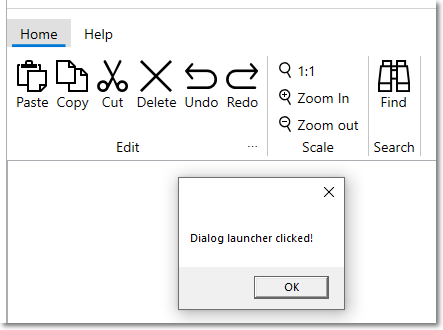
A user can also add a dialog box launcher button to the Ribbon group and control the size of the controls as shown in the image below.
![](https://cdn.mescius.io/document-site-files/images/ff434f23-5223-494e-9580-3dd8a227b884/images/dialoglauncher.png)

The images of the tool buttons inside the RibbonGroup can be all be sized to large, medium, or small using the [RibbonGroupSizeDefinition](/componentone/api/wpf/online-ribbon5/dotnet-api/C1.WPF.Ribbon/C1.WPF.Ribbon.RibbonGroupSizeDefinition.html) class. The [RibbonToolSizeDefinition](/componentone/api/wpf/online-ribbon5/dotnet-api/C1.WPF.Ribbon/C1.WPF.Ribbon.RibbonToolSizeDefinition.html) class provides information about the size and visibility of the label of a tool.

The group can also include a dialog box launcher button which provides access to advanced capabilities. You can add a launcher button using the [ShowDialogLauncher](/componentone/api/wpf/online-ribbon5/dotnet-api/C1.WPF.Ribbon/C1.WPF.Ribbon.RibbonGroup.ShowDialogLauncher.html) property and [DialogLauncherClick](/componentone/api/wpf/online-ribbon5/dotnet-api/C1.WPF.Ribbon/C1.WPF.Ribbon.RibbonGroup.DialogLauncherClick.html) event of **RibbonGroup** class as shown in the code snippet below:

```xml
<c1:RibbonGroup Header="Edit" ShowDialogLauncher="True" DialogLauncherClick="OnHomeDialogLaunched">
                    <c1:RibbonGroup.GroupSizeDefinitions>
                        <c1:RibbonGroupSizeDefinition>
                            <c1:RibbonToolSizeDefinition Size="Large"/>
                        </c1:RibbonGroupSizeDefinition>
                        <c1:RibbonGroupSizeDefinition>
                            <c1:RibbonToolSizeDefinition Size="Large"/>
                            <c1:RibbonToolSizeDefinition Size="Small" IsLabelVisible="True"/>
                            <c1:RibbonToolSizeDefinition Size="Small" IsLabelVisible="True"/>
                            <c1:RibbonToolSizeDefinition Size="Small" IsLabelVisible="True"/>
                            <c1:RibbonToolSizeDefinition Size="Small" IsLabelVisible="False"/>
                            <c1:RibbonToolSizeDefinition Size="Small" IsLabelVisible="False"/>
                            <c1:RibbonToolSizeDefinition Size="Small" IsLabelVisible="False"/>
                        </c1:RibbonGroupSizeDefinition>
                    </c1:RibbonGroup.GroupSizeDefinitions>
                    <c1:C1ButtonTool Label="Copy">
                            <c1:C1ButtonTool.IconTemplate>
                                <c1:C1IconTemplate>
                                    <c1:C1BitmapIcon Source="/copy.png"/>
                                </c1:C1IconTemplate>
                            </c1:C1ButtonTool.IconTemplate>
                        </c1:C1ButtonTool>
                        <c1:C1ButtonTool Label="Cut">
                            <c1:C1ButtonTool.IconTemplate>
                                <c1:C1IconTemplate>
                                    <c1:C1BitmapIcon Source="/cut.png" />
                                </c1:C1IconTemplate>
                            </c1:C1ButtonTool.IconTemplate>
                        </c1:C1ButtonTool>
                    <c1:C1ButtonTool Label="Paste">
                        <c1:C1ButtonTool.IconTemplate>
                            <c1:C1IconTemplate>
                                <c1:C1BitmapIcon Source="/paste.png"/>
                            </c1:C1IconTemplate>
                        </c1:C1ButtonTool.IconTemplate>
                    </c1:C1ButtonTool>
                    <c1:C1ButtonTool Label="Delete">
                        <c1:C1ButtonTool.IconTemplate>
                            <c1:C1IconTemplate>
                                <c1:C1BitmapIcon Source="/delete.png" />
                            </c1:C1IconTemplate>
                        </c1:C1ButtonTool.IconTemplate>
                    </c1:C1ButtonTool>
                    <c1:C1ButtonTool Label="Redo">
                        <c1:C1ButtonTool.IconTemplate>
                            <c1:C1IconTemplate>
                                <c1:C1BitmapIcon Source="/redo.png" />
                            </c1:C1IconTemplate>
                        </c1:C1ButtonTool.IconTemplate>
                    </c1:C1ButtonTool>
                    <c1:C1ButtonTool Label="Undo">
                        <c1:C1ButtonTool.IconTemplate>
                            <c1:C1IconTemplate>
                                <c1:C1BitmapIcon Source="/undo.png" />
                            </c1:C1IconTemplate>
                        </c1:C1ButtonTool.IconTemplate>
                    </c1:C1ButtonTool>
                </c1:RibbonGroup>
```

You can provide the following code in the **DialogLauncherClick** event to show dialog launcher clicked message box.

```csharp
private void OnHomeDialogLaunched(object sender, EventArgs e)
       {
           MessageBox.Show("Dialog launcher clicked!");
       }
```