# Advanced Binding Scenarios
## Content
In addition to the flexibility provided by data templates and bindings, the [C1OrgChart](/componentone/api/wpf/online-orgchart/dotnet-framework-api/C1.WPF.OrgChart.4.6.2/C1.WPF.OrgChart.C1OrgChart.html) control also supports advanced binding scenarios using two standard classes: **DataTemplateSelector** and **HierarchicalDataTemplate**.
**DataTemplateSelector class**: This class allows you to select different templates based on features of specific data items. For example, you could use different templates to display directors, managers, and clerical staff.
To do this, you would create a custom class that inherits from **DataTemplateSelector** and override the **SelectTemplate** object. You would then create an instance of this class and assign it to the **ItemTemplateSelector** property of the **C1OrgChart** control.
The example below shows a simple **DataTemplateSelector** implementation:
```csharp
/// DOC-SUMMARY-TAG-OPEN
/// Class used to dynamically select templates for items being created.
/// DOC-SUMMARY-TAG-CLOSE
public class EmployeeTemplateSelector : DataTemplateSelector
{
public override DataTemplate SelectTemplate(object item, DependencyObject ctnr)
{
var p = item as Employee;
var e = Application.Current.RootVisual as FrameworkElement;
return p.Position.IndexOf("Director") > -1
? e.Resources["DirectorTemplate"] as DataTemplate
: e.Resources["EmployeeTemplate"] as DataTemplate;
}
}
```
Notice the following important points:
* In WPF, the **DataTemplateSelector** class is defined in the _System.Windows.Controls_ namespace. In Silverlight, it is defined in the _C1.Silverlight.C1OrgChart_ namespace.
* The **DataTemplateSelector** class is not specific to the **C1OrgChart** control. It is a standard WPF class, used with any **ItemsControl** object (for example, **ListBox.ItemTemplateSelector**).
* The code assumes that the “DirectorTemplate”and “EmployeeTemplate” data templates are defined as resources under the application’s root visual.
Once the custom **DataTemplateSelector** is available, you can use it in XAML as usual:
```xml
…
…
…
```
The image below shows the result:
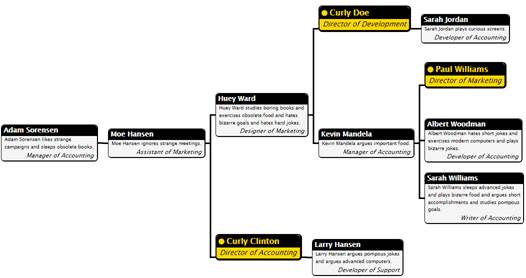
The **ItemTemplateSelector** is useful when the data items are of the same type, but you want to display certain items differently based on the properties of specific data items.
**HierarchicalDataTemplate class**: This class allows you to bind the **C1OrgChart** control to items that contain items of different types. For example, you could create a chart that displays leagues, divisions within each league, and teams within each division.
To do this, you would create a **HierarchicalDataTemplate** for each of the classes with sub-items, and a regular data template for the last class in the hierarchy. In our example, you would create a **HierarchicalDataTemplate** for the leagues, another for the divisions, and finally a regular data template for the teams:
```xml
```
The top-level template is the **LeagueTemplate**. In addition to defining how **League** object should be displayed (as regular templates do), its **ItemsSource** property specifies that subordinate objects should be retrieved from the **League.Divisions** property. Finally, the **ItemTemplate** property specifies the template that should be used to display the subordinate objects.
In this case, the **ItemTemplate** is **DivisionTemplate**, another **HierarchicalDataTemplate** that specifies how **Division** objects should be displayed, that the **Division.Teams** property exposes subordinate objects, and that the subordinate objects should be displayed using the **TeamTemplate**, which is a regular (non-hierarchical) data template.
Notice the following important points:
* In WPF, the **HierarchicalDataTemplate** class is defined in the _System.Windows_ namespace. In Silverlight, it is defined in the _C1.Silverlight.C1OrgChart_ namespace. (In Silverlight, you can also use the **HierarchicalDataTemplate** classes defined in the Microsoft SDK or in the C1.Silverlight.dll assembly).
* The **HierarchicalDataTemplate** class derives from the standard **DataTemplate** class and adds two properties: **ItemsSource** specifies the property that contains sub-items, and **ItemTemplate** specifies the template that should be used for the subordinate items.
Once the templates have been defined, using them is just a matter of setting the **ItemTemplate** property as usual:
```auto
```

Notice how the **C1OrgChart** uses the hierarchical data templates to navigate the hierarchy picking the right child collections and data templates. This is the same mechanism used with WPF **HeaderedItemControl** classes such as **Menu** and **TreeView**.