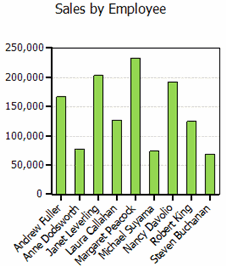
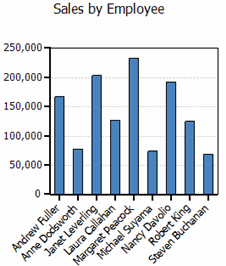
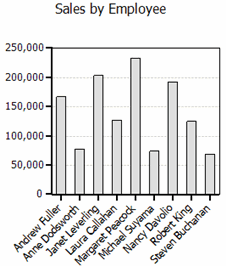
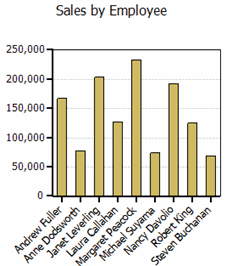
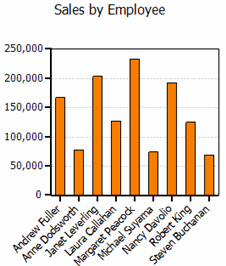
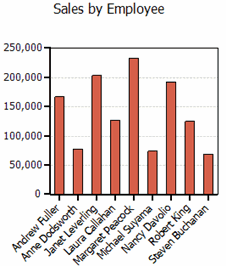
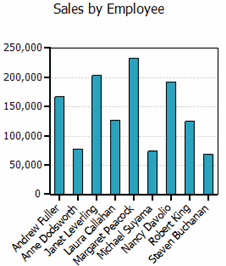
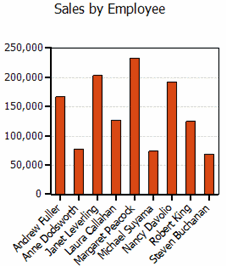
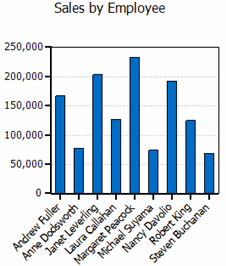
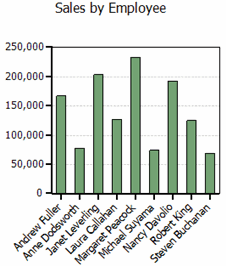
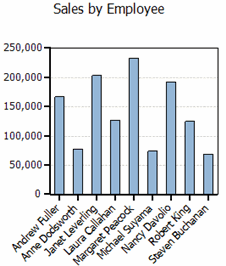
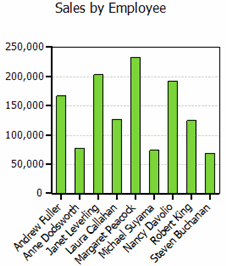
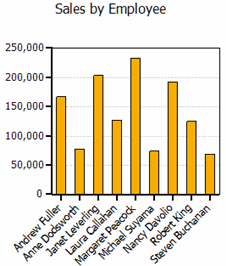
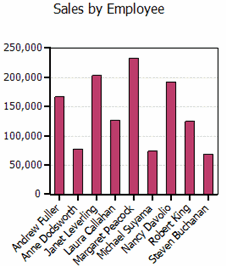
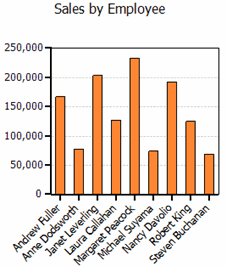
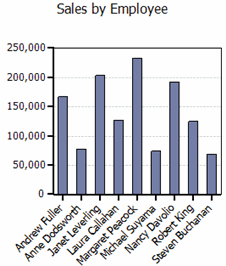
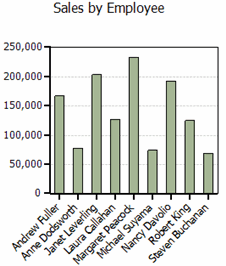
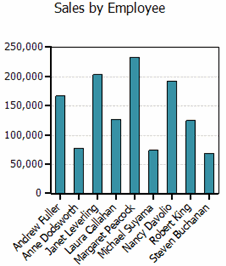
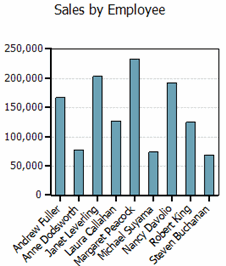
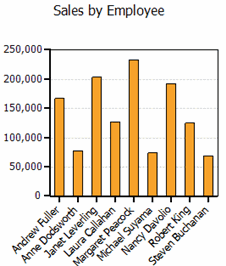
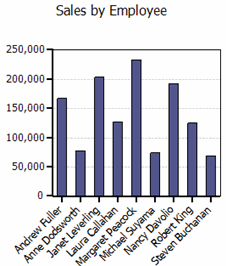
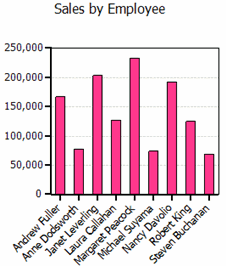
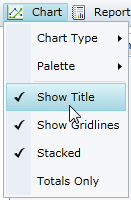
From the Chart menu, you can determine: the chart type, the palette, whether to show the chart title above the chart, whether to show chart gridlines, whether to show a stacked chart, and whether to show totals only.
|
Chart Type |
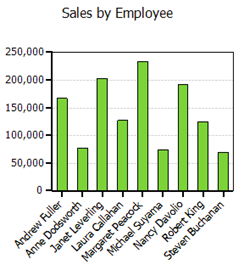
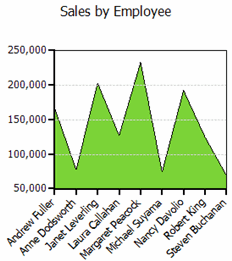
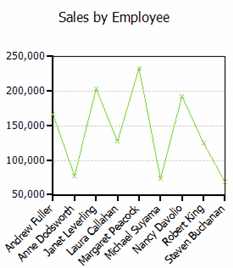
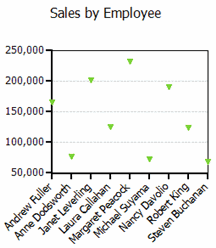
Click Chart Type to select from five common chart types shown below. |
|
Palette |
Click Palette to select from twenty-two palette options that define the colors of the chart and legend items. See the options in the Palette topic below. |
|
Show Title |
When selected, shows a title above the chart. |
|
Stacked |
When selected, creates a chart view where the data is stacked. |
|
Show Gridlines |
When selected, shows gridlines in the chart. |
|
Totals Only |
When selected, shows only totals as opposed to one series for each column in the data source. |
Chart Types
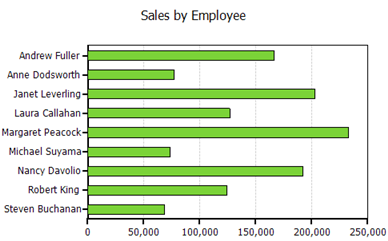
OLAP for WPF and Silverlight offers five of the most common chart types. The following table shows an example of each type.
|
|
|
|
Bar |
 |
|
Column |
|
|
Area
|
|
|
Line
|
|
|
Scatter
|
|
Palette
The C1OlapChart palette is made up of twenty-two options that define the colors of the chart and legend items. The following table shows the colors for each palette option.
|
|
|
|
|
Standard
|
Office
|
GrayScale
|
|
Apex
|
Aspect
|
Civic
|
|
Concourse
|
Equity
|
Flow
|
|
Foundry
|
Median
|
Metro
|
|
Module
|
Opulent
|
Oriel
|
|
Origin
|
Paper
|
Solstice
|
|
Technic
|
Trek
|
Urban
|
|
Verve
|
|
|