# Nested Menu
## Content
Using the RadialMenu control, you can create both top-level menus and submenus. Let us discuss how to create the top-level menus and submenus in the following sections.
## Create Top-Level Menus
1. Place the following XAML between the **\** and **\** tags:
```xml
```
The **RadialMenu** control is within a **ContextMenuService**. When you run your application, the menu will appear when you right-click or right-tap.
2. Place the following XAML between the **** and **** tags. This will create three top-level menu items:
```xml
```
3. Run the program and observe the following:
* Right tap or right-click the page. In this case, this is the element to which **RadialMenu** is attached. Observe that the Navigation Button appears.
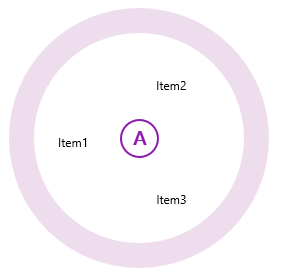
* Tap or click the Navigation Button to open the radial menu. Observe that the **RadialMenu** contains three **C1RadialMenuItems**.
Your top-level menu should resemble the following image:
## Create Submenus
1. Create a **RadialMenu**:
```xml
```
2. Place the following XAML between the **** and **** tags:
```xml
```
3. Run the program.
* Right tap or right-click the page to display the Navigation Button. Tap or click the Navigation Button to display the main **RadialMenu**.
* Tap or click the Tap Here item and observe that the submenu you created appears.
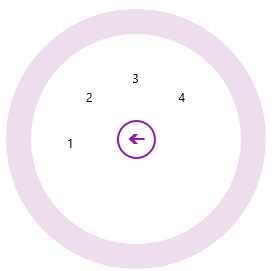
This is the **RadialMenu** control after you tap or click the Tap Here item: