# Style and Appearance
This topic provides info about style and appearance in Maps for WinForms.
## Content
The following sections explain in detail how to customize the Maps control's layout and appearance. You can use built-in layout options to lay your controls out in panels such as Grids or Canvases. Themes allow you to customize the appearance of the grid and take advantage of WPF's XAML-based styling.
### Maps Properties
The following table outlines the brush properties of the **Maps** control:
| **Brushes** | **Description** |
| ------- | ----------- |
| Background | Gets or sets the brush of the control’s background. |
| MouseOverBrush | Gets or sets the **System.Windows.Media.Brush** used to highlight the map buttons when the mouse is hovered over them. |
| PressedBrush | Gets or sets the **System.Windows.Media.Brush** used to highlight the buttons when they are clicked on. |
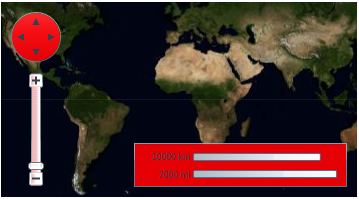
You can completely change the appearance of the [C1Maps](/componentone/api/wpf/online-maps5/dotnet-api/C1.WPF.Maps/C1.WPF.Maps.C1Maps.html) control by setting a few properties, such as the **Background** property, which sets the background color of the map’s tools.
### Maps Theming
Complete the following steps:
1. Open the **.xaml** page in Visual Studio.
2. Place your cursor between the *\\* tags.
3. In the **Tools** panel, double-click the **C1ThemeRainierOrange** icon to declare the theme. Its tags will appear as follows:
*\*
**
4. Place your cursor between the *\* and ** tags.
5. In the **Tools** panel, double-click the C1Maps icon to add the control to the project. Its tags will appear as children of the *\* tags, causing the markup to resemble the following:
```xml
```
6. Run your project.
**This Topic Illustrates the Following**:
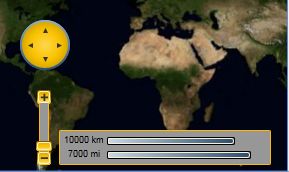
The following image depicts a Maps control with the **C1ThemeRainierOrange** theme.