# Custom Template

## Content


InputPanel provides the flexibility to create custom template to change the layout of the control according to user requirements. By creating a custom template, you can develop compact and visually-appealing forms that match your application. InputPanel provides **DataTemplate** to define a custom layout and change the way the control appears.

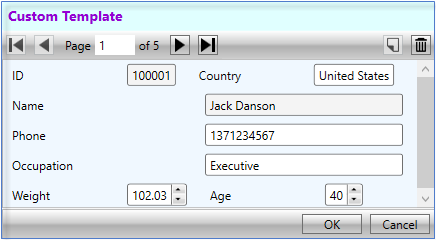
The following image shows a custom template applied to the InputPanel control.
![](https://cdn.mescius.io/document-site-files/images/004dc683-5d50-40fc-ab9e-000a523035d7/images/custom-template.png)

You can create a custom template using DataTemplate to change the layout of the control using the following steps. This example uses the sample created in [Quick start](/componentone/docs/wpf/online-inputpanel/QuickStart). In this example, a data template is created that contains a StackPanel comprising two StackPanels with horizontal orientation. These two inner StackPanels consists horizontally-aligned editors while the outer StackPanel consists vertically-aligned editors. InputPanel accesses this data template through the [ItemsSource](/componentone/api/wpf/online-inputpanel/dotnet-framework-api/C1.WPF.InputPanel.4.6.2/C1.WPF.InputPanel.C1InputPanel.ItemsSource.html) property.

The example also showcases the customization of InputPanel header template using the [HeaderTemplate](/componentone/api/wpf/online-inputpanel/dotnet-framework-api/C1.WPF.InputPanel.4.6.2/C1.WPF.InputPanel.C1InputPanel.HeaderTemplate.html) property of the [C1InputPanel](/componentone/api/wpf/online-inputpanel/dotnet-framework-api/C1.WPF.InputPanel.4.6.2/C1.WPF.InputPanel.C1InputPanel.html) class.


> type=note
> By default, all the editors in InputPanel are stacked vertically. To change the alignment of editors, set the [AutoGenerate](/componentone/api/wpf/online-inputpanel/dotnet-framework-api/C1.WPF.InputPanel.4.6.2/C1.WPF.InputPanel.C1InputPanel.AutoGenerate.html) property to **false**.

1.  Add the following code inside the <UserControl.Resources></UserControl.Resources> tags to create a custom data template with various editors stacked vertically and horizontally.
    
    ```xml
    <UserControl.Resources>
        <DataTemplate x:Key="Template">
            <StackPanel Background="AliceBlue">
                <StackPanel Orientation="Horizontal">
                    <c1:C1InputTextBox Header="ID" DataBinding="{Binding ID, Mode=OneWay}" 
                         IsReadOnly="True" LabelForeground="{Binding LabelForeground, 
                        ElementName=InPanel}">
                    </c1:C1InputTextBox>
                    <c1:C1InputTextBox Header="Country" DataBinding="{Binding Country, 
                        Mode=TwoWay, UpdateSourceTrigger=PropertyChanged}"
                        IsReadOnly="{Binding IsReadOnly, ElementName=InPanel}" 
                        LabelForeground="{Binding LabelForeground, ElementName=InPanel}">
                    </c1:C1InputTextBox>
                </StackPanel>
                <c1:C1InputTextBox Header="Name" DataBinding="{Binding Name, Mode=OneWay}" 
                        IsReadOnly="True" LabelForeground="{Binding LabelForeground, 
                    ElementName=InPanel}"></c1:C1InputTextBox>
                <c1:C1InputMaskedTextBox Header="Phone" DataBinding="{Binding Phone, Mode=TwoWay, 
                    UpdateSourceTrigger=PropertyChanged}" 
                    IsReadOnly="{Binding IsReadOnly, ElementName=InPanel}" 
                    LabelForeground="{Binding LabelForeground, ElementName=InPanel}">
                </c1:C1InputMaskedTextBox>
                <c1:C1InputTextBox Header="Occupation" DataBinding="{Binding Occupation, 
                    Mode=TwoWay, UpdateSourceTrigger=PropertyChanged}"
                    IsReadOnly="{Binding IsReadOnly, ElementName=InPanel}" 
                    LabelForeground="{Binding LabelForeground, ElementName=InPanel}">
                </c1:C1InputTextBox>
                <StackPanel Orientation="Horizontal">
                    <c1:C1InputNumericBox Header="Weight" DataBinding="{Binding Weight, 
                        Mode=TwoWay, UpdateSourceTrigger=PropertyChanged}"
                        IsReadOnly="{Binding IsReadOnly, ElementName=InPanel}" 
                        LabelForeground="{Binding LabelForeground, ElementName=InPanel}">
                    </c1:C1InputNumericBox>
                    <c1:C1InputNumericBox Header="Age" DataBinding="{Binding Age, Mode=TwoWay, 
                        UpdateSourceTrigger=PropertyChanged}" 
                        IsReadOnly="{Binding IsReadOnly, ElementName=InPanel}" 
                        LabelForeground="{Binding LabelForeground, ElementName=InPanel}">
                    </c1:C1InputNumericBox>
                </StackPanel>
            </StackPanel>
        </DataTemplate>
        <ItemsPanelTemplate x:Key="ItemsPanel">
            <StackPanel Orientation="Vertical" Margin="20"/>
        </ItemsPanelTemplate>
    </UserControl.Resources>
    ```
    
2.  Add the following code inside the \<Grid>\</Grid> tags to customize the InputPanel and header template.
    
    ```xml
    <Grid>
        <c1:C1InputPanel x:Name="InPanel" AutoGenerate="False"
                          ItemsTemplate="{StaticResource Template}"
                          ItemsPanelTemplate="{StaticResource ItemsPanel}"
                         HeaderBackground="LightCyan" HeaderFontWeight="Bold"
         Margin="20,40,150,286">
            <c1:C1InputPanel.HeaderTemplate>
                <DataTemplate>
                    <StackPanel>
                        <TextBlock Text="Custom Template" Margin="6" 
                                   Foreground="DarkViolet" />
                    </StackPanel>
                </DataTemplate>
            </c1:C1InputPanel.HeaderTemplate>
                    </c1:C1InputPanel>        
    </Grid>
    ```
    

## See Also

[Auto-generate Fields](/componentone/docs/wpf/online-inputpanel/Features/Autogenerate-Fields)

[Auto-commit Data](/componentone/docs/wpf/online-inputpanel/Features/Autocommit-Data)

[Data Validation](/componentone/docs/wpf/online-inputpanel/Features/DataValidation)