# Styling and Appearance
## Content
MultiSelect allows you to style the UI of the control along with the tags and other elements that helps you to change its overall appearance. For example, it lets you customize its background color, foreground color and font styles. Let us explore how to style the MultiSelect control, its tags and highlight text in the following sections.
## Apply Styles to MultiSelect
The following image shows styles applied to C1MultiSelect.
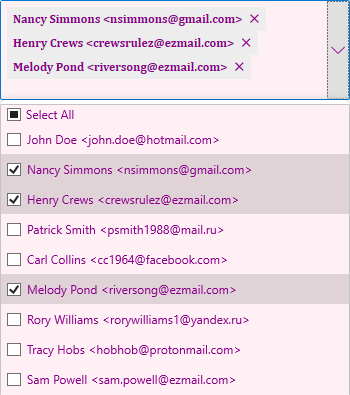
To apply style to MultiSelect using System.Windows.Style class, use the following code.
**xml**
```xml
```
**csharp**
```csharp
mselect.Background = new SolidColorBrush(Color.FromRgb(255, 240, 245));
mselect.Foreground = new SolidColorBrush(Color.FromRgb(139, 0, 139));
mselect.FontFamily = new FontFamily("Cambria");
mselect.FontSize = 12;
mselect.FontWeight= FontWeights.Bold;
```
## Apply Style to Tags
The following image shows background color applied to the tags in MultiSelect.
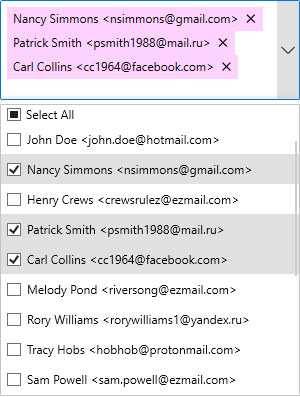
To change the background color of tags in MultiSelect, use the following code. Here, the tags styles in C1MultiSelect can be accessed via the [TagStyle](/componentone/api/wpf/online-input-net/dotnet-api/C1.WPF.Input/C1.WPF.Input.C1MultiSelect.TagStyle.html) property. Similarly, you can change the foreground color of the tags in MultiSelect.
**xml**
```xml
```
**csharp**
```csharp
Style tbs = new Style(typeof(C1Tag));
tbs.Setters.Add(new Setter(ItemsControl.BackgroundProperty, new SolidColorBrush(Color.FromRgb(254, 210, 255))));
mselect.TagStyle = tbs;
```
## Apply Styles to Highlighted Text
The following image shows styles applied to the highlighted text in MultiSelect that appears when the suggested text matches the text entered in the header.
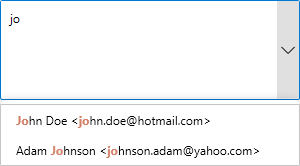
To customize the color and font weight of the highlighted text in MultiSelect, use the following code.
**xml**
```xml
```
**csharp**
```csharp
mselect.HighlightColor = new SolidColorBrush(Color.FromRgb(211, 127, 102));
mselect.HighlightFontWeight = FontWeights.Bold;
```