# Display Mode
## Content
MultiSelect allows you to choose the appearance of items in header between text or tags. In text mode, the text is displayed as strings separated by a separator character. On the other hand, in tag mode, the tags appear like labels separated by a space. You can choose how the items appear in the TagEditor element using [DisplayMode](/componentone/api/wpf/online-input-net/dotnet-api/C1.WPF.Input/C1.WPF.Input.C1MultiSelect.DisplayMode.html) property that accepts the values from [DisplayMode](/componentone/api/wpf/online-input-net/dotnet-api/C1.WPF.Input/C1.WPF.Input.DisplayMode.html) enumeration.
The following image shows the selected items displayed as text in the header.
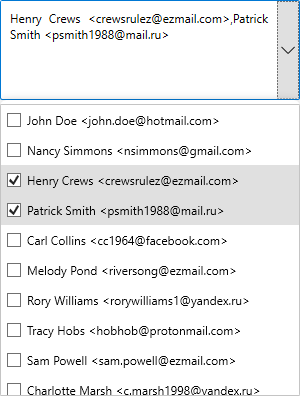
To display the selected items as text in the header, use the following code:
**xml**
```xml
```
**csharp**
```csharp
mselect.DisplayMode = DisplayMode.Text;
```
By default, the MultiSelect control uses comma (,) as separator character to separate the items in header. However, you can specify a separator character of your choice using [Separator](/componentone/api/wpf/online-input-net/dotnet-api/C1.WPF.Input/C1.WPF.Input.C1MultiSelect.Separator.html) property.
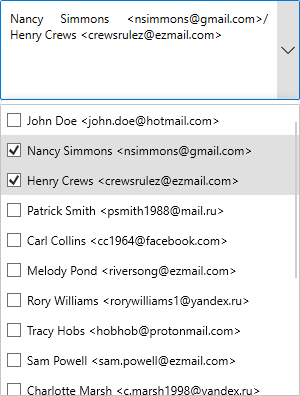
**xml**
```xml
```
**csharp**
```csharp
mselect.Separator = "/";
```