# Item Operations
## Content
MultiSelect allows you to add, remove, and access specific items with minimal code. It also lets you display or hide the check boxes and dropdown button appearing in the control. Learn how they can be implemented.
### Add an item
To add items to the MultiSelect control, use **Add** method of ItemCollection class as shown in the following code. For example, the following code adds a name “Patrick Smith” in dropdown list of the MultiSelect control with the email id:
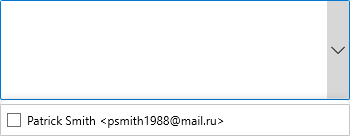
**xml**
```xml
```
**csharp**
```csharp
mselect.Items.Add("Patrick Smith ");
```
### Edit an item
By default, editing is enabled in the MultiSelect control. However, you can choose to allow or restrict a user to edit tags in the control header through [IsTagEditable](/componentone/api/wpf/online-input-net/dotnet-api/C1.WPF.Input/C1.WPF.Input.C1MultiSelect.IsTagEditable.html) property.
**xml**
```xml
```
**csharp**
```csharp
mselect.IsTagEditable = false;
```
### Remove an item
MultiSelect lets you delete an item from the list using **RemoveAt** method of ItemCollection class as shown in the following code. The method takes one argument, index, which specifies the item to remove. For example, the following code deletes sixth entry from the list.
```csharp
mselect.Items.RemoveAt(5);
```
To remove all the entries from the list, use **Clear** method as shown in the following code:
```csharp
mselect.Items.Clear();
```
### Show/Hide check boxes
By default, list of items in the MultiSelect control are displayed with check boxes. However, you can disable the default style by setting [ShowCheckBoxes](/componentone/api/wpf/online-input-net/dotnet-api/C1.WPF.Input/C1.WPF.Input.C1ComboBox.ShowCheckBoxes.html) property to **false**.
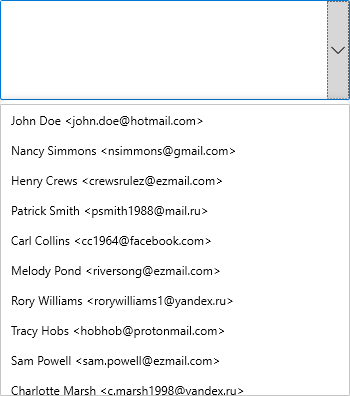
To hide the check boxes from the list, use the following code:
**xml**
```xml
```
**csharp**
```csharp
mselect.ShowCheckBoxes = false;
```
### Show/Hide dropdown button
MultiSelect displays the dropdown button to show the list of available items. However, you can hide the dropdown button in the control by setting [ShowDropDownButton](/componentone/api/wpf/online-input-net/dotnet-api/C1.WPF.Input/C1.WPF.Input.C1MultiSelect.ShowDropDownButton.html) property to **false**.

To hide the drop down button, use the following code:
**xml**
```xml
```
**csharp**
```csharp
mselect.ShowDropDownButton = false;
```