# Linear Gauge QuickStart
With Gauge controls for WinForms (GaugeControl) you can visualize your date in beautiful and meaningful ways. This API provides different gauges as Linear Gauge, Radial Gauge, BulletGraph Gauge to create simple and practical usecases.
## Content
The following quick start guide is intended to get you up and running with **Linear Gauges for WPF**. You will begin in Visual Studio, create a new project, add a Linear Gauge to your application, and add the gauge value.
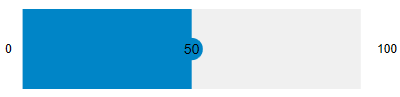
The following image depicts a Linear Gauge that displays the value property set at 50.
### Set up the Application
To set up your project and add the Linear Gauge control to your application, complete the following steps:
1. Create a new **WPF Application** project in **Visual Studio**.
2. Right-click your project in the Solution Explorer and select **Manage Nuget Packages** option.
3. Install the latest version of [C1.WPF.Gauge](/componentone/api/wpf/online-gauges-net/dotnet-api/C1.WPF.Gauge/Assembly) package.
4. The C1.WPF.Gauge package installs the following DLLs:
* C1.WPF.Gauge
* C1.WPF.Core
* C1.WPF.DX
* C1.WPF.Rendering
5. Add the Control. Navigate to the Toolbox and drag and drop the Linear Gauge control on the XAML designer. When the Linear Gauge control is dropped on the form, it displays a default pointer value of 25.
### Set Gauge Value
1. Set the [Value](/componentone/api/wpf/online-gauges-net/dotnet-api/C1.WPF.Gauge/C1.WPF.Gauge.C1Gauge.Value.html) property of Linear Gauge to 50.
**xml**
```xml
```
**csharp**
```csharp
linearGauge.Value = 50;
```
For more information about Value, see [Values](/componentone/docs/wpf/online-gauges-net/value-gauge).
2. Display the values on the Linear Gauge control as text. For this purpose, set the [TextVisibility](/componentone/api/wpf/online-gauges-net/dotnet-api/C1.WPF.Gauge/C1.WPF.Gauge.C1Gauge.TextVisibility.html) property.
**xml**
```xml
```
**csharp**
```csharp
linearGauge.TextVisibility = C1.WPF.Gauge.GaugeTextVisibility.All;
```
For more information about Text Visibility, see [Face and Cover](/componentone/docs/wpf/online-gauges-net/face-and-cover).
### Run Application
Build and run to view the final Linear Gauge application.