# Direction
With Gauge controls for WinForms (GaugeControl) you can visualize your date in beautiful and meaningful ways. This API provides different gauges as Linear Gauge, Radial Gauge, BulletGraph Gauge to create simple and practical usecases.
## Content
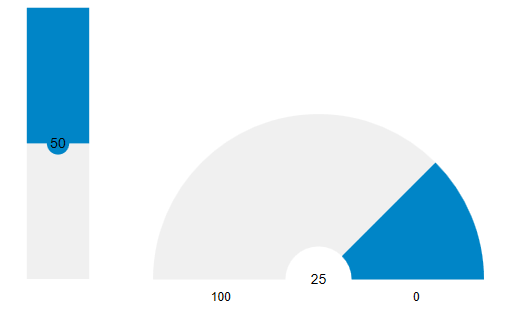
The **Direction** property allows you to change the orientation of the Linear Gauge as well as the direction in which the pointer moves. For example, setting the [Direction](/componentone/api/wpf/online-gauges-net/dotnet-api/C1.WPF.Gauge/C1.WPF.Gauge.C1LinearGauge.Direction.html) property to Down changes the gauge orientation from horizontal to vertical and the pointer starts from the top of the gauge and moves towards the bottom. For Radial Gauge, you can reverse the current direction by using the [IsReversed](/componentone/api/wpf/online-gauges-net/dotnet-api/C1.WPF.Gauge/C1.WPF.Gauge.C1RadialGauge.IsReversed.html) property.
The following image shows how the LinearGauge and Radial Gauge appears after the direction has been changed.
The following code example demonstrates how to set this property in XAML for Linear Gauge. It uses the sample created in QuickStart.
```xml
```
The following code example demonstrates how to set this property in XAML for Radial Gauge.
```xml
```