# Task Summary
## Content
A summary task represents the summary of tasks indented below it, which are called subtasks or child tasks. You can create summary tasks in GanttView to better organize tasks into phases and depict a clear outline of the project plan. By default, a project summary task is always automatically scheduled since its duration depends on the duration of its subtasks. This means the duration of a project summary task gets automatically adjusted on the basis of the earliest start date and the latest finish date of the underlying subtasks.
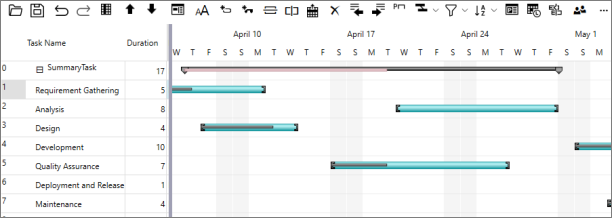
By default, a summary task is hidden from the GanttChart. However, you can show the project summary task by clicking the **Show Project Summary** button from the [Toolbar](/componentone/docs/wpf/online-ganttview/GanttView-Toolbar). The following image shows a project summary task in GanttView.
### Create Summary Task
To create a summary task, you can use [ProjectSummary](/componentone/api/wpf/online-ganttview/dotnet-api/C1.WPF.GanttView/C1.WPF.GanttView.C1GanttView.ProjectSummary.html) property of the [C1GanttView](/componentone/api/wpf/online-ganttview/dotnet-api/C1.WPF.GanttView/Assembly) class. Additionally, you can customize the summary task using Mode, Duration, Start, and Finish properties of the Task class.
The following code demonstrates how to create and add a summary task in GanttView. This code creates an empty summary task to which you need to add sub-tasks using the code provided in the [Add-Sub Tasks](/componentone/docs/wpf/online-ganttview/Task-Management-Features/task-summary#add-sub-tasks) section.
```csharp
//create a task using Task class
Task summaryTask = new Task();
summaryTask.Mode = TaskMode.Automatic;
summaryTask.Name = "SummaryTask";
summaryTask.ID = 1;
//assign the task to ProjectSummary to create summary task
this.ganttView.ProjectSummary = summaryTask;
//add summary task to GanttView
ganttView.Tasks.Add(summaryTask);
```
### Add Sub-Tasks
A summary task can have many sub-tasks which gets displayed on expanding the summary task. To add a child to a summary task, you can use [OutlineParentID](/componentone/api/wpf/online-ganttview/dotnet-api/C1.WPF.GanttView/C1.GanttView.Task.OutlineParentID.html) property of the [Task](/componentone/api/wpf/online-ganttview/dotnet-api/C1.WPF.GanttView/C1.GanttView.Task.html) class. Please note that a summary task must contain at least one sub-task. Also, when a sub-task changes its property values, its parent and ancestor task’s properties gets updated like the following:
* StartDate - It refers to the earliest start date of all its sub-tasks.
* FinishDate - It refers to the finish date of all its sub-tasks.
* PercentComplete - It refers to the total of finish time divided by total durations of its sub-tasks.
Use the following code snippet to add sub-tasks to the summary task in GanttView. This code adds a child task to the summary task created in [Create Summary Task](/componentone/docs/wpf/online-ganttview/Task-Management-Features/task-summary#create-summary-task) section. Here, first we check if a summary task exists in GanttView. Then, we create a task, specify its parent ID by setting the **OutlineParentID** property, and add it to the GanttView.
```csharp
//Adding child tasks to summary task
if (ganttView.Tasks.IndexOf("SummaryTask") < 0)
{
MessageBox.Show("Invalid action...Please create summary task first", "Error", MessageBoxButton.OK, MessageBoxImage.Error);
}
else
{
Task subTask1 = new Task();
subTask1.Mode = TaskMode.Manual;
subTask1.Name = "NormalTask1";
// Set Parent task's ID
subTask1.OutlineParentID = 1;
subTask1.Start = new DateTime(2022, 4, 7);
subTask1.Duration = 5;
subTask1.PercentComplete = 0.2;
ganttView.Tasks.Add(subTask1);
}
```
### Move Summary Task
You can move a task summary up or down at runtime by clicking the **Move Task Up** or **Move Task Down** buttons. Moving a summary task moves all its children along with it. Also, note that when a task is moved next to a summary task, it gets adopted as a new child by that task.
### Indent and Outdent Summary Task
You can change the outline structure of summary tasks by using **Indent Task** and **Outdent Task** buttons on the toolbar. If the indented or outdented task is a summary task, all its children gets structured along with the summary task.
### Indent Task
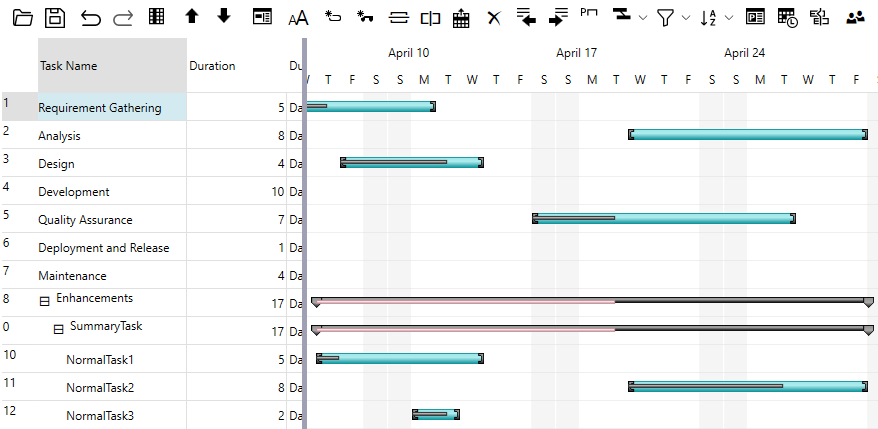
The indented task gets adopted by the upper nearest task that has the same outline level with it. If the parent task is regular task, then it becomes a summary task after indenting the selected task. For instance, in the following image the indented summary task gets adopted by the upper task.
### Outdent Task
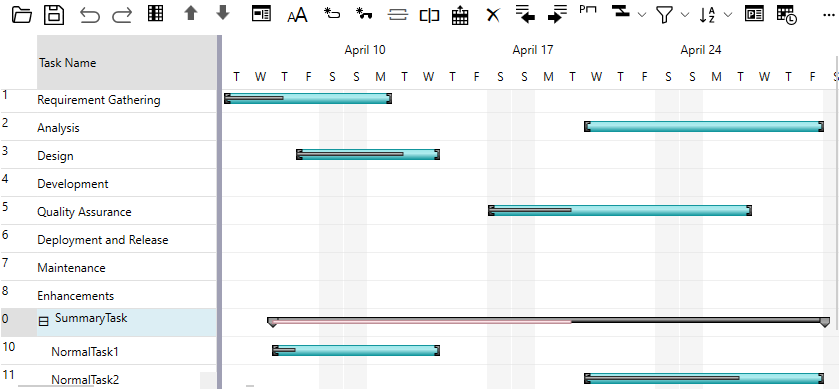
The outdented task gets adopted as a new child of its grandparent. If it is the last child of its parent before outdent, after that, the old parent becomes a regular task. For instance, in the following image the old parent, the "Enhancements" task, becomes a regular task.
### Show Markers in Project Summary Task Bar
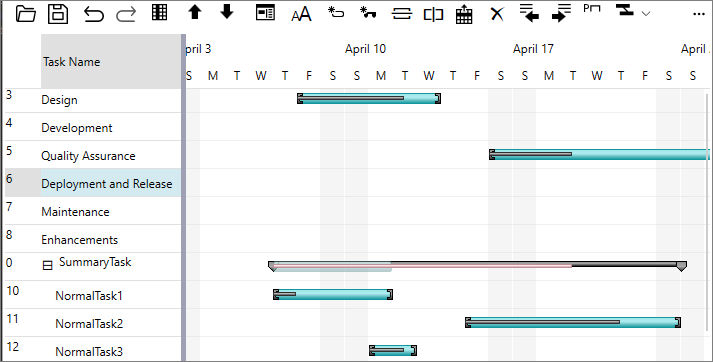
You can represent multiple tasks on the **Project Summary Task** bar through markers or outlines. To do so, you can set [ReflectOnSummary](/componentone/api/wpf/online-ganttview/dotnet-api/C1.WPF.GanttView/C1.GanttView.Task.ReflectOnSummary.html) property of the **Task** class to **true** for the sub-tasks that you want to display on the Project Summary Task bar.
The following image shows markers for sub-tasks on the summary task bar in the GantView control.
Use the following code snippet to show markers in project summary task bar. Here, we display markers for the sub-task created in the [Add Sub-Tasks](/componentone/docs/wpf/online-ganttview/Task-Management-Features/task-summary#add-sub-tasks) section.
```csharp
ganttView.Tasks[ganttView.Tasks.IndexOf("NormalTask1")].ReflectOnSummary = true;
```
Alternatively, you can also select the **ReflectOnSummary** bar option for the tasks at design time from the [Task Information](/componentone/docs/wpf/online-ganttview/dialogboxes/Task-Information-Dialog) dialog box.
### Delete Summary Task
To delete a summary task, you can use **RemoveAt** method and specify the index of the task to be deleted as its parameter. Please note that when you delete a summary task, its children also get deleted. Moreover, if the deleted task is the last child of a summary task, that summary becomes a regular task.
You can use the following code to delete the summary task in GanttView.
```csharp
TaskCollection tasks = ganttView.Tasks;
// find SummaryTask
int index = tasks.IndexOf("SummaryTask");
if (index >= 0)
{
// delete and dispose the new task
Task task = tasks[index];
tasks.RemoveAt(index);
task.Dispose();
}
```