# Quick Start

## Content


This quick start is intended to familiarize you with the GanttView control. You begin by creating a WPF application in Visual Studio, adding GanttView control to the MainWindow, and then adding tasks to GanttView in unbound mode.
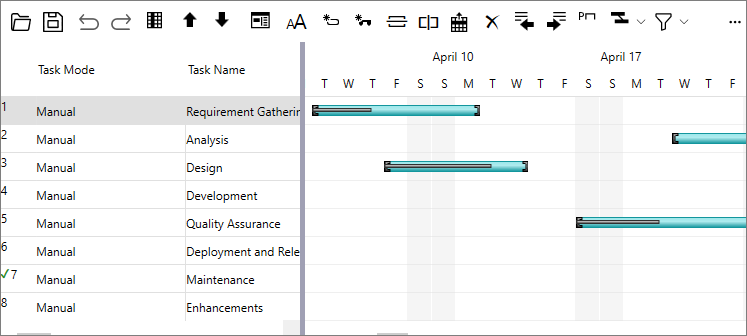
![GanttView Control](https://cdn.mescius.io/document-site-files/images/14a478dc-2b0f-437a-969b-b17e430e375e/images/quickstart.png)

Complete the steps given below to see how the GanttView control appears on running the application.

### Set up the Application

1.  Create a new **WPF Application** (.NET or .NET Framework) and set the project framework to **.NET 8.0** for .NET application and **.NET 4.6.2** for .NET Framework application.
2.  Add reference to the GanttView assembly in your application by installing **C1.WPF.GanttView** NuGet package ( for .NET app) or adding **C1.WPF.GanttView** dll (for .NET Framework app).
3.  Drag and drop the C1GanttView control to the MainWindow.
4.  Edit the XAML code to include relevant namespaces and set the following properties of the GanttView control. The following code displays 14 columns in GanttView by setting their [Visible](/componentone/api/wpf/online-ganttview/dotnet-api/C1.WPF.GanttView/C1.GanttView.BaseColumn.Visible.html) property to **True**.
    
    ```xml
    <Window x:Class="GanttView.MainWindow"
            xmlns="http://schemas.microsoft.com/winfx/2006/xaml/presentation"
            xmlns:x="http://schemas.microsoft.com/winfx/2006/xaml"
            xmlns:d="http://schemas.microsoft.com/expression/blend/2008"
            xmlns:mc="http://schemas.openxmlformats.org/markup-compatibility/2006"
            xmlns:c1="http://schemas.componentone.com/winfx/2006/xaml"
            xmlns:GanttView="clr-namespace:C1.GanttView;assembly=C1.WPF.GanttView"
            xmlns:local="clr-namespace:GanttView"                    
            mc:Ignorable="d"
            Title="MainWindow" Height="450" Width="800">
        <Grid>
            <c1:C1GanttView x:Name="gv" >
                <c1:C1GanttView.Columns>
                    <GanttView:TaskPropertyColumn ID="682738157" Property="Mode"/>
                    <GanttView:TaskPropertyColumn ID="200464275" Property="Name"/>
                    <GanttView:TaskPropertyColumn ID="1932261525" Property="Duration" Visible="True"/>
                    <GanttView:TaskPropertyColumn ID="2041428170" Property="DurationUnits" Visible="True"/>
                    <GanttView:TaskPropertyColumn ID="877817002" Property="Start" Visible="True"/>
                    <GanttView:TaskPropertyColumn ID="1833319410" Property="Finish" Visible="True"/>
                    <GanttView:TaskPropertyColumn ID="204763723" Property="PercentComplete" Visible="True"/>
                    <GanttView:TaskPropertyColumn ID="2112691121" Property="ConstraintType" Visible="True"/>
                    <GanttView:TaskPropertyColumn ID="1026682979" Property="ConstraintDate" Visible="True"/>
                    <GanttView:TaskPropertyColumn ID="46763901" Property="Predecessors" Visible="True"/>
                    <GanttView:TaskPropertyColumn ID="1809421465" Property="Deadline" Visible="True"/>
                    <GanttView:TaskPropertyColumn ID="1041667598" Property="Calendar" Visible="True"/>
                    <GanttView:TaskPropertyColumn ID="223524084" Property="ResourceNames" Visible="True"/>
                    <GanttView:TaskPropertyColumn ID="2142090402" Property="Notes" Visible="True"/>
                </c1:C1GanttView.Columns>
            </c1:C1GanttView>
        </Grid>
    </Window>
    ```
    

### Configure Tasks

In this example, the tasks are configured and added to the GanttView control in an unbound mode. For this, tasks can be defined and added to the Tasks collection of GanttView using Add method of the <span data-popup-content="This class is available in \u003ca href=\u0022/componentone/api/wpf/online-ganttview/dotnet-api/C1.WPF.GanttView/C1.GanttView.TaskCollection.html\u0022\u003e.NET\u003c/a\u003e and \u003ca href=\u0022/componentone/api/wpf/online-ganttview/dotnet-api/C1.WPF.GanttView/C1.GanttView.TaskCollection.html\u0022\u003e.NET Framework\u003c/a\u003e." data-popup-title="TaskCollection" data-popup-theme="ui-tooltip-green qtip-green">TaskCollection</span> class.

1.  Add the following import statements.
    *   **using C1.GanttView**
    *   **using C1.WPF.GanttView**
2.  Switch to the MainWindow.xaml.cs and add the following code to subscribe the Loaded event of the <span data-popup-content="This class is available in \u003ca href=\u0022/componentone/api/wpf/online-ganttview/dotnet-api/C1.WPF.GanttView/C1.WPF.GanttView.C1GanttView.html\u0022\u003e.NET\u003c/a\u003e and \u003ca href=\u0022/componentone/api/wpf/online-ganttview/dotnet-api/C1.WPF.GanttView/C1.WPF.GanttView.C1GanttView.html\u0022\u003e.NET Framework\u003c/a\u003e." data-popup-title="C1GanttView" data-popup-theme="ui-tooltip-green qtip-green">C1GanttView</span> class.
    
    ```csharp
    gv.Loaded += Gv_Loaded;
    ```
    
3.  Add the following code in the Loaded event to configure and add tasks to the GanttView control. For configuring the tasks, create tasks and set some required properties, such as [Name](/componentone/api/wpf/online-ganttview/dotnet-api/C1.WPF.GanttView/C1.WPF.GanttView.C1GanttView.Tasks.html), <span data-popup-content="This property is available in \u003ca href=\u0022/componentone/api/wpf/online-ganttview/dotnet-api/C1.WPF.GanttView/C1.GanttView.Task.Start.html\u0022\u003e.NET\u003c/a\u003e and \u003ca href=\u0022/componentone/api/wpf/online-ganttview/dotnet-api/C1.WPF.GanttView/C1.GanttView.Task.Start.html\u0022\u003e.NET Framework\u003c/a\u003e." data-popup-title="Start" data-popup-theme="ui-tooltip-green qtip-green">Start</span>, [PercentComplete](/componentone/api/wpf/online-ganttview/dotnet-api/C1.WPF.GanttView/C1.WPF.GanttView.C1GanttView.Project.html), and <span data-popup-content="This property is available in \u003ca href=\u0022/componentone/api/wpf/online-ganttview/dotnet-api/C1.WPF.GanttView/C1.GanttView.Task.Duration.html\u0022\u003e.NET\u003c/a\u003e and \u003ca href=\u0022/componentone/api/wpf/online-ganttview/dotnet-api/C1.WPF.GanttView/C1.GanttView.Task.Duration.html\u0022\u003e.NET Framework\u003c/a\u003e." data-popup-title="Duration" data-popup-theme="ui-tooltip-green qtip-green">Duration</span>. In this example, we created eight tasks and added them to GanttView using **Add** method of the TaskCollection class.
    
    ```csharp
    private void Gv_Loaded(object sender, RoutedEventArgs e)
    {
        //Configure tasks
        Task t = new Task();         
        t.Name = "Requirement Gathering";
        t.Start = new DateTime(2022, 4, 5);
        t.Duration = 5;
        t.PercentComplete = 0.5;
        Task t1 = new Task();
        t1.Name = "Analysis";
        t1.Start = new DateTime(2022, 4, 20);
        t1.Duration = 8;
        t1.PercentComplete = 0;
        t1.Deadline = new DateTime(2022, 4, 22);
        Task t2 = new Task();
        t2.Name = "Design";
        t2.Start = new DateTime(2022, 4, 8);
        t2.Duration = 4;
        t2.PercentComplete = 0.6;
        Task t3 = new Task();
        t3.Name = "Development";
        t3.Start = new DateTime(2022, 5, 1);
        t3.Duration = 10;
        t3.PercentComplete = 0.2;
        Task t4 = new Task();
        t4.Name = "Quality Assurance";
        t4.Start = new DateTime(2022, 4, 16);
        t4.Duration = 7;
        t4.PercentComplete = 0.2;
        Task t5 = new Task();
        t5.Name = "Deployment and Release";
        t5.Start = new DateTime(2022, 3, 29);
        t5.Duration = 1;
        t5.PercentComplete = 0.5;
        Task t6 = new Task();
        t6.Name = "Maintenance";
        t6.Start = new DateTime(2022, 5, 3);
        t6.Duration = 4;
        t6.PercentComplete = 1;
        Task t7 = new Task();
        t7.Name = "Enhancements";
        t7.Start = new DateTime(2022, 5, 11);
        t7.Duration = 2;
        t7.PercentComplete = 0.8;
        //Add the tasks to the GanttView
        gv.Tasks.Add(t);
        gv.Tasks.Add(t1);
        gv.Tasks.Add(t2);
        gv.Tasks.Add(t3);
        gv.Tasks.Add(t4);
        gv.Tasks.Add(t5);
        gv.Tasks.Add(t6);
        gv.Tasks.Add(t7);
    }
    ```
    

Press **F5** to run the application and observe how task attributes get displayed in the control.