# Filter
## Content
GanttView supports filtering to help users view specific tasks or resources at runtime. It lets you apply filters to view complete tasks, incomplete tasks, milestones, tasks within a specified time period, and much more.
GanttView provides various classes such as [IncompleteTasksFilter](/componentone/api/wpf/online-ganttview/dotnet-api/C1.WPF.GanttView/C1.GanttView.IncompleteTasksFilter.html), [CompletedTasksFilter](/componentone/api/wpf/online-ganttview/dotnet-api/C1.WPF.GanttView/C1.GanttView.CompletedTasksFilter.html), [MilestoneTasksFilter](/componentone/api/wpf/online-ganttview/dotnet-api/C1.WPF.GanttView/C1.GanttView.MilestoneTasksFilter.html), [SummaryTasksFilter](/componentone/api/wpf/online-ganttview/dotnet-api/C1.WPF.GanttView/C1.GanttView.SummaryTasksFilter.html), etc., to apply filtering based on different criteria. For instance, you can use **IncompleteTasksFilter** class to filter out all the incomplete tasks from a project's schedule as demonstrated in the following code.
```csharp
IncompleteTasksFilter filter = new IncompleteTasksFilter();
gv.ApplyFilter(filter);
```
Alternatively, you can apply filtering at runtime using the **Filter** button on the [Toolbar](/componentone/docs/wpf/online-ganttview/GanttView-QuickStart). The Filter button opens the Filter menu which provides various filtering options to suit your requirements.
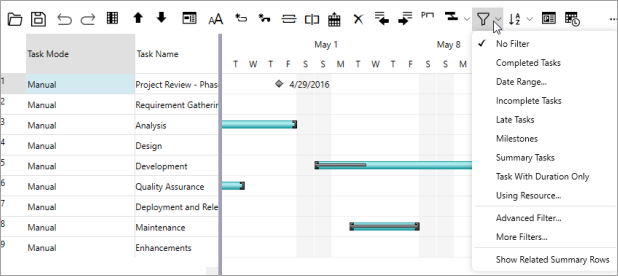
The following table describes the options provided by the filter menu:
| **Filtering Options** | **Description** |
| --- | --- |
| No Filter | Removes any existing filter. |
| Completed Tasks | Filters and displays completed tasks. |
| Date Range | Filters and displays tasks within a specified time period. |
| Incomplete Tasks | Filters and displays incomplete tasks. |
| Late Tasks | Filters and displays late tasks. |
| Milestones | Filters and displays milestones in your project schedule. |
| Tasks with Duration Only | Filters and displays tasks with duration only. |
| Using Resources | Filters tasks assigned to a particular resource. |
| Advanced Filter | Creates and applies custom filters through Advanced dialog. |
| More Filters | Creates new custom filters. |
### Custom Filter
Besides the default filtering options, the GanttView control also enables you to create custom filters to suit your business needs. It provides classes such as ConditionTaskFilter and AdvancedFilter which can be used to filter tasks based on various conditions.
For instance, you may want to filter tasks scheduled within a specific date range as demonstrated in the following code. Here, we used [FilterField](/componentone/api/wpf/online-ganttview/dotnet-api/C1.WPF.GanttView/C1.GanttView.ConditionTaskFilter.FilterField.html), [TestOperator](/componentone/api/wpf/online-ganttview/dotnet-api/C1.WPF.GanttView/C1.GanttView.ConditionTaskFilter.TestOperator.html), and [FilterValue](/componentone/api/wpf/online-ganttview/dotnet-api/C1.WPF.GanttView/C1.GanttView.ConditionTaskFilter.FilterValue.html) properties of the **ConditionTaskFilter** to set the condition for filtering the tasks greater than the specified date. This example uses the sample created in [Quick Start](/componentone/docs/wpf/online-ganttview/GanttView-QuickStart).
```csharp
AdvancedFilter filter = new AdvancedFilter();
// Filter the tasks starting after March 15th, 2022...
ConditionTaskFilter startCondition = new ConditionTaskFilter();
startCondition.FilterField = FilterField.Start;
startCondition.TestOperator = TestOperators.IsGreaterThan;
startCondition.FilterValue = new DateTime(2022, 3, 15);
filter.Conditions.Add(startCondition);
// Filter tasks finishing before April 15th, 2022...
ConditionTaskFilter finishCondition = new ConditionTaskFilter();
finishCondition.FilterField = FilterField.Finish;
finishCondition.TestOperator = TestOperators.IsLessThan;
finishCondition.FilterValue = new DateTime(2022, 4, 15);
filter.Conditions.Add(finishCondition);
gv.ApplyFilter(filter);
```
Alternatively, you can also use **Advanced Filter** dialog to apply advanced filtering in GanttView. For more information, see [Advanced filter dialog](/componentone/docs/wpf/online-ganttview/dialogboxes/Advanced-Filter-Dialog).