# Data Binding
## Content
Data binding refers to the process of binding a data provider to a data consumer in a synchronized manner. You can bind GanttView control to different .NET data sources such as DataTable, DataView and DataSet.
The following image showcases the GanttView control bound to a data source.
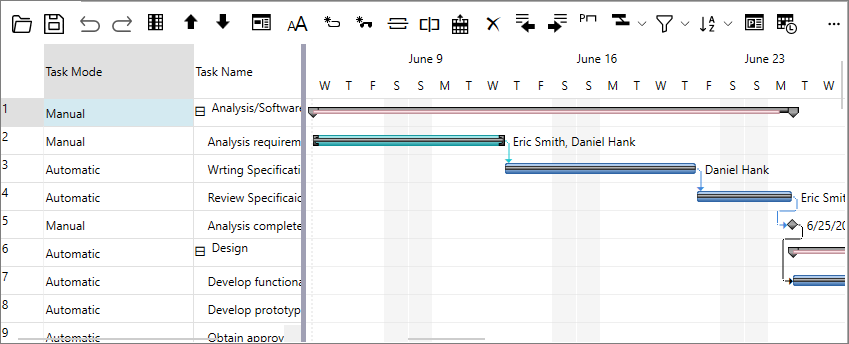
The following topic explains step-by-step procedure for binding the GanttView control to a data source. This example uses a sample database file, **Nwind.mdb**, as the data source for binding.
### Binding to a Data Source
1. Click **View** option from the toolbar. From the **View** drop-down menu, select **Other Windows** | **Data Sources** to add a data source to your project.
2. In **Data Sources** window, click **Add New Data Source** option to open the **Data Configuration Wizard** window.
3. In the **Data Configuration Wizard** window, select **Database** as the **Data Source Type** and click **Next**.
4. Select **Dataset** as the **Database Model** and click **Next**.
5. Click **New Connection** to connect to a database file. The **Add Connection** dialog appears.
6. In the **Add Connection** dialog, browse to the database file with which you want to set the connection.
> type=note
> The **Nwind.mdb** database file is by default kept in the installed folder at the following location on your system.
>
> **Documents\\ComponentOne Samples\\Common\\Nwind.mdb**
7. Click **Test Connection** to test that the connection is successful and click **OK**.
8. Click **Next** and then **OK** to copy the database file in your project.
9. In the **Tables** drop-down list, select **Calendars**, **Properties**, **Resources** and **Tasks** tables as the object models and click **Finish**.
### Storing and Retrieving Data
Complete the following steps to store data in your dataset and retrieve the same to display various project related attributes in GanttView.
1. Add the following import statements.
```csharp
using C1.GanttView;
using DataBinding.C1NWindDataSetTableAdapters;
```
2. Create the objects of the NwindDataSet and data adapters for Calendars, Properties, Resources and Tasks tables.
```csharp
private C1NWindDataSet c1NwindDataSet1 = new C1NWindDataSet();
private TasksTableAdapter tasksTableAdapter = new TasksTableAdapter();
private CalendarsTableAdapter calendarsTableAdapter = new CalendarsTableAdapter();
private ResourcesTableAdapter resourcesTableAdapter = new ResourcesTableAdapter();
private PropertiesTableAdapter propertiesTableAdapter = new PropertiesTableAdapter();
```
3. Fill the tables using the data adapters and set different storage mappings for C1GanttViewStorage using the given code.
```csharp
this.tasksTableAdapter.Fill(c1NwindDataSet1.Tasks);
this.resourcesTableAdapter.Fill(c1NwindDataSet1.Resources);
this.propertiesTableAdapter.Fill(c1NwindDataSet1.Properties);
this.calendarsTableAdapter.Fill(c1NwindDataSet1.Calendars);
```
4. Subscribe to the Loaded event of the C1GanttView class.
```csharp
gv.Loaded+=gv_Loaded;
```
5. Add the following code to set different storage mappings for **C1GanttViewStorage** class in the Loaded event.
```csharp
private void gv_Loaded(object sender, RoutedEventArgs e)
{
C1GanttViewStorage storage = gv.DataStorage;
storage.CalendarStorage.Mappings.CalendarID.MappingName = "CalendarID";
storage.CalendarStorage.Mappings.CalendarID.MappingName = "CalendarID";
storage.CalendarStorage.Mappings.Data.MappingName = "Data";
storage.CalendarStorage.Mappings.IdMapping.MappingName = "Id";
storage.CalendarStorage.Mappings.Name.MappingName = "Name";
storage.CalendarStorage.DataMember = "Calendars";
storage.CalendarStorage.DataSource = this.c1NwindDataSet1;
storage.PropertyStorage.Key.MappingName = "Key";
storage.PropertyStorage.Value.MappingName = "Value";
storage.PropertyStorage.DataMember = "Properties";
storage.PropertyStorage.DataSource = this.c1NwindDataSet1;
storage.ResourceStorage.Mappings.Cost.MappingName = "Cost";
storage.ResourceStorage.Mappings.IdMapping.MappingName = "Id";
storage.ResourceStorage.Mappings.Name.MappingName = "Name";
storage.ResourceStorage.Mappings.Notes.MappingName = "Notes";
storage.ResourceStorage.Mappings.ResourceID.MappingName = "ResourceID";
storage.ResourceStorage.Mappings.ResourceType.MappingName = "ResourceType";
storage.ResourceStorage.Mappings.UnitOfMeasure.MappingName = "UnitOfMeasure";
storage.ResourceStorage.DataMember = "Resources";
storage.ResourceStorage.DataSource = this.c1NwindDataSet1;
storage.TasksStorage.Mappings.CalendarID.MappingName = "CalendarID";
storage.TasksStorage.Mappings.ConstraintDate.MappingName = "ConstraintDate";
storage.TasksStorage.Mappings.ConstraintType.MappingName = "ConstraintType";
storage.TasksStorage.Mappings.CustomFields.MappingName = "CustomFields";
storage.TasksStorage.Mappings.Deadline.MappingName = "Deadline";
storage.TasksStorage.Mappings.Duration.MappingName = "Duration";
storage.TasksStorage.Mappings.DurationUnits.MappingName = "DurationUnits";
storage.TasksStorage.Mappings.Finish.MappingName = "Finish";
storage.TasksStorage.Mappings.HideBar.MappingName = "HideBar";
storage.TasksStorage.Mappings.IdMapping.MappingName = "Id";
storage.TasksStorage.Mappings.Initialized.MappingName = "Initialized";
storage.TasksStorage.Mappings.Mode.MappingName = "Mode";
storage.TasksStorage.Mappings.Name.MappingName = "Name";
storage.TasksStorage.Mappings.NextID.MappingName = "NextID";
storage.TasksStorage.Mappings.Notes.MappingName = "Notes";
storage.TasksStorage.Mappings.Parts.MappingName = "Parts";
storage.TasksStorage.Mappings.PercentComplete.MappingName = "PercentComplete";
storage.TasksStorage.Mappings.Predecessors.MappingName = "Predecessors";
storage.TasksStorage.Mappings.Resources.MappingName = "Resources";
storage.TasksStorage.Mappings.Start.MappingName = "Start";
storage.TasksStorage.Mappings.TaskID.MappingName = "TaskID";
storage.TasksStorage.DataMember = "Tasks";
storage.TasksStorage.DataSource = this.c1NwindDataSet1;
}
```
6. Create a method with the name **SaveData** to save the changes since the last save back to the database. The different data adapters present in the SaveData method use the **Update** method to update the changes in the database, as shown in the given code:
```csharp
private void SaveData()
{
try
{
this.c1NwindDataSet1.HasChanges();
this.tasksTableAdapter.Update(this.c1NwindDataSet1.Tasks);
this.resourcesTableAdapter.Update(this.c1NwindDataSet1.Resources);
this.propertiesTableAdapter.Update(this.c1NwindDataSet1.Properties);
this.calendarsTableAdapter.Update(this.c1NwindDataSet1.Calendars);
this.c1NwindDataSet1.AcceptChanges();
}
catch (Exception ex)
{
MessageBox.Show(ex.ToString());
}
}
```
7. Invoke the **SaveData** method in the **Window\_Closing** event for saving the changes in the database, as shown in the given code:
```csharp
private void Window_Closing(object sender, System.ComponentModel.CancelEventArgs e)
{
SaveData();
}
```
Run the application and notice that the GanttView gets bound to the tables in the NwindDataSet.
## See Also
[Key Features](/componentone/docs/wpf/online-ganttview/Key-Features)