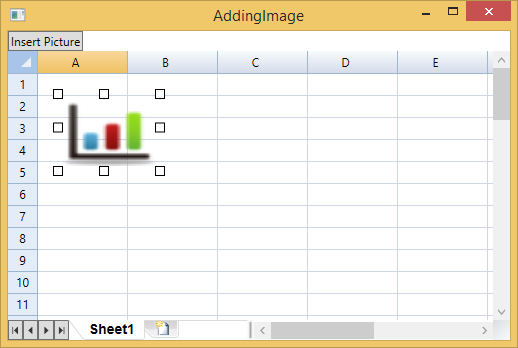
# Inserting Images
## Content
Images can be easily inserted and formatted in [C1FlexSheet](/componentone/api/wpf/online-flexsheet/dotnet-framework-api/C1.WPF.FlexSheet.4.6.2/C1.WPF.FlexGrid.C1FlexSheet.html). Follow the given steps in XAML to add a sheet and insert images in it:
1. Copy the following code inside **Grid** tag to add [C1FlexSheet](/componentone/api/wpf/online-flexsheet/dotnet-framework-api/C1.WPF.FlexSheet.4.6.2/C1.WPF.FlexGrid.C1FlexSheet.html) control and a button control:
```xml
```
2\. Right\-click Design view and select **View Code** from the context menu.
3\. Insert the following code directly below the **InitializeComponent()** method to add a sheet:
```vbnet
`adding Sheet
flex.AddSheet("Sheet1", 50, 10)
```
```csharp
//adding Sheet
flex.AddSheet("Sheet1", 50, 10);
```
4\. Go back to the Design view and select **Event handlers** of **btnInsertPicture** from the **Properties** windows.
5\. Double\-click the **btnInsertPicture\_Click** event handler.
The Code view will open again.
6\. Add the following code to the **btnInsertPicture\_Click** event handler to insert an image on button click:
```vbnet
Dim dlg = New Microsoft.Win32.OpenFileDialog()
dlg.Filter = "Image files (*.png;*.jpeg;*.jpg;*.bmp)|*.png;*.jpeg;*.jpg;*.bmp|All files (*.*)|*.*"
If dlg.ShowDialog().Value Then
Try
Dim b As New BitmapImage()
b.BeginInit()
b.UriSource = New Uri(dlg.FileName)
b.EndInit()
flex.InsertImage(b)
Catch x As Exception
Dim msg = "Error opening file: " & vbCr & vbLf & vbCr & vbLf + x.Message
MessageBox.Show(msg, "Error", MessageBoxButton.OK)
End Try
End If
```
```csharp
var dlg = new Microsoft.Win32.OpenFileDialog();
dlg.Filter = "Image files (*.png;*.jpeg;*.jpg;*.bmp)|*.png;*.jpeg;*.jpg;*.bmp|All files (*.*)|*.*";
if (dlg.ShowDialog().Value)
{
try
{
BitmapImage b = new BitmapImage();
b.BeginInit();
b.UriSource = new Uri(dlg.FileName);
b.EndInit();
flex.InsertImage(b);
}
catch (Exception x)
{
var msg = "Error opening file: \r\n\r\n" + x.Message;
MessageBox.Show(msg, "Error", MessageBoxButton.OK);
}
}
```
7\. Run the application\.
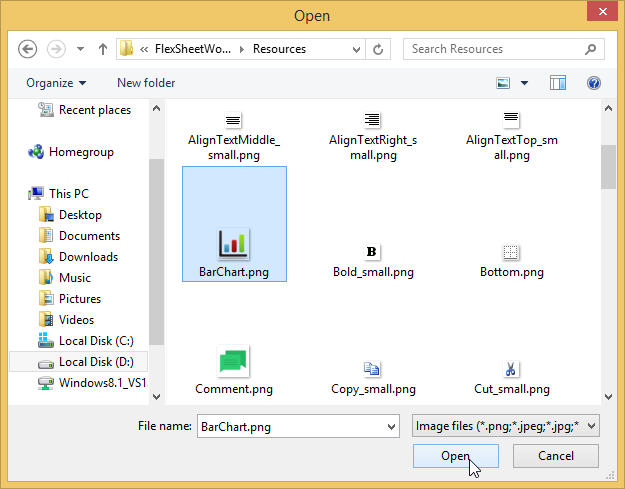
8\. Click Insert Picture button\.
The Open dialog box appears.
9\. Locate and select an image\, and click Open button to open the selected image as shown in the image below:
10\. The image appears on the FlexSheet control: