# Customizing Tab Shape
## Content
**FlexSheet for WPF** allows you to set different geometric shapes of the sheet tabs appearing in the Tab Strip of a FlexSheet control. You can achieve this by setting the [TabItemShape](/componentone/api/wpf/online-flexsheet/dotnet-framework-api/C1.WPF.FlexSheet.4.6.2/C1.WPF.FlexGrid.C1FlexSheet.TabItemShape.html) property of the [C1FlexSheet](/componentone/api/wpf/online-flexsheet/dotnet-framework-api/C1.WPF.FlexSheet.4.6.2/C1.WPF.FlexGrid.C1FlexSheet.html) control.
### In Design View
1. Select the **C1FlexSheet** control.
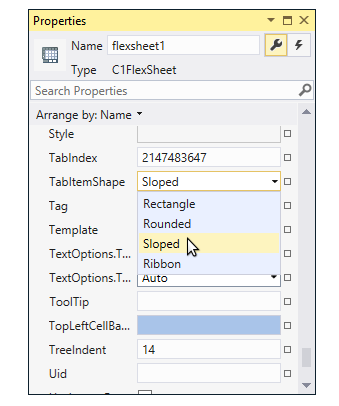
2. Navigate to the **Properties window** and locate the [TabItemShape](/componentone/api/wpf/online-flexsheet/dotnet-framework-api/C1.WPF.FlexSheet.4.6.2/C1.WPF.FlexGrid.C1FlexSheet.TabItemShape.html) property in Miscellaneous drop-down section.
3. Click the **TabItemShape** drop-down menu and select one of the geometric shapes to apply to the tabs. In our case, we have selected the **Sloped** option.
### In XAML
You can customize the shape of tabs in XAML View using the following code:
```xml
```
### In Code
You can also customize the shape of tabs in Code view. To change the tab shape in tab strip, you can add a ComboBox control to your application and use the following code in SelectionChanged event of the ComboBox:
**vbnet**
```vbnet
Dim cb As ComboBox = TryCast(sender, ComboBox)
If cb IsNot Nothing Then
Dim selectedItem = TryCast(cb.SelectedItem, ComboBoxItem)
If selectedItem IsNot Nothing AndAlso flexsheet3 IsNot Nothing Then
Select Case selectedItem.Content.ToString()
Case "Sloped"
flexsheet3.TabItemShape = C1TabItemShape.Sloped
Exit Select
Case "Ribbon"
flexsheet3.TabItemShape = C1TabItemShape.Ribbon
Exit Select
Case "Rounded"
flexsheet3.TabItemShape = C1TabItemShape.Rounded
Exit Select
Case "Rectangle"
flexsheet3.TabItemShape = C1TabItemShape.Rectangle
Exit Select
Case Else
Exit Select
End Select
End If
End If
```
**csharp**
```csharp
ComboBox cb = sender as ComboBox;
if (cb != null)
{
var selectedItem = cb.SelectedItem as ComboBoxItem;
if (selectedItem != null && flexsheet3 != null)
{
switch (selectedItem.Content.ToString())
{
case "Sloped":
flexsheet3.TabItemShape = C1TabItemShape.Sloped;
break;
case "Ribbon":
flexsheet3.TabItemShape = C1TabItemShape.Ribbon;
break;
case "Rounded":
flexsheet3.TabItemShape = C1TabItemShape.Rounded;
break;
case "Rectangle":
flexsheet3.TabItemShape = C1TabItemShape.Rectangle;
break;
default:
break;
}
}
}
```