# Number Formatting
## Content
**FlexSheet for WPF** provides various options to display numbers in different number formats wherein you have the following categories to choose from:
* General
* Number
* Currency
* Percentage
* Scientific
By default, **General** category is selected in [C1FlexSheet](/componentone/api/wpf/online-flexsheet/dotnet-framework-api/C1.WPF.FlexSheet.4.6.2/C1.WPF.FlexGrid.C1FlexSheet.html). **General** category does not have any special rule of formatting. You can change the number formatting of the cells to number, decimal, currency, percentage or scientific format. For example, to create a worksheet for your monthly or yearly business budgets, you can show the monetary values in **Currency** number format.
To format numbers in your [C1FlexSheet](/componentone/api/wpf/online-flexsheet/dotnet-framework-api/C1.WPF.FlexSheet.4.6.2/C1.WPF.FlexGrid.C1FlexSheet.html) worksheet, follow the steps given below:
1. Add **C1FlexSheet** control and **C1Toolbar** to your application.
2. Add a ComboBox, NumericBox and a button to the ToolBar using the following code:
```xml
```
3. Create a class named NumberFormat which inherits **INotifyPropertyChanged** interface. **NumberFormat** class contains SelectedFormat property to get and set the selected format of numbers.
4. Add the following code in Code view to set the SelectedFormat property of **NumberFormat** class: **vbnet**
```vbnet
Public Property SelectedFormat() As NumberFormat
Get
Return _selectedFormat
End Get
Set
_selectedFormat = value
End Set
End Property
```
**csharp**
```csharp
public NumberFormat SelectedFormat
{
get
{
return _selectedFormat;
}
set
{
_selectedFormat = value;
}
}
```
Also, add the following code in Code view to set the **NumberFormats** property of **ObservableCollection** data collection of Number type:
**vbnet**
```vbnet
Public Property NumberFormats() As ObservableCollection(Of NumberFormat)
Get
Return _numberFormats
End Get
Set
_numberFormats = value
End Set
End Property
```
**csharp**
```csharp
public ObservableCollection NumberFormats
{
get
{
return _numberFormats;
}
set
{
_numberFormats = value;
}
}
```
5. Define **InitializeNumberFormats()** method to specify the formats that will be used to change the number formatting: **vbnet**
```vbnet
Public Sub InitializeNumberFormats()
NumberFormats = New ObservableCollection(Of NumberFormat)()
Dim generalFormat As New NumberFormat()
generalFormat.Name = "General"
generalFormat.Format = "G"
NumberFormats.Add(generalFormat)
Dim numberFormat As New NumberFormat()
numberFormat.Name = "Number"
numberFormat.Format = "N"
NumberFormats.Add(numberFormat)
Dim currencyFormat As New NumberFormat()
currencyFormat.Name = "Currency"
currencyFormat.Format = "C"
NumberFormats.Add(currencyFormat)
Dim percentFormat As New NumberFormat()
percentFormat.Name = "Percentage"
percentFormat.Format = "P"
NumberFormats.Add(percentFormat)
Dim exponentialFormat As New NumberFormat()
exponentialFormat.Name = "Scientific"
exponentialFormat.Format = "E"
NumberFormats.Add(exponentialFormat)
SelectedFormat = generalFormat
End Sub
```
**csharp**
```csharp
public void InitializeNumberFormats()
{
NumberFormats = new ObservableCollection();
NumberFormat generalFormat = new NumberFormat();
generalFormat.Name = "General";
generalFormat.Format = "G";
NumberFormats.Add(generalFormat);
NumberFormat numberFormat = new NumberFormat();
numberFormat.Name = "Number";
numberFormat.Format = "N";
NumberFormats.Add(numberFormat);
NumberFormat currencyFormat = new NumberFormat();
currencyFormat.Name = "Currency";
currencyFormat.Format = "C";
NumberFormats.Add(currencyFormat);
NumberFormat percentFormat = new NumberFormat();
percentFormat.Name = "Percentage";
percentFormat.Format = "P";
NumberFormats.Add(percentFormat);
NumberFormat exponentialFormat = new NumberFormat();
exponentialFormat.Name = "Scientific";
exponentialFormat.Format = "E";
NumberFormats.Add(exponentialFormat);
SelectedFormat = generalFormat;
}
```
6. Add the following code to the FormatList ComboBox that monitors the selection and sends information to the console to show the list of available number formats when the selection changes: **vbnet**
```vbnet
Dim selectedFormat__1 = TryCast(e.AddedItems(0), NumberFormat)
Select Case selectedFormat__1.Name
Case "General"
decimalPlacesBox.Visibility = System.Windows.Visibility.Collapsed
decimalPlacesBox.Value = 0
SelectedFormat.Format = selectedFormat__1.Format
Exit Select
Case "Number"
decimalPlacesBox.Visibility = System.Windows.Visibility.Visible
SelectedFormat.Format = selectedFormat__1.Format
Exit Select
Case "Currency"
decimalPlacesBox.Visibility = System.Windows.Visibility.Visible
SelectedFormat.Format = selectedFormat__1.Format
Exit Select
Case "Percentage"
decimalPlacesBox.Visibility = System.Windows.Visibility.Visible
SelectedFormat.Format = selectedFormat__1.Format
Exit Select
Case "Scientific"
decimalPlacesBox.Visibility = System.Windows.Visibility.Visible
SelectedFormat.Format = selectedFormat__1.Format
Exit Select
End Select
```
**csharp**
```csharp
var selectedFormat = e.AddedItems[0] as NumberFormat;
switch (selectedFormat.Name)
{
case "General":
decimalPlacesBox.Visibility = System.Windows.Visibility.Collapsed;
decimalPlacesBox.Value = 0;
SelectedFormat.Format = selectedFormat.Format;
break;
case "Number":
decimalPlacesBox.Visibility = System.Windows.Visibility.Visible;
SelectedFormat.Format = selectedFormat.Format;
break;
case "Currency":
decimalPlacesBox.Visibility = System.Windows.Visibility.Visible;
SelectedFormat.Format = selectedFormat.Format;
break;
case "Percentage":
decimalPlacesBox.Visibility = System.Windows.Visibility.Visible;
SelectedFormat.Format = selectedFormat.Format;
break;
case "Scientific":
decimalPlacesBox.Visibility = System.Windows.Visibility.Visible;
SelectedFormat.Format = selectedFormat.Format;
break;
}
```
7. Add the given code to avail the selection of decimal places while changing the number format: **vbnet**
```vbnet
SelectedFormat.DecimalPlaces = CInt(e.NewValue)
```
**csharp**
```csharp
SelectedFormat.DecimalPlaces = (int)e.NewValue;
```
8. Add this code on the click event of the button, numberButton in our case, to apply the selected format in the previous step: **vbnet**
```vbnet
Dim cellrange = flex.Selection.Cells
For Each rng As var In cellrange
If rng.IsValid Then
Dim row = TryCast(flex.Rows(rng.Row), ExcelRow)
Dim col = flex.Columns(rng.Column)
Dim excelCellStyle As New ExcelCellStyle()
If row IsNot Nothing Then
Dim cs = TryCast(row.GetCellStyle(col), ExcelCellStyle)
If cs IsNot Nothing Then
excelCellStyle = cs
End If
End If
'set selected Number formatting on cells
excelCellStyle.Format = SelectedFormat.Format + SelectedFormat.DecimalPlaces
row.SetCellStyle(col, excelCellStyle)
flex.Invalidate(rng)
End If
Next
```
**csharp**
```csharp
var cellrange = flex.Selection.Cells;
foreach (var rng in cellrange)
{
if (rng.IsValid)
{
var row = flex.Rows[rng.Row] as ExcelRow;
var col = flex.Columns[rng.Column];
ExcelCellStyle excelCellStyle = new ExcelCellStyle();
if (row != null)
{
var cs = row.GetCellStyle(col) as ExcelCellStyle;
if (cs != null)
excelCellStyle = cs;
}
//set selected Number formatting on cells
excelCellStyle.Format = SelectedFormat.Format + SelectedFormat.DecimalPlaces;
row.SetCellStyle(col, excelCellStyle);
flex.Invalidate(rng);
}
}
```
9. Select the cells with numeric data to change the number format.
10. Select a category from the available category list in Number tab. Set the decimal places if required.
11. Click Apply button to see the applied number format. On applying number format, FlexSheet control looks similar to the image given below: 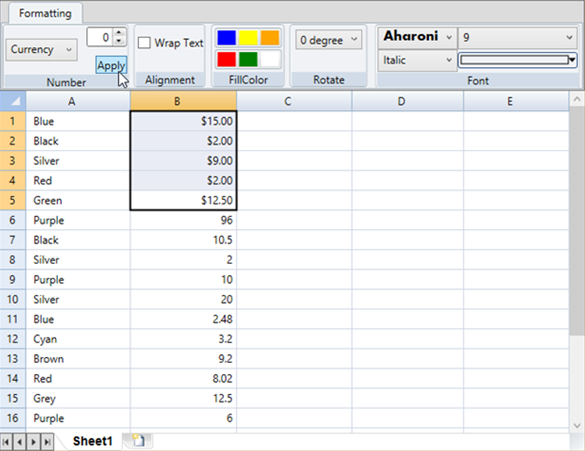 In the above image, the selected number format is Currency.