# Paging
## Content
Paging lets you customize the number of items that should be displayed per page and also provides a UI for navigating through these pages. You can use paging when you are displaying a large amount of data in the grid or have a limited space in your application. It also allows you to interact more easily with the control. FlexGrid uses the **DataPager** control to implement paging.
> type=note
> The **DataPager** control is available in .NET 6 only. However, in case of .NET Framework 4.6.2, you can implement paging using the **C1PagedDataCollection** class.
The following GIF displays data in multiple pages and allows navigation through them in the FlexGrid control.
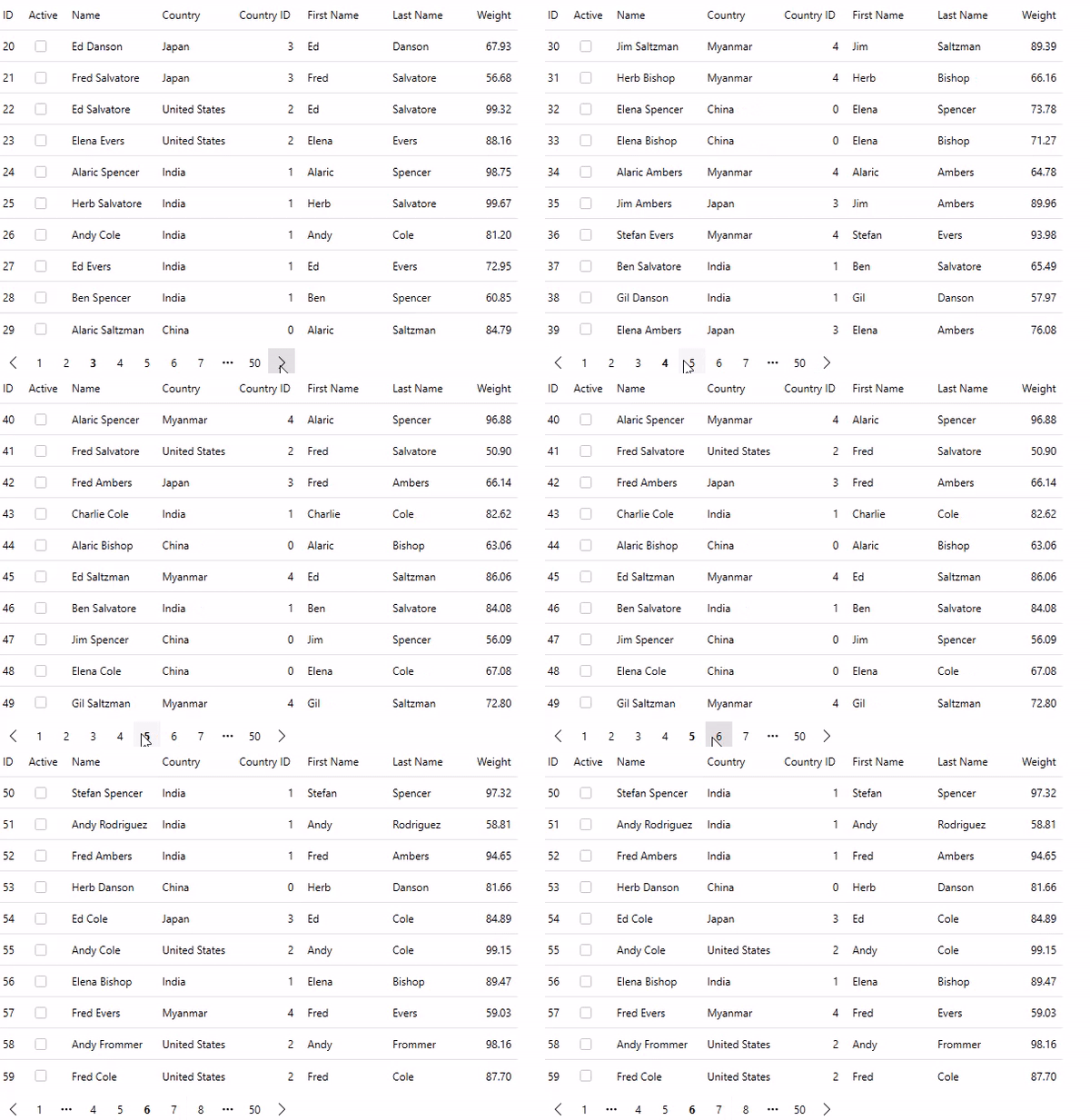
To enable paging in FlexGrid, use the following steps. This example uses Customer.cs class created in the [Quick Start](/componentone/docs/wpf/online-flexgrid/FlexGridQuickStart) topic. Here, we have used [C1PagedDataCollection](https://developer.mescius.com/componentone/docs/services/online-datacollection/C1.DataCollection~C1.DataCollection.C1PagedDataCollection%601.html) class of the [C1.DataCollection](https://developer.mescius.com/componentone/docs/services/online-datacollection/C1.DataCollection~C1.DataCollection.C1DataCollection%601.html) to implement paging in the grid. The **C1PagedDataCollection** class is a collection class which wraps another collection to be shown in pages of a maximum number of items.
1. Install the following NuGet packages from the **NuGet Package Manager**.
* **C1.WPF.Grid**
* **C1.WPF.DataPager**
2. In **MainWindow.xaml**, and add the FlexGrid and DataPager controls and set their names using the following code.
```xml
```
3. Switch to the code view and populate the FlexGrid and DataPager controls by adding the following code. In this example, FlexGrid fetches data from the Customer class and the data is bound to the grid and the pager.
```csharp
//Generate grid data
var gridData = Customer.GetCustomerList(500);
var pagedCollection = new C1PagedDataCollection