# Freezing and Pinning
## Content
### Freezing Rows and Columns
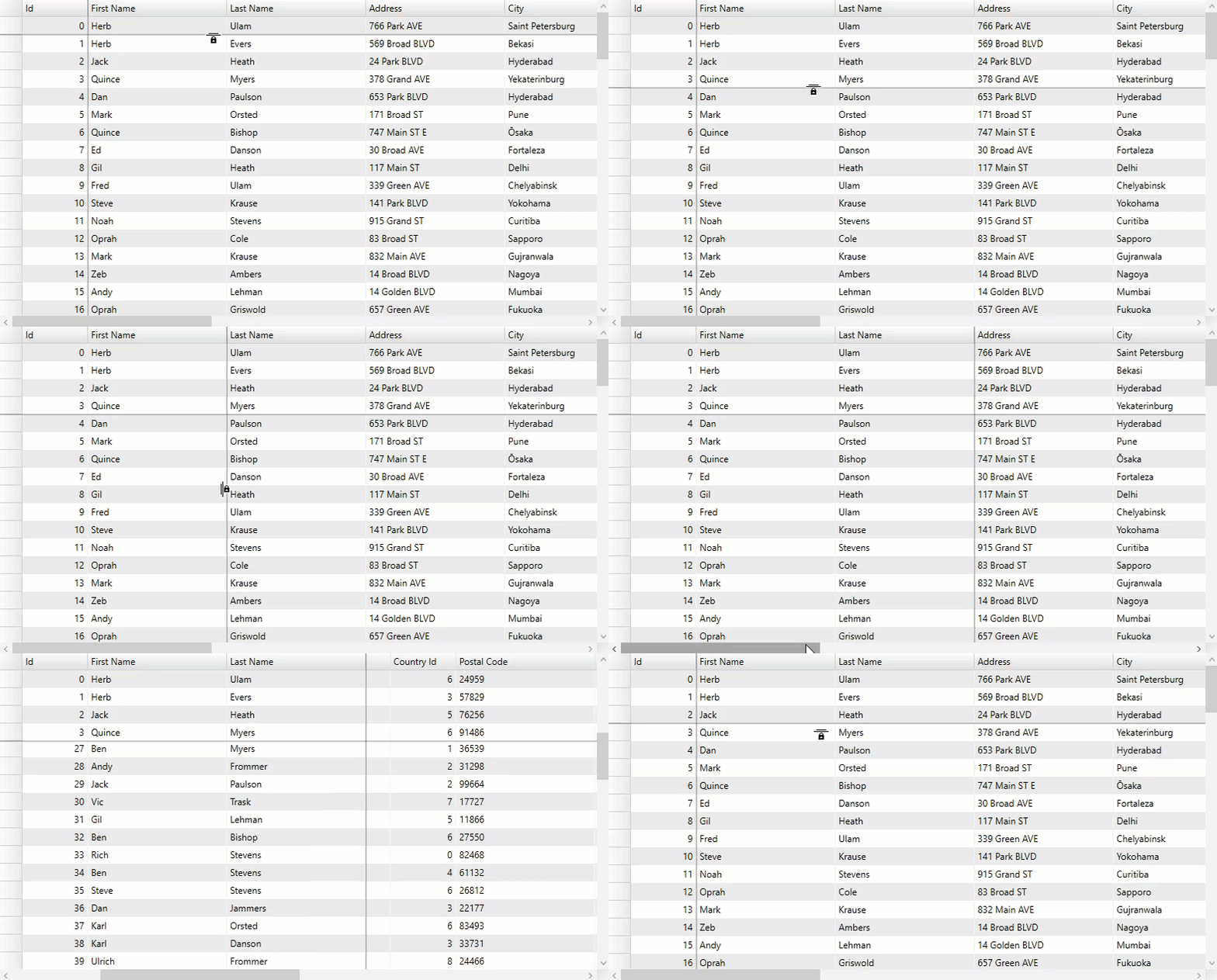
This feature in **WPF** **FlexGrid** allows you to freeze the rows and columns using mouse drag during runtime following a particular sequence. You can set the [AllowFreezing](/componentone/api/wpf/online-flexgrid/dotnet-framework-api/C1.WPF.FlexGrid.4.6.2/C1.WPF.FlexGrid.AllowFreezing.html) Enum to **Columns** to freeze only columns, **Rows** to freeze only rows, or **Both** to freeze both columns and rows. Conversely, to disable freezing, set the AllowFreezing Enum to None, which is the default setting. This Enum can be set either in the designer or in code.
### Implementation
**In Designer**
Locate the [AllowFreezing](/componentone/api/wpf/online-flexgrid/dotnet-framework-api/C1.WPF.FlexGrid.4.6.2/C1.WPF.FlexGrid.AllowFreezing.html) Enum in the Properties window and set it to Rows, Columns, Both or None.
**In Code**
Add the following code to set the [AllowFreezing](/componentone/api/wpf/online-flexgrid/dotnet-framework-api/C1.WPF.FlexGrid.4.6.2/C1.WPF.FlexGrid.AllowFreezing.html) Enum to **Both**:
**csharp**
```csharp
c1.FlexGrid.AllowFreezing = C1.WPF.FlexGrid.AllowFreezing.Both
```
Now, you can manually use the mouse drag to adjust the number of frozen columns and rows as needed.
### Feature Illustration
When the mouse pointer becomes the lock rows or the lock columns icon, click and drag the mouse over the rows or columns to freeze in a sequence. Setting the AllowFreezing Enum to **Both** allows both rows and columns to be frozen at the same time, as seen in the following GIF.
### Column Pinning
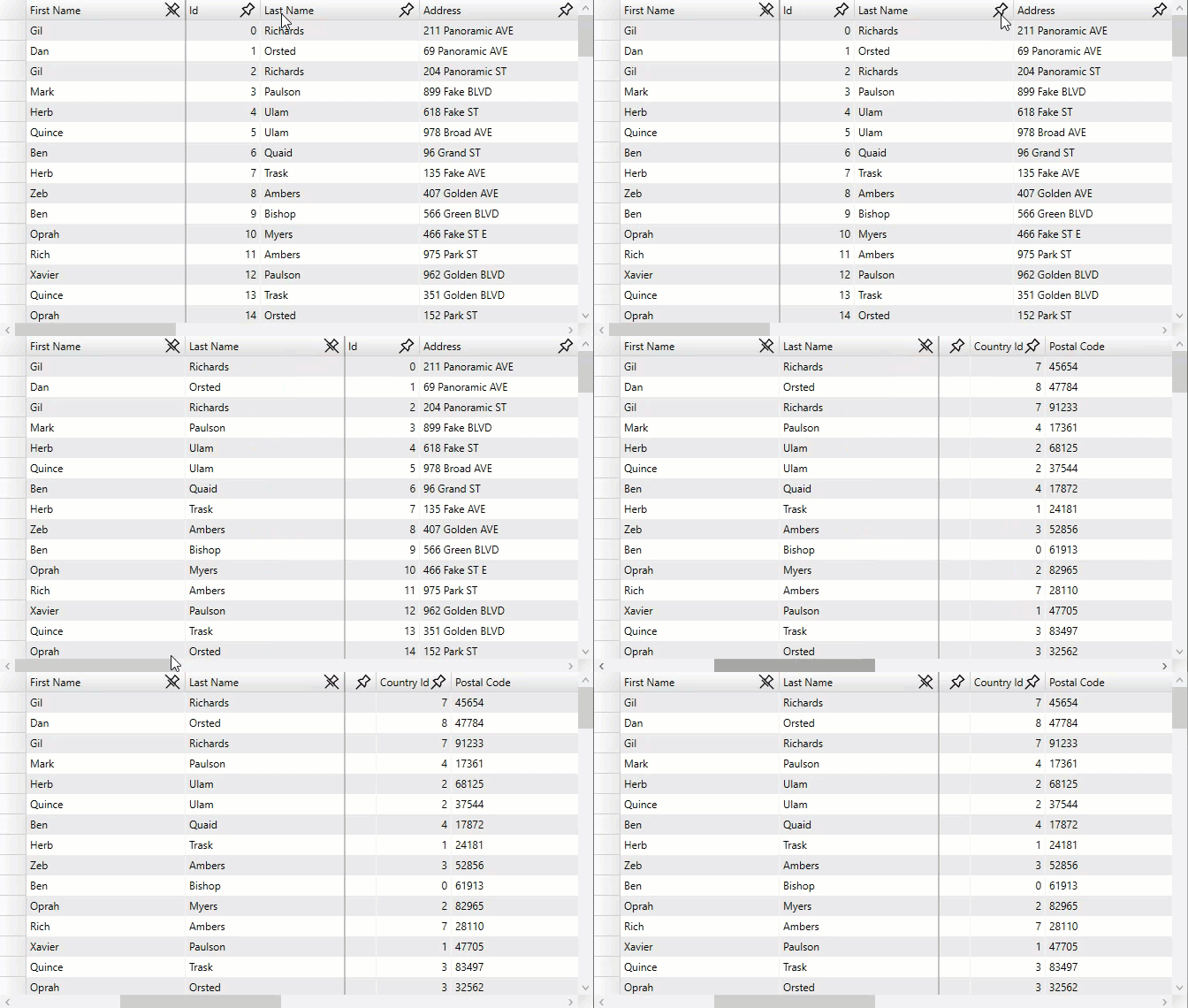
Column Pinning in **WPF FlexGrid** allows the you to freeze any column in the grid and pin it to the start, this will allow you to see it while horizontally scrolling the Grid. A column or multiple columns can be pinned to the left-hand side of the FlexGrid.
Each column can be pinned, as long as the pinned area does not become wider than the Grid itself. Pinned columns are always rendered on the left side of the Grid and stay fixed through horizontal scrolling of the unpinned columns in the Grid body.
### Implementation
Use the following code to implement Column Pinning in your FlexGrid application through **ColumnPinningCellFactory** class which is a customized [CellFactory](/componentone/api/wpf/online-flexgrid/dotnet-framework-api/C1.WPF.FlexGrid.4.6.2/C1.WPF.FlexGrid.CellFactory.html) class that will add a pinning icon to each column header. For more information about CellFactory, refer to the [CellFactory class](/componentone/docs/wpf/online-flexgrid/FlexGridFeatures/Custom-Cell/CellFactoryClass) topic.
**csharp**
```csharp
private void GridColumnPinning_Loaded(object sender, RoutedEventArgs e)
{
grid.CellFactory = new ColumnPinningCellFactory();
}
```
### Feature Illustration
The following GIF demonstrates column pinning feature in the FlexGrid control. Any coloumn from the grid can be pinned where pinned columns make a particular sequence.
> type=note
> **Note**: ColumnPinning is not a part of the control, it is only available as a code sample. You can find the complete source code of _ColumnPinningCellFactory_ in the ColumnPinning sample available at following location:
>
> **Documents\\ComponentOne Samples\\WPF\\C1.WPF.FlexGrid\\CS\\ColumnPinning**