# Data Aggregation
## Content
FlexGrid lets you compute and display aggregate value for each group created after grouping data. The control shows groups in a collapsible outline format and automatically displays the number of items in each group. However, you can go one step further and display aggregate values for every grouped column. This feature enables users in drawing out more insights from random data.
In the following section learn how to implement Data Aggregation in FlexGrid .NET and .NET Framework versions.
### .NET Framework
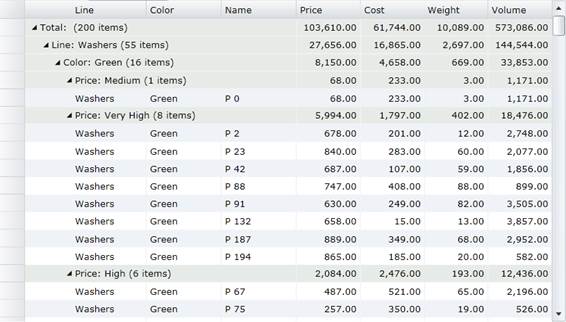
In the below example, a company's sales data grouped by country or product category can be more useful if the aggregate sales can be indicated against each country and product category in the grid itself. The [Column](/componentone/api/wpf/online-flexgrid/dotnet-framework-api/C1.WPF.FlexGrid.4.6.2/C1.WPF.FlexGrid.Column.html) class provides the **GroupAggregate** property that can be set to **Aggregate** to automatically calculate and display aggregates. The aggregates calculated by setting the GroupAggregate property automatically recalculate the aggregate values when the data changes.
The following image shows a FlexGrid with aggregate values displayed in the columns.
### To set aggregate through code
You can display the aggregate value for each group in FlexGrid by setting the grid's **AreGroupHeadersFrozen** property to **false** and then setting the **GroupAggregate** property on each column to one of the supported aggregate values. Some of the supported aggregate values are **Sum**, **Average**, **Count**, **Minimum**, **Maximum**, etc.
> type=note
> **Note**: Since the aggregates appear in the group header rows, it is necessary to make them visible by setting the **AreGroupHeadersFrozen** property to **false**.
The following code illustrates displaying totals for the Price, Cost, Weight and Volume columns through XAML.
```xml
```
### .NET
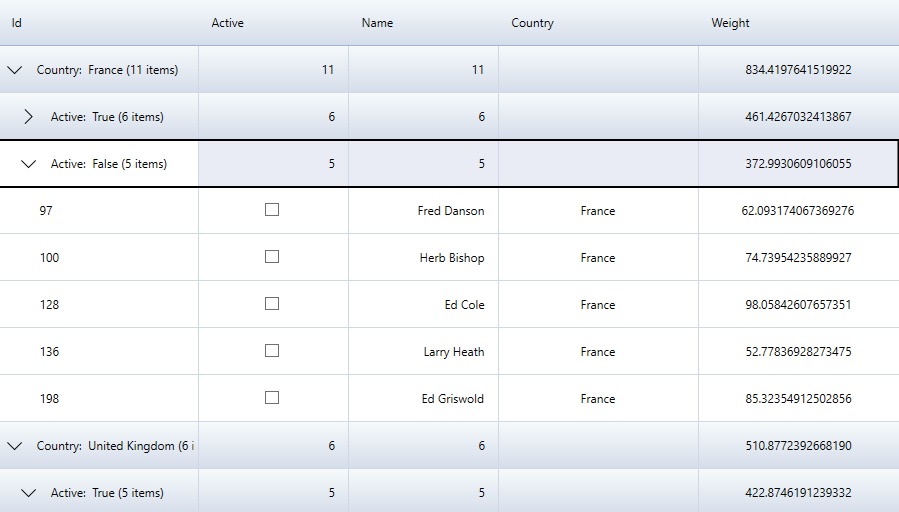
In the below example, a company's sales data grouped by Country Id can be more useful if the aggregate of columns can be indicated against each country in the grid itself. The [GridColumn](/componentone/api/wpf/online-flexgrid/dotnet-api/C1.WPF.Grid/C1.WPF.Grid.GridColumn.html) class provides the **Aggregate** property that can be set to **Aggregate** to automatically calculate and display aggregates. The aggregates calculated by setting the GroupAggregate property automatically recalculate the aggregate values when the data changes.
The following image shows a FlexGrid with aggregate values displayed in the columns.
### To set aggregate through code
You can display the aggregate value for each group in FlexGrid by setting the **Aggregate** property on each column to one of the supported aggregate values. Some of the supported aggregate values are **Sum**, **Average**, **Count**, **Minimum**, **Maximum**, etc.
The following code illustrates displaying **Count** for Active and Name columns, and **Sum** for Weight through XAML.
```xml
```
## See Also
[C1FlexGrid Class](/componentone/api/wpf/online-flexgrid/dotnet-framework-api/C1.WPF.FlexGrid.4.6.2/C1.WPF.FlexGrid.C1FlexGrid.html)
[Column Class](/componentone/api/wpf/online-flexgrid/dotnet-framework-api/C1.WPF.FlexGrid.4.6.2/C1.WPF.FlexGrid.Column.html)
[ItemsSource Property](/componentone/api/wpf/online-flexgrid/dotnet-api/C1.WPF.Grid/C1.WPF.Grid.FlexGrid.ItemsSource.html)