# Search Data using Full Text Filter
## Content
In the the following section learn how to implement Search Data using Full Text Filter in FlexGrid .NET and .NET Framework versions.
### .NET Framework
You can search data in FlexGrid using full text filtering feature wherein the grid's data source is filtered based on the user input to return the search results. The [C1FullTextFilter](/componentone/api/wpf/online-flexgrid/dotnet-framework-api/C1.WPF.FlexGridFilter.4.6.2/C1.WPF.FlexGrid.C1FullTextFilter.html) class helps to implement this feature. The **FilterEntry** property of this class associates a text box with the FlexGrid control. As soon as the user inputs a value in this text box, the FlexGrid control is filtered. However, you can alter this behavior to filter the text after entering complete value using **Mode** property of the **C1FullTextFilter** class, which accepts values from the **FullTextFilterMode** enumeration.
By default, filtering is applied to the data source of FlexGrid. In case a **DataCollection** is used as **FlexGrid's** data source, filtering is applied to the **DataCollection**, and this impacts all the controls bound to the same **DataCollection**.
Moreover, you can customize the filtering behavior using the **MatchCase**, **MatchNumbers**, **MatchWholeWord** or **TreatSpacesAsAndOperator** properties which allow you to filter data by matching case, whole word, number or treat space as AND operator respectively. In addition, you can also specify the delay time used to filter after the last typed character using the **Delay** property.
**In XAML**
The following markup binds a text box to search and filter across all columns on the grid:
```xml
```
**In Code**
The following code sets the entry field and performs search and filtering across all columns on the grid:
```vbnet
Dim ftf As C1FullTextFilter = New C1FullTextFilter(grid)
ftf.FilterEntry = filter
ftf.MatchCase = True
ftf.Mode = C1FullTextFilter.FullTextFilterMode.WhenCompleted
```
```csharp
C1FullTextFilter ftf = new C1FullTextFilter(grid);
ftf.FilterEntry = filter;
ftf.MatchCase = true;
ftf.Mode = C1FullTextFilter.FullTextFilterMode.WhenCompleted;
```
### .NET
You can search data in FlexGrid using full text filtering feature wherein the grid's data source is filtered based on the user input to return the search results. The [FullTextFilterBehaviour](/componentone/api/wpf/online-flexgrid/dotnet-api/C1.WPF.Grid/C1.WPF.Grid.FullTextFilterBehavior.html) class helps to implement this feature. The **FilterEntry** property of this class associates a text box with the FlexGrid control. As soon as the user inputs a value in this text box, the FlexGrid control is filtered as shown in the GIF below.
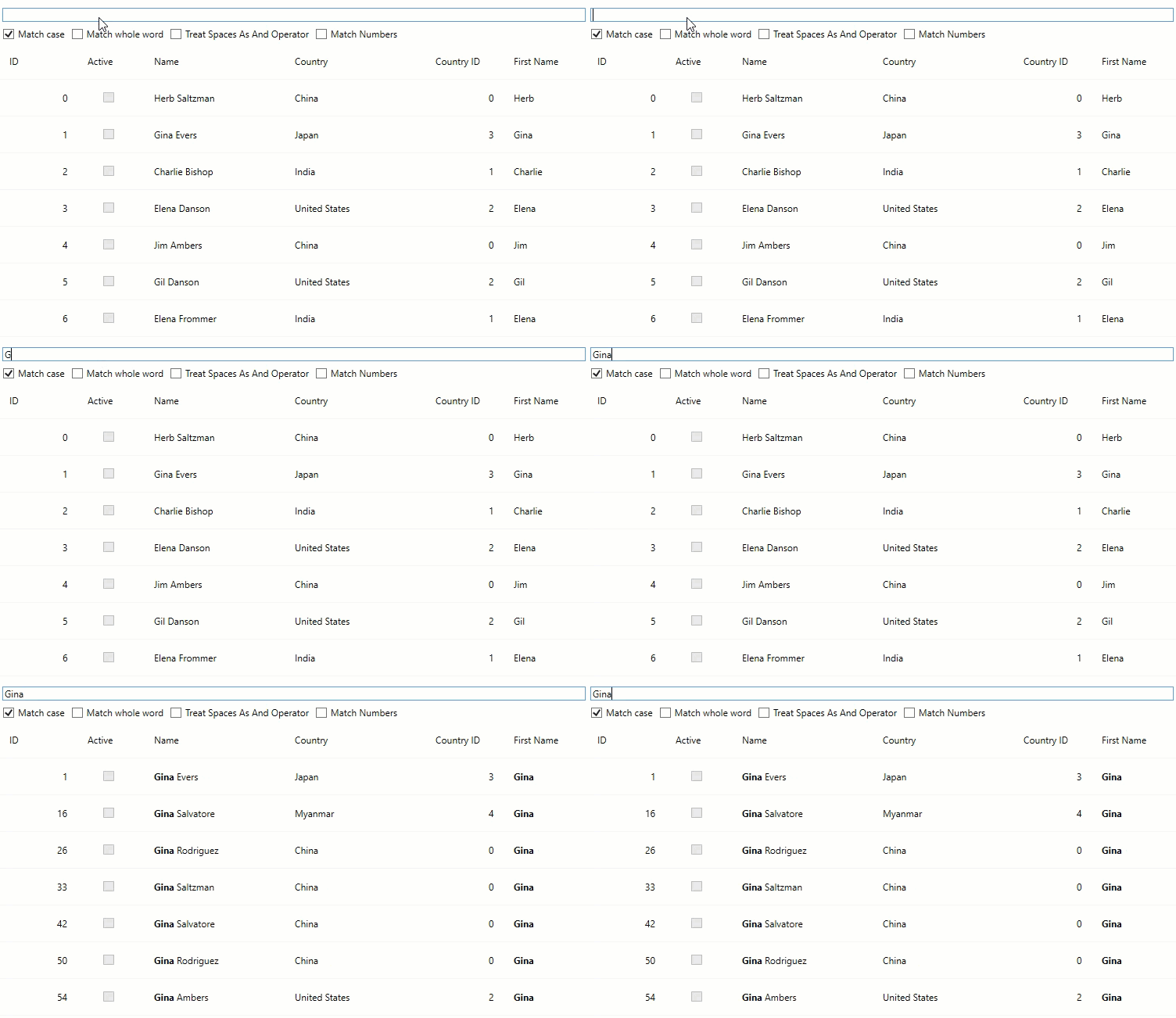
However, you can alter this behavior to filter the text after entering complete value using **Mode** property of the **FullTextFilterBehaviour** class, which accepts values from the **FullTextFilterMode** enumeration.
By default, filtering is applied to the data source of FlexGrid. In case a **DataCollection** is used as **FlexGrid's** data source, filtering is applied to the **DataCollection**, and this impacts all the controls bound to the same **DataCollection**.
Moreover, you can customize the filtering behavior using the **MatchCase**, **MatchNumbers**, **MatchWholeWord** or **TreatSpacesAsAndOperator** properties which allow you to filter data by matching case, whole word, number or treat space as AND operator respectively. In addition, you can also specify the delay time used to filter after the last typed character using the **Delay** property.
**In XAML**
The following markup binds a text box to search and filter across all columns on the grid.
```xml
```
**In Code**
The following code sets the entry field and performs search and filtering across all columns on the grid.
```csharp
public FullTextFilter()
{
InitializeComponent();
var data = Customer.GetCustomerList(100);
grid.ItemsSource = data;
grid.MinColumnWidth = 85;
}
```