# Selection
## Content
TreeMap chart lets you enable selection of its data items and groups. User can select a node and draw focus on it by simply clicking it. You need to set the **SelectionMode** property provided by the FlexChartBase class to either of the following values in the **ChartSelectionMode** enumeration:
* **None (default)**: Selection is disabled.
* **Point**: A point is selected.
The following image illustrates default selection of data point in TreeMap.
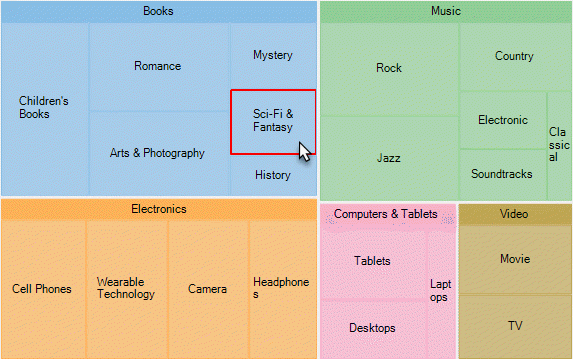
The following code snippet shows how to set the **SelectionMode** property for a tree map chart.
```xml
```
### Customized TreeMap Selection
To customize the TreeMap selection, you can use **SelectionStyle** property and stylize the selected item as illustrated in the following image.
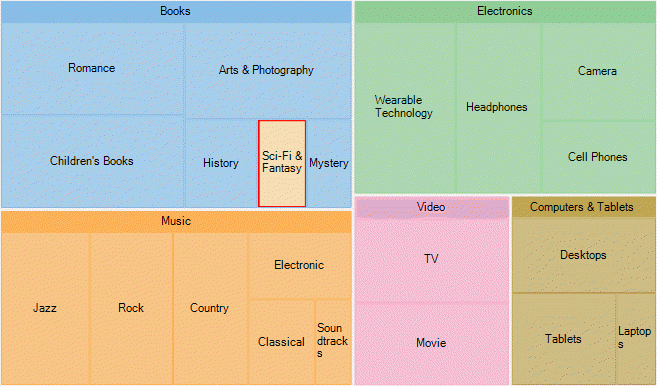
The following code snippet demonstrates utilizing **SelectionStyle** property to change fill color of the TreeMap node that is selected.
```xml
```
Additionally, you can customize the behavior of TreeMap selection by handling **SelectionChanged** event. Also, you can utilize **SelectedIndex** and **SelectedItem** properties, and reuse the obtained information in your application.
## See Also
[WPF TreeMap](/componentone/docs/wpf/online-flexchart/TreeMapOverview)
[Quick Start](/componentone/docs/wpf/online-flexchart/TreeMapOverview/TreeMapQuickStart)
[Key Features](/componentone/docs/wpf/online-flexchart/TreeMapOverview/TreeMapKeyFeatures)
[Elements](/componentone/docs/wpf/online-flexchart/TreeMapOverview/TreeMapElements)
[Layouts](/componentone/docs/wpf/online-flexchart/TreeMapOverview/TreeMapLayouts)
[Data Binding](/componentone/docs/wpf/online-flexchart/TreeMapOverview/TreeMapDataBinding)