# Quick Start
## Content
This quick start topic provides step-by-step instructions for adding a TreeMap chart to WPF application, and show hierarchical data in it. In this topic, we consider an example where user wants to compare sales of books, music, videos, and gadgets (like computers and tablets) in XYZ city in a particular year.
The steps to display hierarchical data in TreeMap control are as follows:
* [Step 1: Add TreeMap to project](/componentone/docs/wpf/online-flexchart/TreeMapOverview/TreeMapQuickStart#step1)
* [Step 2: Create a hierarchical data source](/componentone/docs/wpf/online-flexchart/TreeMapOverview/TreeMapQuickStart#step2)
* [Step 3: Bind the TreeMap to data source](/componentone/docs/wpf/online-flexchart/TreeMapOverview/TreeMapQuickStart#step3)
* [Step 4: Build and run the project](/componentone/docs/wpf/online-flexchart/TreeMapOverview/TreeMapQuickStart#step3)
The following image exhibits and compares sales of different varieties of books, music, videos, and gadgets (like computers and tablets) in XYZ city in a particular year.
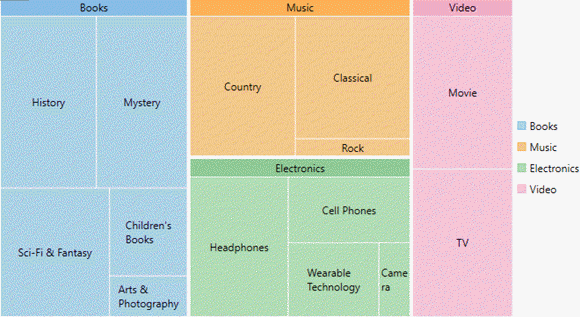
You need to set the ItemsSource property, of FlexChartBase class, to point to the collection of objects that contain data points to be plotted on the chart. To generate data items and display them in TreeMap chart, set **BindingName** and **Binding** properties. Set the **BindingName** property to the string value that specifies the name of the data item to display as chart rectangles, and **Binding** property to the string value that specifies the name of property of chart items that contain chart values (numeric values that help calculate the size of tree nodes).
To specify the level of hierarchical items to drill down and display in the chart set the **MaxDepth** property. Also, the display layout of the TreeMap is specified through its ChartType property. Additionally, color palette can be used to stylize the control and change its appearance.
**Step 1: Add TreeMap to project**
1. Create a **WPF** **Application (.NET Framework/.NET Core)** for **.NET Framework** version and **.NET** versions in Visual Studio.
2. Drag and drop **C1TreeMap** control from Toolbox to page.
The following DLLs or Nuget Packages get added to your application:
* **C1.WPF.4.6.2** or **C1.WPF.Core** for **.NET** version
* **C1.WPF.DX.4.6.2** or **C1.WPF.DX** for **.NET** version
* **C1.WPF.FlexChart.4.6.2** or **C1.WPF.Chart** for **.NET** version.
**Step 2: Create a hierarchical data source**
Switch to the code view and add the following code to generate sales data of Books, Music, Electronic items, Videos, and Computers and tablets.
**vbnet**
```vbnet
Private rnd As New Random()
Private Function rand() As Integer
Return rnd.[Next](10, 100)
End Function
Public ReadOnly Property Data() As Object()
Get
Dim data__1 = New Object() {New With {
.type = "Music",
.items = New () {New With {
.type = "Country",
.items = New () {New With {
.type = "Classic Country",
.sales = rand()
}}
}, New With {
.type = "Rock",
.items = New () {New With {
.type = "Funk Rock",
.sales = rand()
}}
}, New With {
.type = "Classical",
.items = New () {New With {
.type = "Symphonies",
.sales = rand()
}}
}}
}, New With {
.type = "Books",
.items = New () {New With {
.type = "Arts & Photography",
.items = New () {New With {
.type = "Architecture",
.sales = rand()
}}
}, New With {
.type = "Children's Books",
.items = New () {New With {
.type = "Beginning Readers",
.sales = rand()
}}
}, New With {
.type = "History",
.items = New () {New With {
.type = "Ancient",
.sales = rand()
}}
}, New With {
.type = "Mystery",
.items = New () {New With {
.type = "Thriller & Suspense",
.sales = rand()
}}
}, New With {
.type = "Sci-Fi & Fantasy",
.items = New () {New With {
.type = "Fantasy",
.sales = rand()
}}
}}
}, New With {
.type = "Electronics",
.items = New () {New With {
.type = "Wearable Technology",
.items = New () {New With {
.type = "Activity Trackers",
.sales = rand()
}}
}, New With {
.type = "Cell Phones",
.items = New () {New With {
.type = "Accessories",
.sales = rand()
}}
}, New With {
.type = "Headphones",
.items = New () {New With {
.type = "Earbud headphones",
.sales = rand()
}}
}, New With {
.type = "Camera",
.items = New () {New With {
.type = "Digital Cameras",
.sales = rand()
}}
}}
}, New With {
.type = "Video",
.items = New () {New With {
.type = "Movie",
.items = New () {New With {
.type = "Children & Family",
.sales = rand()
}}
}, New With {
.type = "TV",
.items = New () {New With {
.type = "Comedy",
.sales = rand()
}}
}}
}}
Return data__1
End Get
End Property
```
**csharp**
```csharp
Random rnd = new Random();
int rand()
{
return rnd.Next(10, 100);
}
public object[] Data
{
get
{
var data = new object[] { new {
type = "Music",
items = new [] { new {
type = "Country",
items= new [] { new {
type= "Classic Country",
sales = rand()
}}
}, new {
type= "Rock",
items= new [] { new {
type= "Funk Rock",
sales= rand()
} }
}, new {
type= "Classical",
items= new [] { new {
type= "Symphonies",
sales= rand()
} }
}}
}, new {
type= "Books",
items= new [] { new {
type= "Arts & Photography",
items= new [] { new {
type= "Architecture",
sales= rand()
}}
}, new {
type= "Children's Books",
items= new [] { new {
type= "Beginning Readers",
sales= rand()
} }
}, new {
type= "History",
items= new [] { new {
type= "Ancient",
sales= rand()
} }
}, new {
type= "Mystery",
items= new [] { new {
type= "Thriller & Suspense",
sales= rand()
} }
}, new {
type= "Sci-Fi & Fantasy",
items= new [] { new {
type= "Fantasy",
sales= rand()
}}
} }
}, new {
type= "Electronics",
items= new [] { new {
type= "Wearable Technology",
items= new [] { new {
type= "Activity Trackers",
sales= rand()
}}
}, new {
type= "Cell Phones",
items= new [] { new {
type= "Accessories",
sales= rand()
} }
}, new {
type= "Headphones",
items= new [] { new {
type= "Earbud headphones",
sales= rand()
} }
}, new {
type= "Camera",
items= new [] { new {
type= "Digital Cameras",
sales= rand()
} }
} }
}, new {
type= "Video",
items= new [] { new {
type= "Movie",
items= new [] { new {
type= "Children & Family",
sales= rand()
} }
}, new {
type= "TV",
items= new [] { new {
type= "Comedy",
sales= rand()
} }
} }
} };
return data;
}
```
**Step 3: Bind the TreeMap to data source**
To bind the TreeMap control to the data source, use the following code.
```xml
```
**Step 4: Build and run the project**
1. Click **Build | Build Solution** to build the project.
2. Press **F5** to run the project.
## See Also
[WPF TreeMap](/componentone/docs/wpf/online-flexchart/TreeMapOverview)
[Key Features](/componentone/docs/wpf/online-flexchart/TreeMapOverview/TreeMapKeyFeatures)
[Elements](/componentone/docs/wpf/online-flexchart/TreeMapOverview/TreeMapElements)
[Layouts](/componentone/docs/wpf/online-flexchart/TreeMapOverview/TreeMapLayouts)
[Data Binding](/componentone/docs/wpf/online-flexchart/TreeMapOverview/TreeMapDataBinding)
[Selection](/componentone/docs/wpf/online-flexchart/TreeMapOverview/TreeMapSelection)