# Zooming and Panning
## Content
Zooming is the ability to enlarge an image which can be performed in FlexChart using ZoomBehavior class. To implement zooming, you need to create an object of ZoomBehavior class available in the **C1.WPF.Chart.Interaction** namespace and add it to FlexChart's Behaviors collection using Add method. This method adds zoom behavior to the behavior collection by accessing it. In addition, you can use the **ZoomMode** property to enable touch based zooming in FlexChart. This property sets the gesture direction of zoom behavior through GestureMode enumeration which provides four zoom modes as given below:
* **None** - Disables zooming.
* **X** - Enables zooming along x-axis.
* **Y** - Enables zooming along y-axis.
* **XY** - Enables zooming along x and y axes.
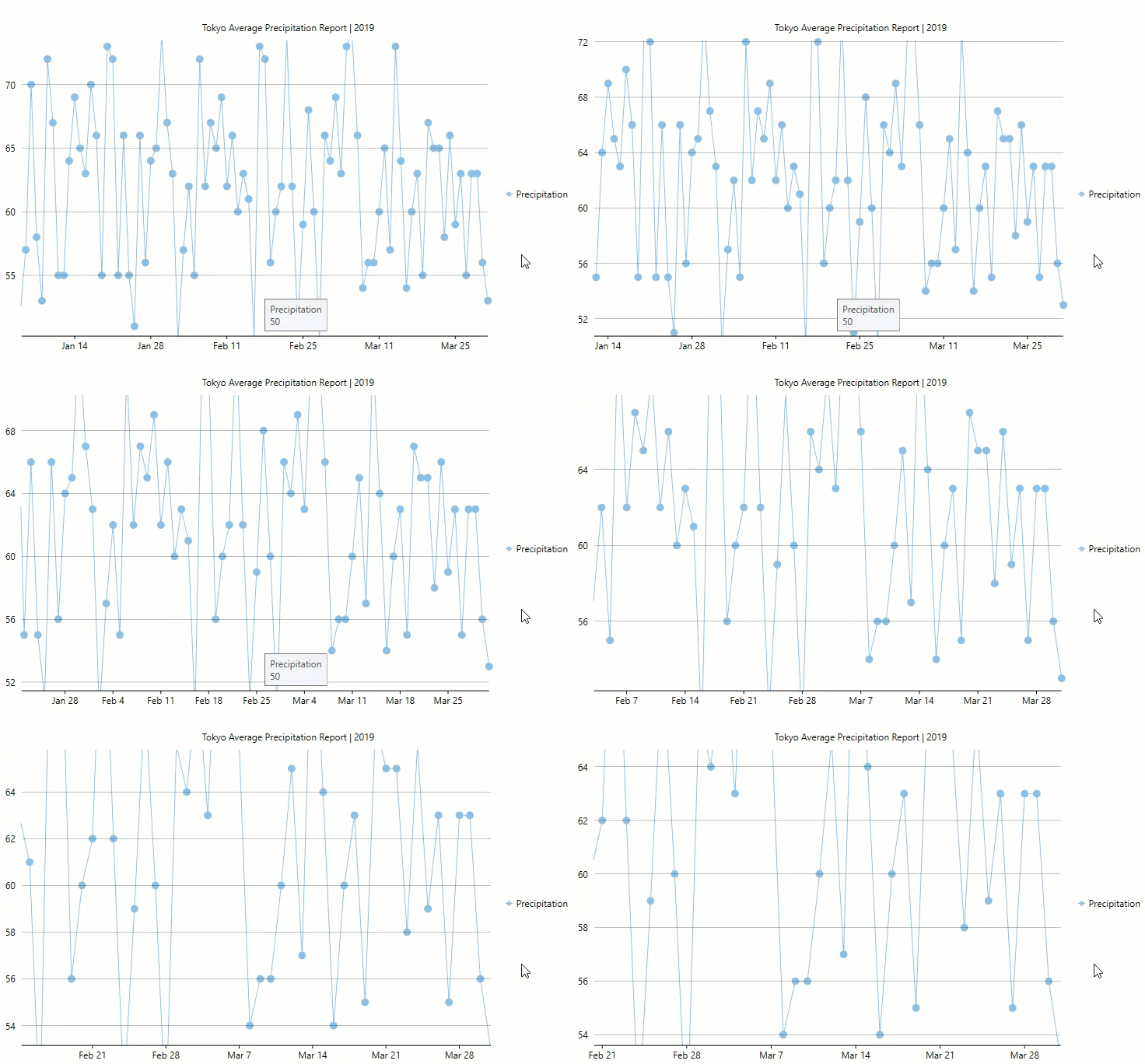
The GIF below shows how the FlexChart appears on zooming.
The following code examples demonstrate how to add and remove zooming in C# and XAML codes. These examples use the sample created in the Quick Start section.
**csharp**
```csharp
//Add Zoom behavior
flexChart.Behaviors.Add(new C1.WPF.Chart.Interaction.ZoomBehavior());
//Remove Zoom behavior
var behavrToRemove = flexChart.Behaviors.FirstOrDefault( behavr => behavr.GetType() == typeof(C1.WPF.Chart.Interaction.ZoomBehavior));
flexChart.Behaviors.Remove(behavrToRemove);
```
### xaml
**TAB CAPTION**
```TAB
```
Similarly, panning is the ability to scroll/move a zoomed image from a fixed position which can be implemented in FlexChart by creating an object of [TranslateBehavior](/componentone/api/wpf/online-flexchart/dotnet-api/C1.WPF.Chart/C1.WPF.Chart.Interaction.TranslateBehavior.html) class available in the **C1.WPF.Chart.Interaction** namespace and add it to FlexChart's Behaviors collection using Add method. This method adds translation behavior to the behavior collection by accessing it. In addition, you can use the [TranslationMode](/componentone/api/wpf/online-flexchart/dotnet-api/C1.WPF.Chart/C1.WPF.Chart.Interaction.TranslateBehavior.TranslationMode.html) property to enable touch based panning in FlexChart. This property sets the gesture direction of translation behavior through GestureMode enumeration.
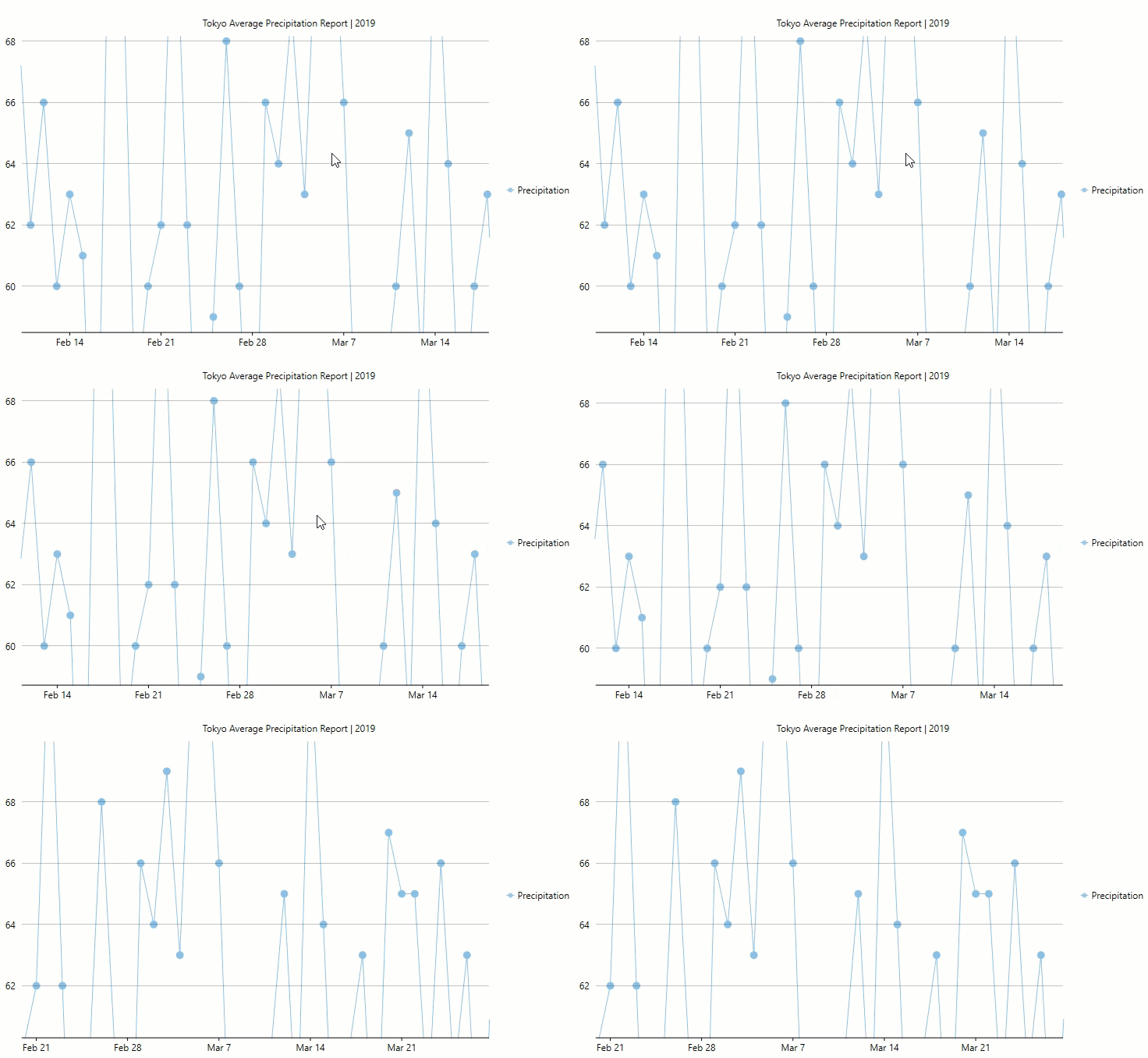
The GIF below shows how the FlexChart appears on panning.
The following code examples demonstrate how to add and remove panning in C# and XAML. These examples use the sample created in the Quick Start section.
**csharp**
```csharp
//Add Translate behavior
flexChart.Behaviors.Add(new C1.WPF.Chart.Interaction.TranslateBehavior());
//Remove Translate behavior
var behavrToRemove = flexChart.Behaviors.FirstOrDefault(behavr => behavr.GetType() == typeof(C1.WPF.Chart.Interaction.TranslateBehavior));
flexChart.Behaviors.Remove(behavrToRemove);
```
### xaml
**TAB CAPTION**
```TAB
```