# Step 1 of 3: Creating the Property Grid Application
## Content
In this step you'll create a WPF application using **PropertyGrid for WPF**. When you add a [C1PropertyGrid](/componentone/api/wpf/online-extended/dotnet-framework-api/C1.WPF.Extended.4.6.2/C1.WPF.Extended.C1PropertyGrid.html) control to your application, you'll have a complete, functional standard Properties window-like interface that users can use to browse and edit properties and/or methods on any .NET object. To set up your project and add a **C1PropertyGrid** control to your application, complete the following steps:
1. Create a new WPF project in Visual Studio.
2. In the Solution Explorer, right-click the References item and choose **Add Reference**. Select the C1.WPF, C1.WPF.Extended, and WPFToolkit assemblies and click **OK** to add references to your project.
3. Navigate to the Visual Studio Toolbox and double-click the **C1PropertyGrid** icon to add the control to the window.
4. In the Visual Studio Toolbox, double-click the **Button** item to add a standard button control to the application. You will use the **C1PropertyGrid** control to set and view the button’s properties.
5. Resize the Window and resize and reposition the **C1PropertyGrid** and Button controls in the Window.
6. Select the **Button** control and in the Properties window set its Name to "TestButton".
7. Select the **C1PropertyGrid** control and in the Properties window set its Height to 290 and Width to 250.
The XAML will appear similar to the following:
```xml
```
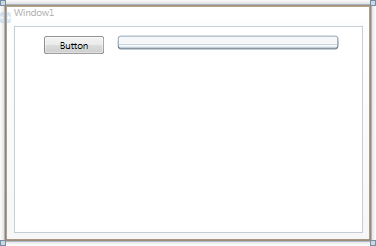
The page's Design view should now look similar to the following image (with the **C1PropertyGrid** control selected on the form):
You've successfully set up your application's user interface, but the **C1PropertyGrid** control contains no content. In the next step you'll set the **C1PropertyGrid** control to display certain properties of the **Button** control, and then you'll add code to your application to add functionality to the control.