# Docking Options

## Content


**DockControl for WPF** provides four DockMode options: _Floating_, _Docked_, _Sliding_, and _Hidden_. The following images show each of the docking options available in the drop-down list of the <span data-popup-content="This class is available in \u003ca href=\u0022/componentone/api/wpf/online-dockcontrol/dotnet-api/C1.WPF.Docking/C1.WPF.Docking.C1DockTabControl.html\u0022\u003e.NET\u003c/a\u003e and \u003ca href=\u0022/componentone/api/wpf/online-dockcontrol/dotnet-api/C1.WPF.Docking/C1.WPF.Docking.C1DockTabControl.html\u0022\u003e.NET Framework\u003c/a\u003e." data-popup-title="C1DockTabControl" data-popup-theme="ui-tooltip-green qtip-green">C1DockTabControl</span>.

**Floating**

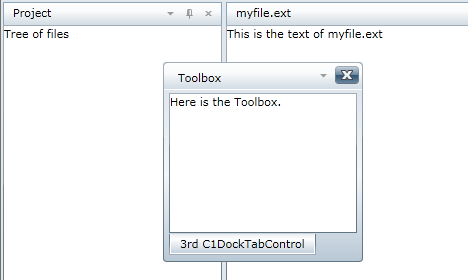
Click **Floating** to undock the window and allow it to float over the other windows.
![](https://cdn.mescius.io/document-site-files/images/071cfce4-8a59-4c77-94ca-7b05c2184e6d/graphics/floating.png)

The C1DockControl enables the users to disable the Floating mode for the specific tab item. To disable floating for a specific tab item, set the **CanUserFloat** property of the **C1DockTabItem** class to **False**. You will observe that the Floating mode option gets disappeared from the drop-down list for that specific tab item. By default **CanUserFloat** is set to True.

The following code snippet can be used to disable floating for a specific tab item.

```xml
//Disable floating mode for Tab Item
 <c1:C1DockTabControl SelectedIndex="0">
     <c1:C1DockTabItem  CanUserFloat="False" Header="Tab 3" TabShape="Sloped">
         <!--Your Content Here-->
     </c1:C1DockTabItem>
 </c1:C1DockTabControl>
```

**Docked**

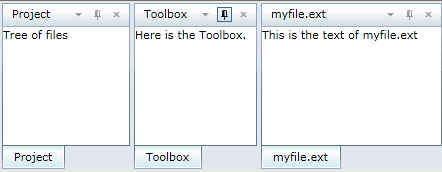
Click **Docked** to dock the window with the other windows.
![](https://cdn.mescius.io/document-site-files/images/071cfce4-8a59-4c77-94ca-7b05c2184e6d/graphics/docked.png)

**Sliding**

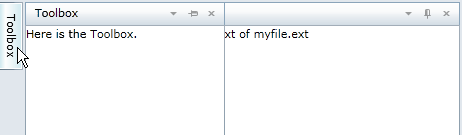
Click **Sliding** to minimize the <span data-popup-content="This class is available in \u003ca href=\u0022/componentone/api/wpf/online-dockcontrol/dotnet-api/C1.WPF.Docking/C1.WPF.Docking.C1DockTabItem.html\u0022\u003e.NET\u003c/a\u003e and \u003ca href=\u0022/componentone/api/wpf/online-dockcontrol/dotnet-api/C1.WPF.Docking/C1.WPF.Docking.C1DockTabItem.html\u0022\u003e.NET Framework\u003c/a\u003e." data-popup-title="C1DockTabItem" data-popup-theme="ui-tooltip-green qtip-green">C1DockTabItem</span> along the edges of the IDE.

![](https://cdn.mescius.io/document-site-files/images/071cfce4-8a59-4c77-94ca-7b05c2184e6d/graphics/sliding.png)

**Hidden**

Click the **Hide** button to hide the **C1DockTabControl**.

**To set the Dock mode**:

You can set the dock mode at design time using the C1DockTabControl.**DockMode** property. The following XAML markup sets the dock mode to **Floating**:

```xml
<c1:C1DockTabControl DockMode="Floating">
     <c1:C1DockTabItem Header="Toolbox">
         <TextBlock Text="Toolbox" />
     </c1:C1DockTabItem>
</c1:C1DockTabControl>
```

See [Setting the Dock Mode](/componentone/docs/wpf/online-dockcontrol/DockControl_for_WPF_Task-Based_Help/Setting_the_Dock_Mode) for more information.