# Setting the Dock Mode

## Content


You can set the dock mode at design time using the C1DockTabControl.<span data-popup-content="\u003cbr\u003e\r\nThis property is available in \u003ca href=\u0022/componentone/api/wpf/online-dockcontrol/dotnet-api/C1.WPF.Docking/C1.WPF.Docking.C1DockTabControl.DockMode.html\u0022\u003e.NET\u003c/a\u003e and \u003ca href=\u0022/componentone/api/wpf/online-dockcontrol/dotnet-api/C1.WPF.Docking/C1.WPF.Docking.C1DockTabControl.DockMode.html\u0022\u003e.NET Framework\u003c/a\u003e." data-popup-title="DockMode" data-popup-theme="ui-tooltip-green qtip-green">DockMode</span> property.

To set the dock mode, follow these steps:

1.  Open the .xaml page in Visual Studio.
2.  Place your cursor between the _\<Grid>\</Grid>_ tags.
3.  In the Toolbox, double-click the **C1DockControl** icon to add the control to the project.
4.  Place your cursor between the _<c1:C1DockControl>_ and _</c1:C1DockControl>_ tags.
5.  In the Toolbox, double-click the **C1DockTabControl** icon to add the control to the project.
6.  Set the **DockMode** property to **Sliding**. Your XAML markup will now look similar to this:
    
    ```xml
    <c1:C1DockControl>
            <c1:C1DockTabControl DockMode="Sliding"></c1:C1DockTabControl>
    </c1:C1DockControl>
    ```
    
7.  Place your cursor between the _<c1:C1DockTabControl>_ and _</c1:C1DockTabControl>_ tags.
8.  In the Toolbox, double-click the **C1DockTabItem** icon to add the control to the project and set the **C1DockTabItem.Header** property to **Toolbox**. Your XAML should look similar to the following:
    
    ```xml
    <c1:C1DockControl>
                <c1:C1DockTabControl DockMode="Sliding">
                     <c1:C1DockTabItem Header="Toolbox"></c1:C1DockTabItem>
                </c1:C1DockTabControl>
         </c1:C1DockControl>
    ```
    
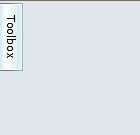
9.  Run your project. The [C1DockControl](/componentone/api/wpf/online-dockcontrol/dotnet-api/C1.WPF.Docking/C1.WPF.Docking.C1DockControl.html) will resemble the following image:
    
    ![](https://cdn.mescius.io/document-site-files/images/071cfce4-8a59-4c77-94ca-7b05c2184e6d/graphics/settingdockmode.png)
    
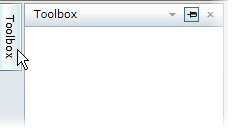
10.  Click the **Toolbox** tab to slide the window into view.
    
    ![](https://cdn.mescius.io/document-site-files/images/071cfce4-8a59-4c77-94ca-7b05c2184e6d/graphics/settingdockmode2.png)