# C1DateTimePicker Quick Start
## Content
The following quick start guide is intended to get you up and running with C1DateTimePicker. In this quick start, you'll create a new project in Visual Studio, add a **C1DateTimePicker** control to your application, and customize the **C1DateTimePicker** control.
### Create an Application with C1DateTimePicker control
1. In Visual Studio, select **File | New | Project**.
2. In the **New Project** dialog box, select **WPF** **Application**.
3. Enter a **Name** and **Location** for your project and click **OK** to create the new application.
4. If you created a WPF project, in the Toolbox, double-click the **C1DateTimePicker** icon to add the **C1DateTimePicker** control to the WPF application.
You have completed the first step of the **C1DateTimePicker** quick start. In this step, you created a project and added a **C1DateTimePicker** control to it. In the next step, you'll customize the control.
### Customize the C1DateTimePicker control
To modify the appearance of the control, select the **C1DateTimePicker** control and in the Properties window, set the following properties:
* Set the **Height** property to "30" to set height of the control.
* Set the **Width** property to "300" to set the width of the control.
* Set the TimeFormat property to **ShortTime** to change the format of the time to a short format consisting of only hours and minute spaces.
* Set the DateFormat property to **Long** to change the format of the date to a longer format that includes the weekday.
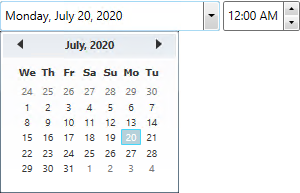
* Set the FirstDayOfWeek property to **Wednesday** to change the first day of the drop-down calendar's week to Wednesday.
In this step, you customized the appearance of the **C1DateTimePicker** control. In the next step, you will run the project and experience the functionality of the control.
### Run the Application
1. From the toolbar menu, select **Project | Run Project** to run your application. Observe that output in the application resembles the following:

2. Click the time picker drop-down arrow to reveal the calendar and observe that the calendar's weeks start with Wednesday:
Congratulations! You have completed the **C1DateTimePicker** quick start. In this quick start, you created a WPF application containing a **C1DateTimePicker** control, modified the control's appearance, Now that you have finished the quick start, we recommend that you visit the [Working with C1DateTimePicker](/componentone/docs/wpf/online-datetimeeditors/datetimepicker/Working_with_C1DateTimePicker) or [C1DateTimePicker Task-Based Help](/componentone/docs/wpf/online-datetimeeditors/datetimepicker/C1DateTimePicker_Task-Based_Help) topics.