# QuickStart
A small quickstart application to get you started with C1DragDropManager.
## Content
This quick start guides you through the steps of adding the DragDropManager in an application to manage user interactions.
### Create an Application
To set up and add controls to your application, complete the following steps:
1. In Visual Studio, select **File \| New \| Project**.
2. In the **New Project** dialog box, select **WPF** **Application**.
3. Enter a **Name** and **Location** for your project and click **OK** to create the new application.
4. In the XAML window of the project, place the cursor between the **\ \** tags.
5. Add the following XAML markup between the **\\** tags in the MainPage.xaml file:
```xml
```
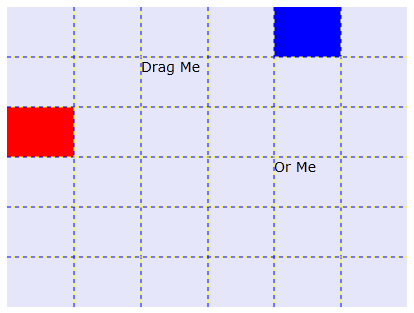
This markup creates a grid with **TextBlock** and **Rectangle** controls in separate regions.
### Add DragDropManager to the Application
In the last step you had set up the application, now to add the drag-and-drop functionality, complete the following steps to add the DragDropManager.
1. Navigate to the **Solution Explorer**, right-click **MainPage.xaml** file or the **MainWindow.xaml** file, and select **View Code** to switch to Code view.
2. Add code to the **MainPage.xaml.cs** (or **.vb**) file or the **MainWindow.xaml.cs** (or **.vb**) file in the page constructor so it looks similar to the following:
```csharp
public MainPage()
{
InitializeComponent();
// Initialize the C1DragDropManager
C1DragDropManager dd = new C1DragDropManager();
dd.RegisterDropTarget(_ddGrid, true);
foreach (UIElement e in _ddGrid.Children)
{
dd.RegisterDragSource(e, DragDropEffect.Move, ModifierKeys.None);
}
dd.DragDrop += dd_DragDrop;
}
```
```vbnet
Public Sub New()
InitializeComponent()
' Initialize the C1DragDropManager
Dim dd As New C1DragDropManager()
dd.RegisterDropTarget(_ddGrid, True)
For Each e As UIElement In _ddGrid.Children
dd.RegisterDragSource(e, DragDropEffect.Move, ModifierKeys.None)
Next
AddHandler dd.DragDrop, AddressOf dd_DragDrop
End Sub
```
The code initiates a new instance of [C1DragDropManager](/componentone/api/wpf/online-core5/dotnet-api/C1.WPF.Core/C1.WPF.Core.C1DragDropManager.html). It then calls the [RegisterDropTarget](/componentone/api/wpf/online-core5/dotnet-api/C1.WPF.Core/C1.WPF.Core.C1DragDropManager.RegisterDropTarget.html) method to indicate that the grid should act as a drop target by default. Further, it calls the [RegisterDragSource](/componentone/api/wpf/online-core5/dotnet-api/C1.WPF.Core/C1.WPF.Core.C1DragDropManager.RegisterDragSource.html) method to indicate that users should be allowed to drag the elements in the grid. Finally, the code attaches an event handler to the [DragDrop](/componentone/api/wpf/online-core5/dotnet-api/C1.WPF.Core/C1.WPF.Core.C1DragDropManager.DragDrop.html) event so that the application can receive a notification and move the element being dragged into its new position.
3. Add the following event handler to the **MainPage.xaml.cs** (or **.vb**):
```csharp
private void dd_DragDrop(object source, DragDropEventArgs e)
{
// Get mouse position
Point pMouse = e.GetPosition(_ddGrid);
// Translate into grid row/col coordinates
int row, col;
Point pGrid = new Point(0, 0);
for (row = 0; row < _ddGrid.RowDefinitions.Count; row++)
{
pGrid.Y += _ddGrid.RowDefinitions[row].ActualHeight;
if (pGrid.Y > pMouse.Y)
break;
}
for (col = 0; col < _ddGrid.ColumnDefinitions.Count; col++)
{
pGrid.X += _ddGrid.ColumnDefinitions[col].ActualWidth;
if (pGrid.X > pMouse.X)
break;
}
// Move the element to the new position
e.DragSource.SetValue(Grid.RowProperty, row);
e.DragSource.SetValue(Grid.ColumnProperty, col);
}
```
```vbnet
Private Sub dd_DragDrop(source As Object, e As DragDropEventArgs)
' Get mouse position
Dim pMouse As Point = e.GetPosition(_ddGrid)
' Translate into grid row/col coordinates
Dim row As Integer, col As Integer
Dim pGrid As New Point(0, 0)
For row = 0 To _ddGrid.RowDefinitions.Count - 1
pGrid.Y += _ddGrid.RowDefinitions(row).ActualHeight
If pGrid.Y > pMouse.Y Then
Exit For
End If
Next
For col = 0 To _ddGrid.ColumnDefinitions.Count - 1
pGrid.X += _ddGrid.ColumnDefinitions(col).ActualWidth
If pGrid.X > pMouse.X Then
Exit For
End If
Next
' Move the element to the new position
e.DragSource.SetValue(Grid.RowProperty, row)
e.DragSource.SetValue(Grid.ColumnProperty, col)
End Sub
```
The event handler starts by converting the mouse coordinates into row/column values. Then, it uses the **SetValue** method to update the **Grid.RowProperty** and **Grid.ColumnProperty** values on the element that was dragged.
### Run the Application
Now that you've created an application and added code to add drag-drop functionality to the application, the only thing left to do is run your application. To observe your application's run-time interactions, complete the following steps:
1. Execute the application, and observe the ouput.
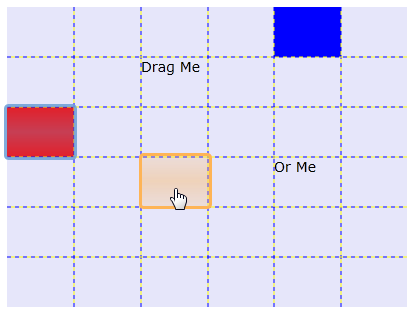
2. Click the red **Rectangle** and drag it to another square in the grid. Notice that as the drag process is in action, an extra border appears around the item you are dragging and a transparent rectangle is moved with the mouse to indicate where the item will be dropped:
**What You've Accomplished**
Congratulations, you've completed the DragDropManager quick start! You've created a simple application that uses DragDropManager to move items in a grid.