# Pie Charts
## Content
**Pie** charts are commonly used to display simple values. They are visually appealing and often displayed with 3D effects such as shading and rotation.
**Pie** charts have one significant difference when compared to other **C1Chart** chart types in Pie charts; each series represents one slice of the pie. Therefore, you will never have Pie charts with a single series (they would be just circles). In most cases, Pie charts have multiple series (one per slice) with a single data point in each series. **C1Chart** represents series with multiple data points as multiple pies within the chart.
If you wanted to create a Pie chart using XAML markup, the markup should resemble the following:
```xml
P1 P2 P3 P4 P5
```
There are a few special properties that can help you customize your Pie Chart control. Using the SetStartingAngle or Direction properties allows you to change the initial starting angle of your Pie Chart or change the direction of the slices. You can also explode a pie slice out from the main chart to highlight it using the BasePieRenderer property.
**Starting Angle**
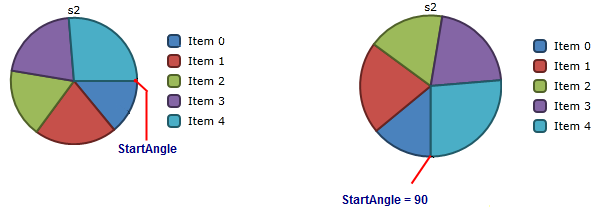
The **PieOptions.SetStartingAngle** property defines the position of the first slice within the Pie Chart. The first slice always begins at 90 degrees. The Start Angle runs clockwise from the 90 degree angle.
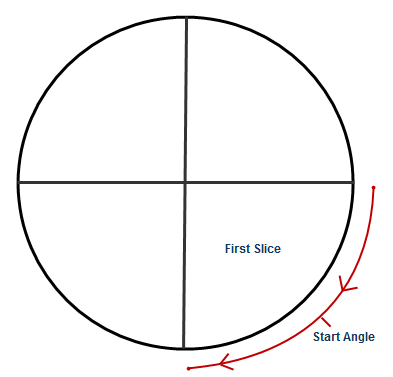
Use the PieOptions.SetStartingAngle property to specify the angle at which the slices for the first series start. You can see what happens when you set the Start Angle to 90 in the image below:
**Direction**
Use the **PieOptions.Direction** attached property to specify the direction the chart is drawn as an elliptical arc. Options include:
* **Counterclockwise**: Specifies that arcs are drawn in a counter clockwise (negative-angle) direction.
* **Clockwise**: Specifies that arcs are drawn in a clockwise (positive-angle) direction.
**SeriesLabelTemplate**
Use the **PieOptions.SeriesLabelTemplate** property to specify the template for the series label of a pie chart. Create a **DataTemplate** to set the content of the series label.
**Exploding Pies**
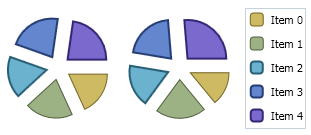
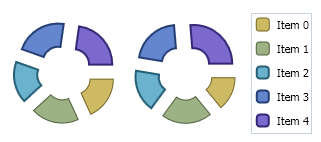
A slice of a Pie chart can be emphasized by exploding it, which extrudes the slice from the rest of the pie. Use the **Offset** property of the series to set the exploded slice's offset from the center of the pie. The offset is measured as a percentage of the radius of the pie.
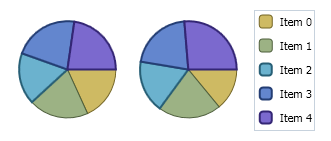
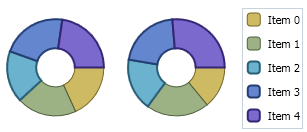
**Chart for WPF and Silverlight** supports the following types of Pie charts:
* Pie
* Pie Stacked
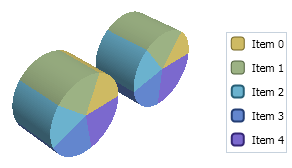
* 3D Pie
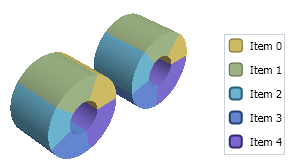
* 3D Doughnut Pie
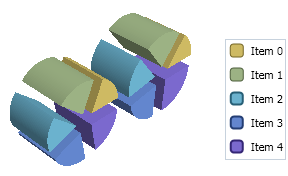
* 3D Exploded Pie
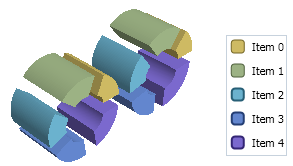
* 3D Exploded Doughnut Pie
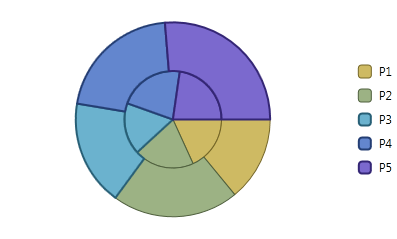
* Doughnut Pie
* Exploded Pie
* Exploded Doughnut Pie
**Regular Pie Charts (WPF and Silverlight)**
| Pie | PieStacked |
| --- | ---------- |
|  |  |
| DoughnutPie | ExplodedPie |
|  |  |
| ExplodedDoughnutPie | |
|  | |
**3D Pie Charts (WPF ONLY)**
| 3DPie | 3DDoughnutPie |
| ----- | ------------- |
|  |  |
| 3DExplodedPie | 3DExplodedDoughnutPie |
|  |  |
## See Also
[Adding Connecting Lines to Prevent Pie Overlapping](/componentone/docs/wpf/online-chart/overview/Types/PieCharts/Overlapping)
[Adding Labels to Pie Charts](/componentone/docs/wpf/online-chart/overview/Types/PieCharts/Addinglabels)
[Adding Labels to Pie Charts](/componentone/docs/wpf/online-chart/overview/Types/PieCharts/offset)
[Setting the Default Viewing Angle for 3D Pie Chart](/componentone/docs/wpf/online-chart/overview/Types/PieCharts/3d)