# Creating Color Picker Menu

## Content

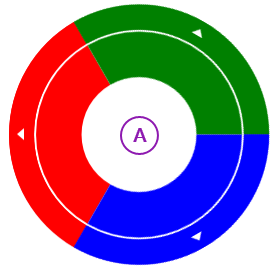
The [C1RadialColorItem](/componentone/api/wpf/online-basiclibrary/dotnet-framework-api/C1.WPF.4.6.2/C1.WPF.C1RadialColorItem.html) allows you to create a color picker using the [C1RadialMenu](/componentone/api/wpf/online-basiclibrary/dotnet-framework-api/C1.WPF.4.6.2/C1.WPF.C1RadialMenu.html) control. In this topic, you'll create a C1RadialMenu application and add C1RadialColorItems to the C1RadialMenu control. You'll use both XAML markup and code to create the application.

Complete the following steps:

1. Locate the **\<Grid>\</Grid>** tags on your page and replace then with the following markup to create the framework for your application:

 ```xml
 <Grid Background="{ThemeResource ApplicationPageBackgroundThemeBrush}">
     <Border Background="LemonChiffon" MinHeight="40" BorderBrush="#969696"
                 BorderThickness="1" Padding="5" HorizontalAlignment="Stretch" VerticalAlignment="Stretch">
         <Xaml:C1ContextMenuService.ContextMenu>
         </Xaml:C1ContextMenuService.ContextMenu>
         <Xaml:C1ListViewer x:Name="text" Foreground="Sienna" HorizontalAlignment="Stretch" VerticalAlignment="Center" Height="75" ZoomMode="Disabled">
             <TextBlock Text="Touch: hold down for a few seconds until the indicator displays.&#10;Keyboard: press the context-menu button over this text.&#10;Mouse: right-click over this text."
                            FontSize="16" TextWrapping="Wrap" />
         </Xaml:C1ListViewer>
     </Border>
     <TextBlock x:Name="txt" Foreground="Red" Text="" FontSize="16" VerticalAlignment="Bottom" HorizontalAlignment="Center" Margin="10" />
 </Grid>
 ```

2. Locate the **\<Xaml:C1ContextMenuService.ContextMenu> </Xaml:C1ContextMenuService.ContextMenu>** tags within the markup you just added. Place your cursor between the tags.
3. Locate the **C1RadialMenu** control in the Visual Studio ToolBox and double-click it to add it to your application.
4. Edit the opening **\<C1RadialMenu>** tag so that it resembles the following:

 ```xml
 <Xaml:C1RadialMenu x:Name="contextMenu" Offset="-130,0" ItemClick="contextMenu_ItemClick" >
 ```

5. Add the following markup between the **\<C1RadialMenu>\</C1RadialMenu>** tags to add three **C1RadialColorItems** to your application:

 ```xml
 <Xaml:C1RadialColorItem x:Name="rainbowItem" ShowSelectedItem="True" AutoSelect="True" IsSelectable="False" >        
 </Xaml:C1RadialColorItem>            
 <Xaml:C1RadialColorItem x:Name="greenItem" SelectedIndex="5" ShowSelectedItem="True" AutoSelect="True" IsSelectable="False" >                   
 </Xaml:C1RadialColorItem>
 <Xaml:C1RadialColorItem x:Name="blueItem" SelectedIndex="0" ShowSelectedItem="True" AutoSelect="True" IsSelectable="False" >                    
 </Xaml:C1RadialColorItem>
 ```

6. Select the **C1RadialColorItem** named **“rainbowItem”** and insert the following markup between the opening and closing tags. This will add **SolidColorBrush** submenu items:

 ```xml
 <SolidColorBrush Color="Red"/>
 <SolidColorBrush Color="Orange"/>
 <SolidColorBrush Color="Yellow"/>
 <SolidColorBrush Color="Green"/>
 <SolidColorBrush Color="Blue"/>
 <SolidColorBrush Color="Indigo"/>
 <SolidColorBrush Color="Violet"/>
 ```

7. Select the **“greenItem”** **C1RadialColorItem** and insert the following markup between the opening and closing tags. This will add **C1RadialColorItem** submenu items in shades of green:

 ```xml
 <Xaml:C1RadialColorItem x:Name="greenItem" SelectedIndex="5" ShowSelectedItem="True" AutoSelect="True" IsSelectable="False">
     <Xaml:C1RadialColorItem ToolTip="Lime" Brush="#FF92D050" GroupName="Green"/>
     <Xaml:C1RadialColorItem ToolTip="Light Green" Brush="#FFC6EFCE" GroupName="Green"/>
     <Xaml:C1RadialColorItem ToolTip="Green" Brush="#FF00FF00" GroupName="Green"/>
     <Xaml:C1RadialColorItem ToolTip="Dark Green" Brush="#FF1D421E" GroupName="Green"/>
     <Xaml:C1RadialColorItem ToolTip="Dark Green" Brush="#FF1D5A2D" GroupName="Green"/>
     <Xaml:C1RadialColorItem ToolTip="Dark Green" Brush="Green" GroupName="Green"/>
     <Xaml:C1RadialColorItem ToolTip="Dark Green" Brush="#FF008000" GroupName="Green"/>
     <Xaml:C1RadialColorItem ToolTip="Dark Green" Brush="#FF00B050" GroupName="Green"/>
 </Xaml:C1RadialColorItem>
 ```

8. Select the **“blueItem”** **C1RadialColorItem** and insert the following markup between the opening and closing tags. This will add **C1RadialColorItem** submenu items in shades of blue:

 ```xml
 <Xaml:C1RadialColorItem x:Name="blueItem" SelectedIndex="0" ShowSelectedItem="True" AutoSelect="True" IsSelectable="False" >
     <Xaml:C1RadialColorItem ToolTip="Blue" Brush="Blue" GroupName="Blue"/>
     <Xaml:C1RadialColorItem ToolTip="Slate Blue" Brush="MediumSlateBlue" GroupName="Blue"/>
     <Xaml:C1RadialColorItem ToolTip="Turquoise" Brush="Turquoise" GroupName="Blue"/>
     <Xaml:C1RadialColorItem ToolTip="Aqua" Brush="Aqua" GroupName="Blue"/>
     <Xaml:C1RadialColorItem ToolTip="Sky Blue" Brush="SkyBlue" GroupName="Blue"/>
     <Xaml:C1RadialColorItem ToolTip="Purple" Brush="#FFAC38AC" AccentBrush="#FF801C80" GroupName="Blue"/>
     <Xaml:C1RadialColorItem ToolTip="Dark Purple" Brush="Purple" GroupName="Blue"/>
     <Xaml:C1RadialColorItem ToolTip="Dark Blue" Brush="DarkBlue" GroupName="Blue"/>
 </Xaml:C1RadialColorItem>
 ```

9. Right-click the page and select View Code from the list.
10. Add the following using statement to the top of the page:

 ```csharp
 using C1.Xaml;
 ```

11. Add the following **ItemClick** event to the page. This will allow the text you added to your main page to change color when you select one of the colors from the **C1RadialMenu**:

 ```csharp
 private void contextMenu_ItemClick(object sender, SourcedEventArgs e)
         {
             C1RadialMenuItem item = e.Source as C1RadialMenuItem;
             if (item is C1RadialColorItem)
             {
                 this.text.Foreground = ((C1RadialColorItem)item).Brush;
                 txt.Text = "Item Clicked: " + ((C1RadialColorItem)item).Color.ToString();
             }
             else
             {
                 txt.Text = "Item Clicked: " + (item.Header ?? item.Name).ToString();
             }
         }
 ```

12. Press **F5** or start debugging to run your application. When you right-click or right-tap the application and open the **C1RadialMenu**, it should resemble the following image:
![](https://cdn.mescius.io/document-site-files/images/7e9deccd-1f1c-4ec7-af90-b4332b45dead/images/radialmenu/colorpickermenu.png)