# ListBox Quick Start
## Content
The following quick start guide is intended to get you up and running with the **C1ListBox** control. In this quick start you'll start in Visual Studio and create a new project, add **C1ListBox** to your application, and customize the appearance and behavior of the control.
### Step 1
In this step, you'll create a WPF or Silverlight application in Visual Studio using **ListBox for WPF and Silverlight**.
Complete the following steps:
1. In Visual Studio, select **File \| New Project**.
2. In the **New Project dialog box**, select either **Windows Desktop** or **Silverlight** from the **Templates** in the left-hand pane.
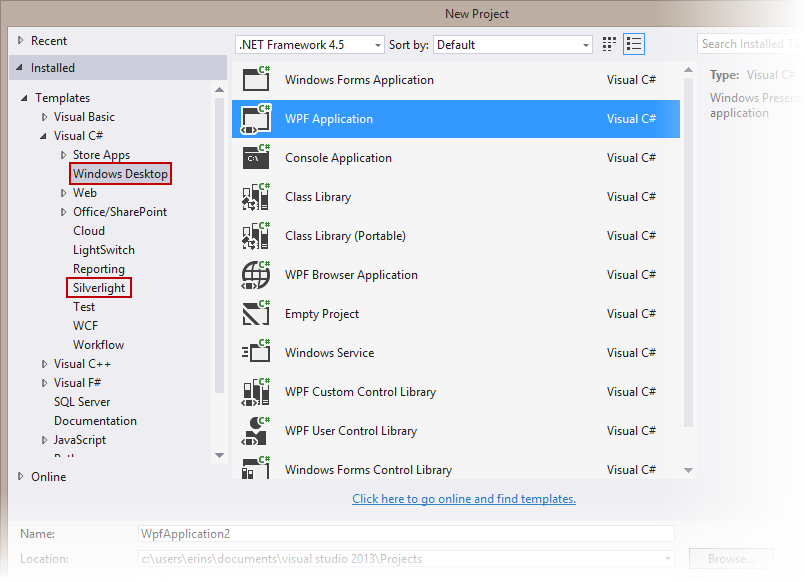
New Project Dialog Box
3. Select **WPF Application** or **Silverlight Application**, depending on the template you chose.
4. Enter a **Name** for your project, for example "QuickStart", and click **OK**. In a **WPF Application**, the **MainWindow.xaml** file will open.
1. If you selected a **Silverlight Application**, when you click **OK**, the **New Silverlight Application** dialog box will appear.
2. Click **OK** to accept default settings. This will close the **New Silverlight Application** dialog box and create your project.
3. The **MainPage.xaml** file should open.
5. Add the following assemblies to your application by right-clicking the **References** folder and selecting **Add Reference**:
* **WPF**: C1.WPF.4.dll
* **Silverlight**: C1.Silverlight.5.dll
6. Add the following \ markup between the \ and \ tags to add a **StackPanel** containing a **TextBlock** and **ProgressBar**:
```xml
```
7. Navigate to the Toolbox and double-click the C1ListBox icon to add the control to the grid. This will add the reference and XAML namespace automatically.
8. Edit the \ tag to customize the control:
```xml
```
This gives the control a name and customizes the binding, background, visibility, size, and refreshing ability of the control.
9. Add the following markup between the \ and tags:
```xml
```
This markup adds data templates for the **C1ListBox** control's content. Note that you'll complete binding the control in code.
### Step 2
In this step, you will add code to display images from a photo stream.
Complete the following steps to add data to the control:
1. Select the **Page**, navigate to the Properties window, click the lightning bolt **Events** button to view events, and scroll down and double-click the area next to the **Loaded** event.
This will open the Code Editor and add the **Page\_Loaded** event.
2. Add the following imports or using statements to the top of the page:
```vbnet
'WPF
Imports System.Linq
Imports System.Windows.Controls
Imports System.Windows
Imports System.Collections.Generic> Imports System.Net
Imports System.Xml.Linq
Imports System
Imports C1.WPF
OR
'Silverlight
Imports C1.Silverlight
Imports System
Imports System.Collections.Generic
Imports System.IO
Imports System.Linq
Imports System.Xml.Linq
Imports System.Net
Imports System.Collections.ObjectModel
```
```csharp
//WPF
using System.Linq;
using System.Windows.Controls;
using System.Windows;
using System.Collections.Generic;
using System.Net;
using System.Xml.Linq;
using System;
using C1.WPF;
OR
//Silverlight
using C1.Silverlight;
using System;
using System.Collections.Generic;
using System.IO;
using System.Linq;
using System.Net;
using System.Xml.Linq;
using System.Collections.ObjectMode;
```
3. Add the following code inside the initial event handler:
```vbnet
DataContext = Enumerable.Range(0, 100)
AddHandler Loaded, AddressOf ListBoxSample_Loaded
```
```csharp
DataContext = Enumerable.Range(0, 100);
Loaded += new System.Windows.RoutedEventHandler(ListBoxSample_Loaded);
```
4. Add the following code below within the MainPage or MainWindow class:
```vbnet
Private Sub ListBoxSample_Loaded(sender As Object, e As RoutedEventArgs)
LoadPhotos()
End Sub
Private Sub LoadPhotos()
Dim flickrUrl = "http://api.flickr.com/services/feeds/photos_public.gne"
Dim AtomNS = "http://www.w3.org/2005/Atom"
loading.Visibility = Visibility.Visible
retry.Visibility = Visibility.Collapsed
Dim photos = New List(Of Photo)()
Dim client = New WebClient()
AddHandler client.OpenReadCompleted, Function(s, e)
Try
'#Region "** parse flickr data"
Dim doc = XDocument.Load(e.Result)
For Each entry In doc.Descendants(XName.[Get]("entry", AtomNS))
Dim title = entry.Element(XName.[Get]("title", AtomNS)).Value
Dim enclosure = entry.Elements(XName.[Get]("link", AtomNS)).Where(Function(elem) elem.Attribute("rel").Value = "enclosure").FirstOrDefault()
Dim contentUri = enclosure.Attribute("href").Value
photos.Add(New Photo() With { _
.Title = title, _
.Content = contentUri, _
.Thumbnail = contentUri.Replace("_b", "_m") _
})
Next
'#End Region
listBox.ItemsSource = photos
loading.Visibility = Visibility.Collapsed
listBox.Visibility = Visibility.Visible
retry.Visibility = Visibility.Collapsed
Catch
MessageBox.Show("There was an error when attempting to download data from Flickr.")
listBox.Visibility = Visibility.Collapsed
loading.Visibility = Visibility.Collapsed
retry.Visibility = Visibility.Visible
End Try
End Function
client.OpenReadAsync(New Uri(flickrUrl))
End Sub
Private Sub Retry_Click(sender As Object, e As RoutedEventArgs)
LoadPhotos()
End Sub
#Region "** public properties"
Public Property Orientation() As Orientation
Get
Return listBox.Orientation
End Get
Set(value As Orientation)
listBox.Orientation = value
End Set
End Property
Public Property ItemWidth() As Double
Get
Return listBox.ItemWidth
End Get
Set(value As Double)
listBox.ItemWidth = value
End Set
End Property
Public Property ItemHeight() As Double
Get
Return listBox.ItemHeight
End Get
Set(value As Double)
listBox.ItemHeight = value
End Set
End Property
Public Property ZoomMode() As ZoomMode
Get
Return listBox.ZoomMode
End Get
Set(value As ZoomMode)
listBox.ZoomMode = value
End Set
End Property
#End Region
```
```csharp
void ListBoxSample_Loaded(object sender, RoutedEventArgs e)
{
LoadPhotos();
}
private void LoadPhotos()
{
var flickrUrl = "http://api.flickr.com/services/feeds/photos_public.gne";
var AtomNS = "http://www.w3.org/2005/Atom";
loading.Visibility = Visibility.Visible;
listBox.Visibility = Visibility.Collapsed;
retry.Visibility = Visibility.Collapsed;
var photos = new List();
var client = new WebClient();
client.OpenReadCompleted += (s, e) =>
{
try
{
#region ** parse flickr data
var doc = XDocument.Load(new XmlTextReader(e.Result));
foreach (var entry in doc.Descendants(XName.Get("entry", AtomNS)))
{
var title = entry.Element(XName.Get("title", AtomNS)).Value;
var enclosure = entry.Elements(XName.Get("link", AtomNS)).Where(elem => elem.Attribute("rel").Value == "enclosure").FirstOrDefault();
var contentUri = enclosure.Attribute("href").Value;
photos.Add(new Photo() { Title = title, Content = contentUri, Thumbnail = contentUri.Replace("_b", "_m") });
}
#endregion
listBox.ItemsSource = photos;
loading.Visibility = Visibility.Collapsed;
listBox.Visibility = Visibility.Visible;
retry.Visibility = Visibility.Collapsed;
}
catch
{
MessageBox.Show("There was an error when attempting to download data from Flickr.");
listBox.Visibility = Visibility.Collapsed;
loading.Visibility = Visibility.Collapsed;
retry.Visibility = Visibility.Visible;
}
};
client.OpenReadAsync(new Uri(flickrUrl));
}
private void Retry_Click(object sender, RoutedEventArgs e)
{
LoadPhotos();
}
#region ** public properties
public Orientation Orientation
{
get
{
return listBox.Orientation;
}
set
{
listBox.Orientation = value;
}
}
public double ItemWidth
{
get
{
return listBox.ItemWidth;
}
set
{
listBox.ItemWidth = value;
}
}
public double ItemHeight
{
get
{
return listBox.ItemHeight;
}
set
{
listBox.ItemHeight = value;
}
}
public ZoomMode ZoomMode
{
get
{
return listBox.ZoomMode;
}
set
{
listBox.ZoomMode = value;
}
}
public C1SelectionMode SelectionMode
{
get
{
return listBox.SelectionMode;
}
set
{
listBox.SelectionMode = value;
}
}
public ScrollBarVisibility HorizontalScrollBarVisibility
{
get
{
return listBox.HorizontalScrollBarVisibility;
}
set
{
listBox.HorizontalScrollBarVisibility = value;
}
}
public ScrollBarVisibility VerticalScrollBarVisibility
{
get
{
return listBox.VerticalScrollBarVisibility;
}
set
{
listBox.VerticalScrollBarVisibility = value;
}
}
public Brush DEMO_Background
{
get
{
return listBox.Background;
}
set
{
listBox.Background = value;
}
}
public Brush DEMO_Foreground
{
get
{
return listBox.Foreground;
}
set
{
listBox.Foreground = value;
}
}
public Brush DEMO_BorderBrush
{
get
{
return listBox.BorderBrush;
}
set
{
listBox.BorderBrush = value;
}
}
public Brush SelectedBackground
{
get
{
return listBox.SelectedBackground;
}
set
{
listBox.SelectedBackground = value;
}
}
public Brush ButtonBackground
{
get
{
return listBox.ButtonBackground;
}
set
{
listBox.ButtonBackground = value;
}
}
public Brush ButtonForeground
{
get
{
return listBox.ButtonForeground;
}
set
{
listBox.ButtonForeground = value;
}
}
public Brush MouseOverBrush
{
get
{
return listBox.MouseOverBrush;
}
set
{
listBox.MouseOverBrush = value;
}
}
public Brush PressedBrush
{
get
{
return listBox.PressedBrush;
}
set
{
listBox.PressedBrush = value;
}
}
public Thickness DEMO_BorderThickness
{
get
{
return listBox.BorderThickness;
}
set
{
listBox.BorderThickness = value;
}
}
public CornerRadius CornerRadius
{
get
{
return listBox.CornerRadius;
}
set
{
listBox.CornerRadius = value;
}
}
#endregion
```
5. The code above pulls images from Flickr's public photo stream and binds the C1ListBox to the list of images.
6. Add the following code just below the MainPage class:
```vbnet
Public Class Photo
Public Property Title() As String
Get
Return m_Title
End Get
Set(value As String)
m_Title = Value
End Set
End Property
Private m_Title As String
Public Property Thumbnail() As String
Get
Return m_Thumbnail
End Get
Set(value As String)
m_Thumbnail = Value
End Set
End Property
Private m_Thumbnail As String
Public Property Content() As String
Get
Return m_Content
End Get
Set(value As String)
m_Content = Value
End Set
End Property
Private m_Content As String
End Class
```
```csharp
public class Photo
{
public string Title { get; set; }
public string Thumbnail { get; set; }
public string Content { get; set; }
}
```
You have successfully added data to a **C1TileListBox**. In Step 3, you'll examine the **ListBox for WPF and Silverlight** features.
### Step 3
Now that you've created a WPF or Silverlight application and customized the application's appearance and behavior, the only thing left to do is run your application. To run your application and observe **ListBox for WPF and Silverlight's** run-time behavior, complete the following steps:
1. From the **Debug** menu, select **Start Debugging** to view how your application will appear at run time.
2. The application will appear, displaying an image.
3. Use the scroll bar on the right of the control, to scroll through the image stream.
If you have touch capabilities, try pinching to zoom an image.
**Congratulations!**
You've completed the **ListBox for WPF and Silverlight** quick start and created an application using the **C1ListBox** control and viewed some of the run-time capabilities of your application.