# QuickStart

Learn how to create a simple application using Accordion for WPF control. See more demos, documenation, and samples here.

## Content


The following quick start guides the user how to create a simple application using Accordion. In this quick start, you'll create a new project in Visual Studio, add the Accordion control to your application, and then add content to content area of the Accordion control.
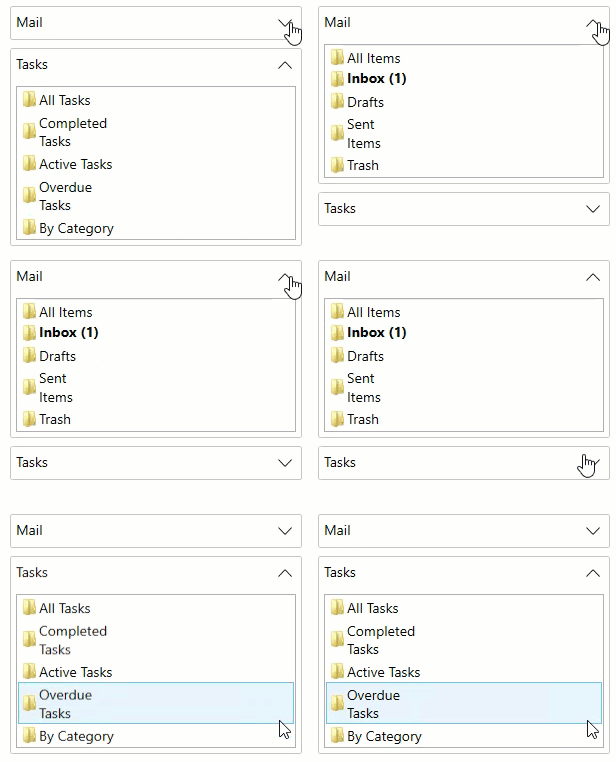
![Accordion for WPF control](https://cdn.mescius.io/document-site-files/images/530ec557-536d-4b6e-94ca-c0cf743e2c3a/images/accordion-expander-quickstart.gif)

### Setup the WPF application

1.  Create a new WPF Application in Visual Studio.
2.  Install the assembly using the Manage NuGet Packages.
3.  Open MainWindow.xaml and replace the existing XAML with the following code:
    
    ```xml
    <Window x:Class="Accordion_quickstart.MainWindow"
            xmlns="http://schemas.microsoft.com/winfx/2006/xaml/presentation"
            xmlns:x="http://schemas.microsoft.com/winfx/2006/xaml"
            xmlns:d="http://schemas.microsoft.com/expression/blend/2008"
            xmlns:mc="http://schemas.openxmlformats.org/markup-compatibility/2006"
            xmlns:local="clr-namespace:Accordion_quickstart" xmlns:c1="http://schemas.componentone.com/winfx/2006/xaml"
            mc:Ignorable="d"
            Title="MainWindow" Height="450" Width="800">
        <Grid>
        </Grid>
    </Window>
    ```
    
4.  Place the cursor between the \<Grid>\</Grid> tags. Now, drag and drop the C1Accordion control from the ToolBox to the \<Grid>\</Grid> tag of MainWindow.xaml. The reference assemblies get automatically added to the References and the code looks as shown below:
    
    `````xml
    ````
    <Grid>
    <c1:C1Accordion></c1:C1Accordion>
    </Grid>
    ````
    `````
    

### Add Controls to the Content Area

1.  Place your cursor between the <c1:C1Accordion> and</c1:C1Accordion> tags and press ENTER. Add the following code to add an Expander control to the Accordion pane.
    
    ```xml
    <!--Add first Expander control in Accordion pane.-->
    <c1:C1Expander Header="Mail" IsExpanded="True">
    </c1:C1Expander>
    ```
    
2.  Add items to the Expander, such as ListBox, Image and TextBlock controls as shown below:
    
    ```xml
    <!--Add listbox items within Expander control.-->
                    <ListBox>
                        <ListBoxItem>
                            <Grid>
                                <Image  Source="/Folder.png" HorizontalAlignment="Left" />
                                <TextBlock HorizontalAlignment="Left" VerticalAlignment="Top" Text="All Items" TextWrapping="Wrap" Margin="16,0,0,0" Width="60" />
                            </Grid>
                        </ListBoxItem>
                        <ListBoxItem FontWeight="Bold" FontFamily="Portable User Interface">
                            <Grid>
                                <Image  Source="/Folder.png" HorizontalAlignment="Left" />
                                <TextBlock HorizontalAlignment="Left" VerticalAlignment="Top" Text="Inbox (1)" TextWrapping="Wrap" Margin="16,0,0,0" Width="60" />
                            </Grid>
                        </ListBoxItem>
                        <ListBoxItem>
                            <Grid>
                                <Image Source="/Folder.png" HorizontalAlignment="Left" />
                                <TextBlock HorizontalAlignment="Left" VerticalAlignment="Top" Text="Drafts" TextWrapping="Wrap" Margin="16,0,0,0" Width="60" />
                            </Grid>
                        </ListBoxItem>
                        <ListBoxItem>
                            <Grid>
                                <Image  Source="/Folder.png" HorizontalAlignment="Left" />
                                <TextBlock HorizontalAlignment="Left" VerticalAlignment="Top" Text="Sent Items" TextWrapping="Wrap" Margin="16,0,0,0" Width="65" />
                            </Grid>
                        </ListBoxItem>
                        <ListViewItem>
                            <Grid>
                                <Image  Source="/Folder.png" HorizontalAlignment="Left" />
                                <TextBlock HorizontalAlignment="Left" VerticalAlignment="Top" Text="Trash" TextWrapping="Wrap" Margin="16,0,0,0" Width="60" />
                            </Grid>
                        </ListViewItem>
                    </ListBox>
    ```
    
3.  Add the second Expander to fill the Accordion pane.
    
    ```xml
    <!--Add second Expander control in Accordion pane.-->          
                <c1:C1Expander Header="Tasks" IsExpanded="False">
                    <!--Add listbox items within Expander control.-->
                    <ListBox>
                        <ListBoxItem>
                            <Grid>
                                <Image Source="/Folder.png" HorizontalAlignment="Left" />
                                <TextBlock HorizontalAlignment="Left" VerticalAlignment="Top" Text="All Tasks" TextWrapping="Wrap" Margin="16,0,0,0" Width="60" />
                            </Grid>
                        </ListBoxItem>
                        <ListBoxItem>
                            <Grid>
                                <Image  Source="/Folder.png" HorizontalAlignment="Left" />
                                <TextBlock HorizontalAlignment="Left" VerticalAlignment="Top" Text="Completed Tasks" TextWrapping="Wrap" Margin="16,0,0,0" Width="94.724" />
                            </Grid>
                        </ListBoxItem>
                        <ListBoxItem>
                            <Grid>
                                <Image  Source="/Folder.png" HorizontalAlignment="Left" />
                                <TextBlock HorizontalAlignment="Left" VerticalAlignment="Top" Text="Active Tasks" TextWrapping="Wrap" Margin="16,0,0,0" Width="87.324" />
                            </Grid>
                        </ListBoxItem>
                        <ListBoxItem>
                            <Grid>
                                <Image  Source="/Folder.png" HorizontalAlignment="Left" />
                                <TextBlock HorizontalAlignment="Left" VerticalAlignment="Top" Text="Overdue Tasks" TextWrapping="Wrap" Margin="16,0,0,0" Width="88.462" />
                            </Grid>
                        </ListBoxItem>
                        <ListBoxItem>
                            <Grid>
                                <Image  Source="/Folder.png" HorizontalAlignment="Left" />
                                <TextBlock HorizontalAlignment="Left" VerticalAlignment="Top" Text="By Category" TextWrapping="Wrap" Margin="16,0,0,0" Width="75" />
                            </Grid>
                        </ListBoxItem>
                    </ListBox>
                </c1:C1Expander>
    ```
    
4.  Run the application to view how your application will appear at run time.