# Quick Start

## Content


The following quick start guide is intended to get you up and running with the Accordion control. In this quick start, you'll start with creating a new WinUI application, add the Accordion control to it, and then add items in the content area of the control.

The following GIF displays the Accordion control in action.
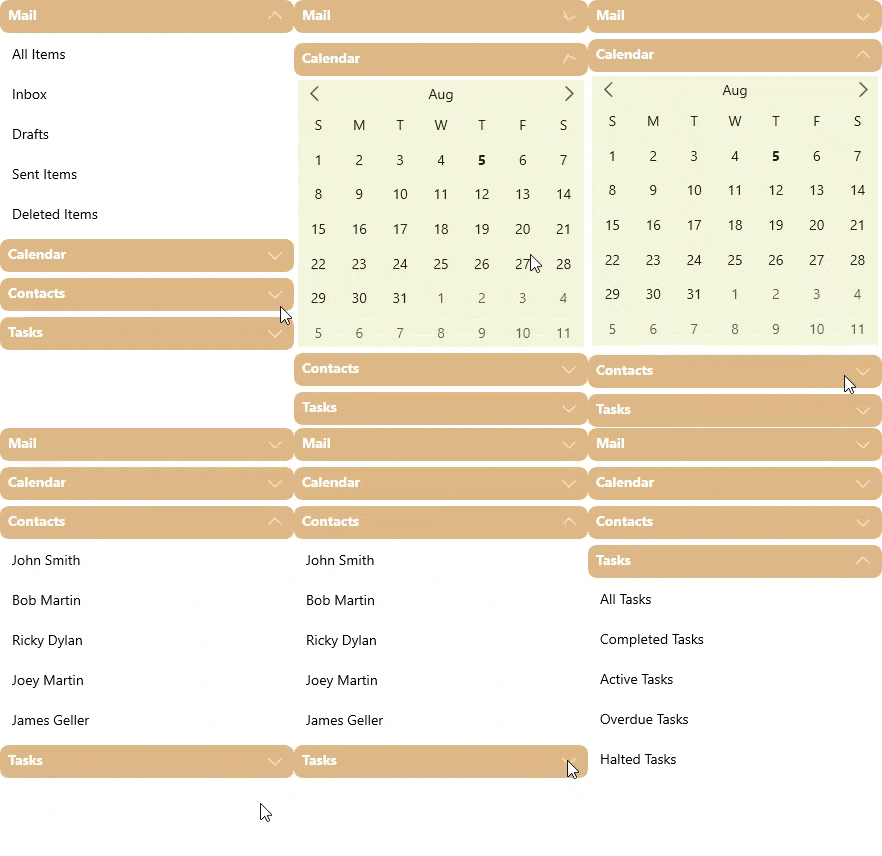
![WinUI Accordion control](https://cdn.mescius.io/document-site-files/images/2d49eac2-0942-4770-99ef-52b14e6815bd/images/accordion.gif)

## Create a WinUI Application and add References

1.  In Visual Studio, create a new WinUI App. For detailed steps, see [Configure WinUI Application](/componentone/docs/winui/online-winui/configuring-winui-app).
2.  In the **Solution Explorer**, right click **Dependencies** and select **Manage NuGet Packages**.
3.  In **NuGet Package Manager**, select **nuget.org** as the **Package source**.
4.  Search and select the following package and click **Install**.
    *   **C1.WinUI.Accordion**
    *   **C1.WinUI.Core**
    *   **C1.WinUI.Calendar**

## Configure the Accordion control

1.  Declare the namespace using the following code in XAML:<br />
    
    ```xml
    xmlns:c1="using:C1.WinUI.Accordion"
    xmlns:core="using:C1.WinUI.Core"   
    xmlns:calendar="using:C1.WinUI.Calendar"
    ```
    
2.  Add the Accordion control and style property setters for the control and its content inside \<Grid>\</Grid> tag, using the following code:
    
    ```xml
    <Grid.Resources>
        <Style x:Key="ExpanderStyle" TargetType="c1:C1Expander">
            <Setter Property="Margin" Value="3"/>
            <Setter Property="HeaderStyle">
                <Setter.Value>
                    <Style TargetType="core:C1ToggleButton">
                        <Setter Property="Background" Value="BurlyWood"/>
                        <Setter Property="Foreground" Value="White"/>
                        <Setter Property="FontWeight" Value="Bold"/>
                        <Setter Property="CornerRadius" Value="8"/>
                    </Style>
                </Setter.Value>
            </Setter>
        </Style>
    </Grid.Resources>
    <!--Accordion control-->
    <c1:C1Accordion x:Name="accordion" Width="300" Margin="25"></c1:C1Accordion>
    ```
    
3.  Add four Expander controls with items, namely three ListView controls and a Calendar, to the Accordion by adding the following code between the <c1:C1Accordion> and</c1:C1Accordion> tag.
    
    ```xml
    <!--First Expander with a ListView-->
    <c1:C1Expander Header="Mail" Style="{StaticResource ExpanderStyle}">
        <ListView>
            <ListViewItem Content="All Items"/>
            <ListViewItem Content="Inbox"/>
            <ListViewItem Content="Drafts"/>
            <ListViewItem Content="Sent Items"/>
            <ListViewItem Content="Deleted Items"/>
        </ListView>
    </c1:C1Expander>
    <!--Second Expander with a Calendar-->
    <c1:C1Expander Header="Calendar" Style="{StaticResource ExpanderStyle}">
        <calendar:C1Calendar Background="Beige" VerticalAlignment="Top" DayOfWeekFormat="d" Margin="4"/>
    </c1:C1Expander>
    <!--Third Expander with a ListView-->
    <c1:C1Expander Header="Contacts" Style="{StaticResource ExpanderStyle}">
        <ListView>
            <ListViewItem Content="John Smith"/>
            <ListViewItem Content="Bob Martin"/>
            <ListViewItem Content="Ricky Dylan"/>
            <ListViewItem Content="Joey Martin"/>
            <ListViewItem Content="James Geller"/>
        </ListView>
    </c1:C1Expander>
    <!--Fourth Expander with a ListView-->
    <c1:C1Expander Header="Tasks" Style="{StaticResource ExpanderStyle}">
        <ListView>
            <ListViewItem Content="All Tasks"/>
            <ListViewItem Content="Completed Tasks"/>
            <ListViewItem Content="Active Tasks"/>
            <ListViewItem Content="Overdue Tasks"/>
            <ListViewItem Content="Halted Tasks"/>
        </ListView>
     </c1:C1Expander>
    ```
    

## Build and Run the Project

1.  Click **Build | Build Solution** to build the project.
2.  Press **F5** to run the project.