# Get Started with WinUI
## Content
To get started with WinUI, switch between the tabs below to know about installing, uninstalling, licensing, and other system requirements.
### System Requirements
To install WinUI Edition, your system needs the following support.
**Environment**
* Windows 10, version 1809 (build 17763) or later
* Visual Studio 2019, version 16.9 or later
**Workloads and Components**
* Universal Windows Platform development
* Desktop development with C++
* .NET Desktop Development
**Visual Studio Extension**
* Project Reunion
**Browser Support**
* Internet Explorer
* Microsoft Edge
* Chrome
* Mozilla Firefox
* Safari
### INSTALLATION
You can install WinUI Edition using ComponentOne ControlPanel. To do so, download the **ComponentOne ControlPanel** tool from [MESCIUS website](https://developer.mescius.com/). For detailed information on ComponentOne ControlPanel and its functionalities, see [ComponentOne ControlPanel blog](https://developer.mescius.com/blogs/welcome-to-componentone-controlpanel).
> type=note
> **Note**: Your machine setup may require you to be logged in as an Administrator to install new software. If this is the case and you do not have Administrator privileges, consult your system administrator.
### Installing WinUI Edition
To install ComponentOne WinUI Edition, follow these steps.
1. Open **ComponentOne ControlPanel** using the **ComponentOneControlPanel.exe** file. Note that any running instances of **Visual Studio** must be closed.
In case you are an existing user, you can login using the registered email address and password. Alternatively, if you are a new user:
* Register with ComponentOne and create an account by filling the required fields.
* A verification mail will be sent to your email address.
* Visit the activation link to verify your email address.In case you do not wish to login or register, you can proceed as an anonymous user.
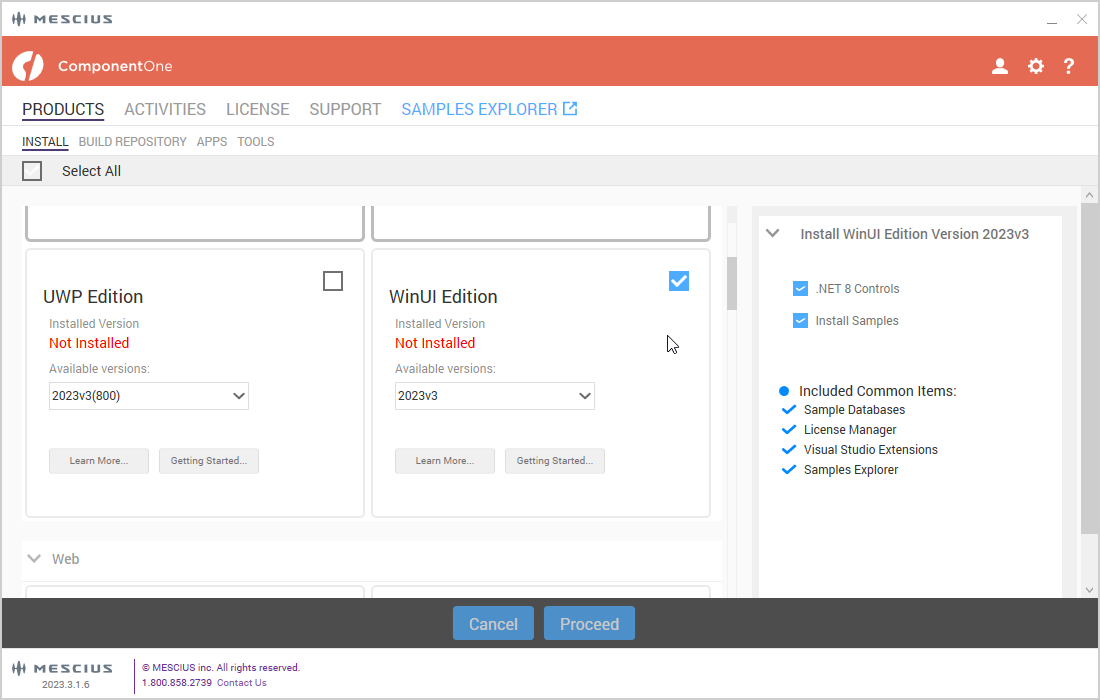
2. In **ComponentOne** **ControlPanel**, select the **WinUI Edition** tile and click **Proceed** button.
3. Review the license agreement, and then click the **Accept License Agreement** button.
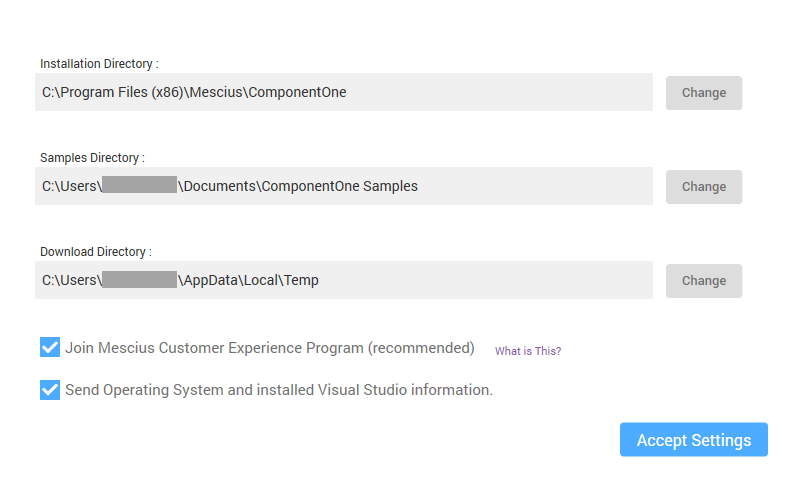
4. Click **Accept Settings** button to confirm the directory path and start the installation process. The Installation Directory contains all the DLLs, Samples Directory contains the samples from ComponentOne and the Download Directory contains the log files.In case you want to change the installation and samples directories location, click the **Change** button and select the location of your choice.
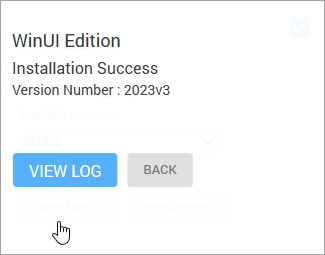
Once the installation is completed, the installer displays the **Installation Success** screen.
> type=note
> **Note**: By default, ControlPanel downloads the latest version of an edition. Note that you can select older versions by clicking on the Change/Repair Version button.
### TECHNICAL SUPPORT
MESCIUS offers various support options. For a complete list and a description of each, visit the MESCIUS Website at [Technical Support](https://developer.mescius.com/support/contact).
Some methods for obtaining technical support include:
* **Online Resources**
MESCIUS provides customers with a comprehensive set of technical resources in the form of [FAQs](https://developer.mescius.com/componentone/licensing), [samples](https://developer.mescius.com/samples) and videos, searchable [Online Help](https://developer.mescius.com/componentone/docs/) and more. We recommend this as the first place to look for answers to your technical questions.
* **Online Support**
The online support service provides you direct access to our Technical Support staff via an [online incident submission system](https://developer.mescius.com/support/contact). When you submit an incident, you immediately receive a response via e-mail confirming that the incident is created successfully. This email provides you with an Issue Reference ID. You will receive a response from ComponentOne via e-mail in 2 business days or less.
* **Product Forums**
MESCIUS’s [product forums](https://developer.mescius.com/forums) are available for users to share information, tips, and techniques regarding MESCIUS products. MESCIUS developers or community engineers will be available on the forums to share insider tips and technique and answer users’ questions. Note that a MESCIUS User Account is required to participate in the MESCIUS Product Forums.
* **Installation Issues**
Registered users can obtain help with problems installing ComponentOne products. Contact technical support by using the online incident submission form or by phone (412.681.4738). Please note that this does not include issues related to distributing a product to end-users in an application.
* **Documentation**
[MESCIUS documentation](https://developer.mescius.com/docs/) is available online for viewing. If you have suggestions on how we can improve our documentation, please send a [feedback](https://developer.mescius.com/forums/winui-edition/welcome-to-the-winui-editi) to the Documentation team. Note that the feedback sent to the Documentation team is for documentation related issues only. [Technical Support](https://developer.mescius.com/support/contact) and [Sales](mailto:sales@componentone.com) issues should be sent directly to their respective departments.
> type=note
> **Note**: You must create MESCIUS Account and register your product with a valid serial number to obtain support using some of the above methods.