# Step 4 of 4: Running the Project
## Content
In the previous steps, you added a [C1TaskbarButton](/componentone/api/win/online-winpack/dotnet-framework-api/C1.Win.C1Win7Pack.4.8/C1.Win.C1Win7Pack.C1TaskbarButton.html) control to your project, added a jump list to the control, and used methods that will apply changes and clear changes to the control. In this step, you'll run the project and see the results of this quick start.
Complete the following steps:
1. Press **F5** to build the project.
2. Right-click the taskbar button and observe that only the default list items appear.
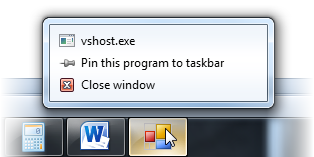
3. On the form, click the **Activate Jump List** button.
4. Right-click the taskbar button and observe that the items you added in this tutorial appear.
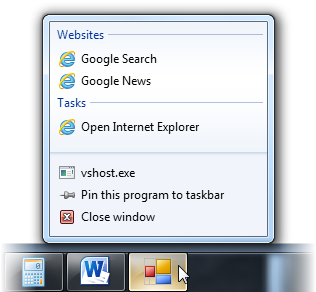
5. On the form, click the **Clear Jump List** button.
6. Right-click the taskbar button and observe that the items you added in this tutorial topic have been cleared and, once again, only the default items appear.
### What You've Accomplished
You've completed the C1TaskbarButton control's quick start tutorial. If you'd like to learn more about this control, see the [C1TaskbarButton Task-Based Help](/componentone/docs/win/online-winpack/windows7controlpackf5/c1taskbarbuttontaskb) and the [Working with C1TaskbarButton](/componentone/docs/win/online-winpack/workingwithwindows7c/workingwithc1taskbar) topics.