# Items Collection Editor
## Content
In the **C1JumpList. Items Collection Editor** dialog box you can add and customize the appearance and behavior of [C1JumpPath](/componentone/api/win/online-winpack/dotnet-framework-api/C1.Win.C1Win7Pack.4.8/C1.Win.C1Win7Pack.C1JumpPath.html) and [C1JumpLink](/componentone/api/win/online-winpack/dotnet-framework-api/C1.Win.C1Win7Pack.4.8/C1.Win.C1Win7Pack.C1JumpLink.html) items that appear in the jump list. To access the **Items Collection Editor**, select the **Edit Jump Items** link from the [C1TaskbarButton](/componentone/api/win/online-winpack/dotnet-framework-api/C1.Win.C1Win7Pack.4.8/C1.Win.C1Win7Pack.C1TaskbarButton.html) control's Tasks menu, context menu, or below the Properties window, or click the ellipses button next to the [Items](/componentone/api/win/online-winpack/dotnet-framework-api/C1.Win.C1Win7Pack.4.8/C1.Win.C1Win7Pack.C1JumpList.Items.html) property in the Properties window.
You can select an item in the Members list or, using the buttons below the list, you can add and remove buttons or copy existing buttons. The **Add** button is a split button, to access all options on the **Add** button click the drop-down arrow on the button.
The **Items Collection Editor** appears similar to the following when a C1JumpPath is selected:
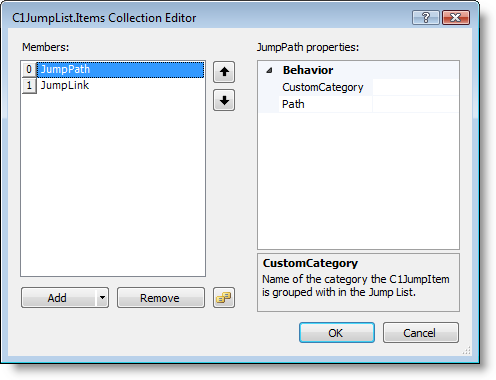
You can customize the C1JumpPath by setting the custom category the item is grouped in and the path to the file to be included.
The **Items Collection Editor** appears similar to the following when a C1JumpLink is selected:
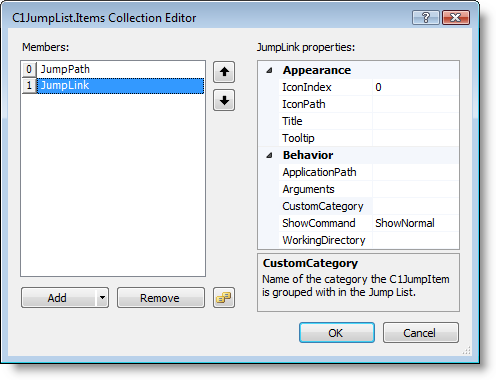
For each C1JumpLink you can set or change icon and title for the list, the ToolTip that appears on mouse hover, the application path, arguments, the category it is included in, how it should be shown, and the working directory of the application on startup.