# Tasks Menu
## Content
True DBGrid provides quick and easy access to common tasks or properties using the Tasks Menu. There are three types of Tasks menu provided by True DBGrid, such as **TrueDBGrid** **Tasks** menu, **TrueDBDropdown Tasks** menu and **Column Tasks** Menu.
## TrueDBGrid Tasks menu
In the **C1TrueDBGrid** **Tasks** menu, you can quickly and easily choose a data source, change data layout, set a visual style, add a grid caption, customize the appearance of the grid, dock the grid on the form, and access the **C1TrueDBGrid Designer**, as well as set the following properties: [AllowAddNew](/componentone/docs/win/online-truedbgrid/), [AllowUpdate](/componentone/docs/win/online-truedbgrid/), [AllowDelete](/componentone/docs/win/online-truedbgrid/), [FilterBar](/componentone/docs/win/online-truedbgrid/), and [AlternatingRows.](/componentone/docs/win/online-truedbgrid/)
To access the **C1TrueDBGrid Tasks** menu, click the smart tag in the upper right corner of the grid. This will open the **C1TrueDBGrid Tasks** menu:
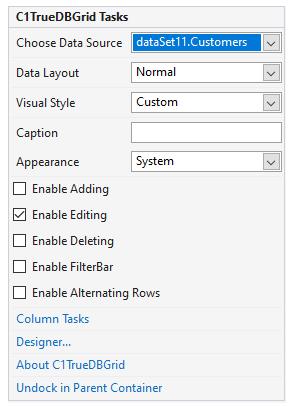
The **C1TrueDBGrid Tasks** menu operates as follows:
| **Options in Tasks menu** | **Description** |
| --------------------- | ----------- |
| **Choose Data Source** | Clicking the drop-down arrow in the **Choose Data Source** box opens a list of available data sources and allows you to add a new data source. To add a new data source to the project, click **Add Project Data Source** to open the **Data Source Configuration Wizard**. After a data source is selected, three more options are added to the **C1TrueDBGrid Tasks** menu: **Column Tasks**, **Add Query**, and **Preview Data**. |
| **Data Layout** | Clicking the drop-down arrow in the **Data Layout** box opens a list of different [DataView](/componentone/docs/win/online-truedbgrid/) property options, such as **Normal**, **Inverted**, **Form**, **GroupBy**, **MultipleLines**, **Hierarchical**, and **MultipleLinesFixed**. For more information on the different data views, see [Views](/componentone/docs/win/online-truedbgrid/views). |
| **VisualStyle** | Clicking the drop-down arrow in the **VisualStyle** box opens a list of different [VisualStyle](/componentone/docs/win/online-truedbgrid/) property options, such as **Custom**, **System**, **Office2007Blue**, **Office2007Silver**, and **Office2007Black**. For more information on the different visual styles, see [Visual Styles](/componentone/docs/win/online-truedbgrid/appearance-styling/visual-styles). |
| **Caption** | Entering a caption into the **Caption** box sets the [Caption](/componentone/docs/win/online-truedbgrid/) property for the grid. |
| **Appearance** | Clicking the drop-down arrow in the **Appearance** box opens a list of different [FlatStyle](/componentone/docs/win/online-truedbgrid/) property options, such as **Standard**, **Flat**, **Popup**, and **System**. For more information on the different control appearance options, see [Three-Dimensional vs. Flat Display](/componentone/docs/win/online-truedbgrid/customization/three-dimensional-flat-display). |
| **Enable Adding** | Selecting the **Enable Adding** check box sets the [AllowAddNew](/componentone/docs/win/online-truedbgrid/) property to **True**, and allows adding new rows to the grid. The default is unchecked. |
| **Enable Editing** | Selecting the **Enable Editing** check box sets the [AllowUpdate](/componentone/docs/win/online-truedbgrid/) property to **True**, and allows editing of the grid. The default is checked. |
| **Enable Deleting** | Selecting the **Enable Deleting** check box sets the [AllowDelete](/componentone/docs/win/online-truedbgrid/) property to **True**, and allows deleting rows in the grid. The default is unchecked. |
| **Enable FilterBar** | Selecting the **Enable FilterBar** check box sets the [FilterBar](/componentone/docs/win/online-truedbgrid/) property to **True**, and displays the [FilterBar](/componentone/docs/win/online-truedbgrid/) at the top of the grid. The default is unchecked. |
| **Enable Alternating Rows** | Selecting the **Enable Alternating Rows** check box sets the "C1.Win.C1TrueDbGrid.4.8\~C1.Win.C1TrueDBGrid.C1TrueDBGrid\~AlternatingRows.html">AlternatingRows property to **True**, and displays alternating row colors. The default it unchecked. |
| **Column Tasks (available only when bound to a data source)** | Clicking **Column Tasks** opens the **Column Tasks** menu. For details on the **Column Tasks** menu, see [Column Tasks Menu](/componentone/docs/win/online-truedbgrid/design-time/tasks-menu#column-tasks-menu), which is elaborated below in the next section. |
| **Designer** | Clicking **Designer** opens the **C1TrueDBGrid Designer**. For more information on using the **C1TrueDBGrid Designer**, see [C1TrueDBGrid Designer](/componentone/docs/win/online-truedbgrid/design-time/truedbgrid-designer).
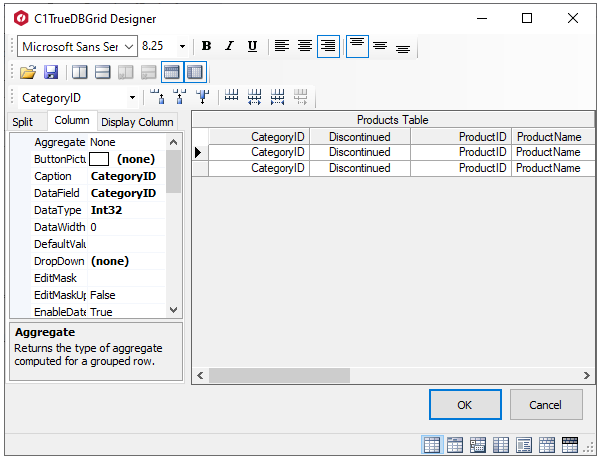
TrueDBGrid Designer |
| **Dock in parent container/Undock in parent container** | Clicking **Dock in parent container** sets the **Dock** property for [C1TrueDBGrid](/componentone/docs/win/online-truedbgrid/) to **Fill**. If [C1TrueDBGrid](/componentone/docs/win/online-truedbgrid/) is docked in the parent container, the option to undock **C1TrueDBGrid** from the parent container will be available. Clicking **Undock in parent container** sets the **Dock** property for [C1TrueDBGrid](/componentone/docs/win/online-truedbgrid/) to **None**. |
| **Preview Data (available only when bound to a data source)** | Clicking **Preview Data** opens the **Preview Data** dialog box, where you can preview the data in the DataSet.
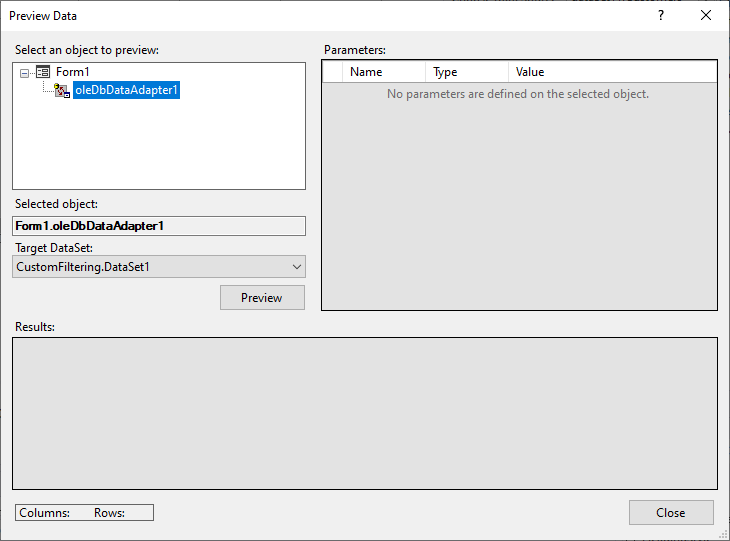
Preview Data Dialog |
## Column Tasks Menu
The **Column Tasks** menu allows you to set the column caption, data field, input mask, aggregate, caption style, column style, and value items for a column, as well as set the following properties: [Visible](/componentone/docs/win/online-truedbgrid/), [ColumnVisible](/componentone/docs/win/online-truedbgrid/), and [EnableDateTimeEditor](/componentone/docs/win/online-truedbgrid/).
The **Column Tasks** menu can only be accessed when the grid is bound to a data source. To access the **Column Tasks** menu, either click a column in the grid or select **Column Tasks** from the **C1TrueDBGrid Tasks** menu.
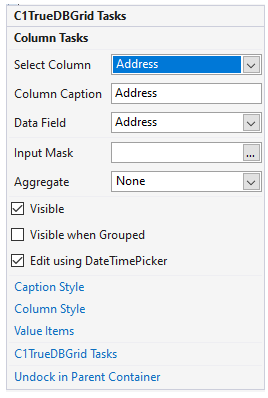
The **Column Tasks** menu operates as follows:
| **Options in Tasks menu** | **Description** |
| --------------------- | ----------- |
| **Select Column** | Clicking the drop-down arrow in the **Select Column** box opens a list of available columns in the grid. If you clicked a column in the grid to open the tasks menu, that column will be the selected column. |
| **Column Caption** | Entering a caption into the **Column Caption** box set the [Caption](/componentone/docs/win/online-truedbgrid/) property for the column. |
| **Data Field** | Clicking the drop-down arrow in the **Data Field** box opens a list of available fields in the data source. |
| **Input Mask** | Clicking the **ellipsis** button in the **Input Mask** box opens the **Input Mask** dialog box. |
| **Aggregate** | Clicking the drop-down arrow in the **Aggregate** box opens a list of available aggregate functions, such as **Count**, **Sum**, **Average**, **Min**, **Max**, **Std**, **StdPop**, **Var**, **VarPop**, and **Custom**. For details on the available aggregate functions, see the [AggregateEnum](/componentone/docs/win/online-truedbgrid/) enumeration. |
| **Visible** | Selecting the **Visible** check box sets the [Visible](/componentone/docs/win/online-truedbgrid/) property to **True** for the selected column. The default is checked. |
| **Visible when Grouped** | Selecting the **Visible when Grouped** check box sets the [ColumnVisible](/componentone/docs/win/online-truedbgrid/) to **True** for the selected column. The default is unchecked. |
| **Edit using DateTimePicker** | Selecting the Edit using DateTimePicker check box sets the [EnableDateTimeEditor](/componentone/docs/win/online-truedbgrid/) property to True for the selected column. The default is checked. |
| **Caption Style** | Clicking **Caption Style** opens the **Caption Style** editor for the selected column, which allows you to specify the properties for the caption, including style, fill effects, and images.
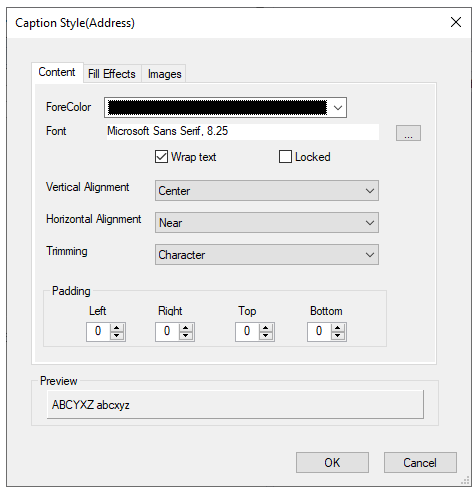
Caption Style Editor |
| **Column Style** | Clicking **Column Style** opens the **Column Style** editor for the selected column, which allows you to specify properties for the column, including style, fill effects, and images.
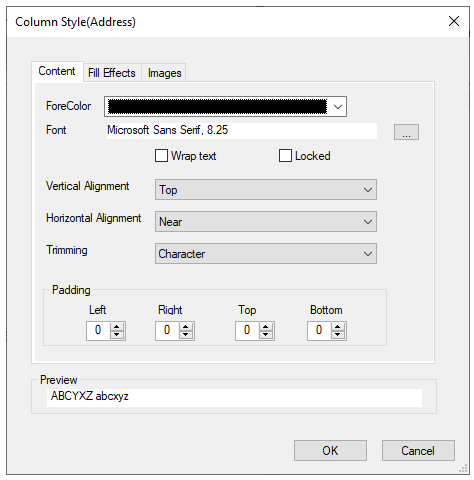
ColumnStyle Editor |
| **Value Items** | Clicking **Value Items** opens the **Value Items** editor for the selected column, which allows you to specify properties for the presentation and behavior of the **ValueItems** in the column. |
| **C1TrueDBGrid Tasks** | Clicking **C1TrueDBGrid Tasks** returns you to the **C1TrueDBGrid Tasks** menu. For details on the **C1TrueDBGrid Tasks** menu, see C1TrueDBGrid Tasks Menu. |
| **Dock in parent container** | Clicking **Dock in parent container** sets the **Dock** property for [C1TrueDBGrid](/componentone/docs/win/online-truedbgrid/) to **Fill**. If [C1TrueDBGrid](/componentone/docs/win/online-truedbgrid/) is docked in the parent container, the option to undock [C1TrueDBGrid](/componentone/docs/win/online-truedbgrid/) from the parent container will be available. Clicking **Undock in parent container** sets the **Dock** property for [C1TrueDBGrid](/componentone/docs/win/online-truedbgrid/) to **None**. |
| **Preview Data** | Clicking **Preview Data** opens the **Preview Data** dialog box, where you can preview the data in the DataSet. |
### TrueDBDropdown Tasks menu
The **TrueDBDropdown Tasks** menu is available when you drag and drop the TrueDBDropdown control on the form. Click the smart tag of this control to set the data source, and width for the dropdown control.
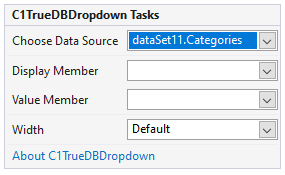
The **TrueDBDropdown Tasks** menu operates as follows:
| **Options in Tasks menu** | **Description** |
| --------------------- | ----------- |
| **Choose Data Source** | Clicking the drop-down arrow in the **Choose Data Source** box opens a list of available data sources and allows you to add a new data source |
| **Display Member** | Sets the property used for incremental search. |
| **Value Member** | Sets the property used to update the associated grid column. |
| **Width** | Sets the width of the dropdown. |
>type=note
> **Note**: WinForms .NET 6 Edition does not include rich design-time support yet. Hence above-mentioned options are not available through the tasks menu in .NET 6 version.