# Design-Time Support
Get all information related to design-time features in TreeView.
## Content
**TreeView for WinForms** provides design-time support that allows you to access smart tag and collection editors right from the form.
### Smart Tag
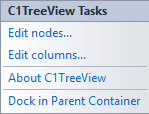
The smart tag for TreeView enables you to quickly access common **C1TreeView Tasks** involved with building TreeView elements.
* **Edit nodes**: Allows you to access **TreeNodes Editor** in just one click. For more information on TreeNodes Editor, refer to [Collection Editors](/componentone/docs/win/online-treeview/concepts/collection-editors).
* **Edit columns**: Allows you to access **C1TreeColumn Collection Editor** in a single click. For more information on C1TreeColumn Collection Editor, refer to [Collection Editors](/componentone/docs/win/online-treeview/concepts/collection-editors).
* **About C1.Win.TreeView**: Displays a dialog box that is helpful to find the version number.
* **Dock in Parent Container**: Docks TreeView into the parent container.
### Collection Editors
**TreeView for WinForms** includes two major collection editors- TreeNodes Editor and C1TreeColumn Collection Editor.
### TreeNodes Editor
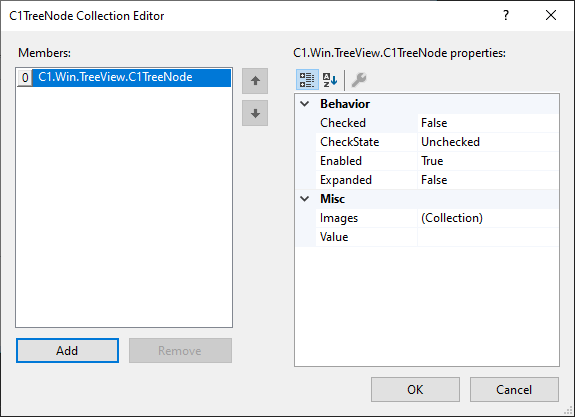
TreeNodes Editor enables you to add, remove parent nodes and child nodes in or from the Nodes collection of C1TreeView and C1TreeNode easily. Using TreeNodes Editor allows you to not only modify the behavior of the nodes, but also reorder them as per the requirement.
Following are the ways to access TreeNodes Editor:
**Using Smart Tag and Context Menu**
Refer to [Design-Time Support](/componentone/docs/win/online-treeview/concepts/DesignTimeSupport) for more information.
**Through the Properties Window**
Perform the following steps to access TreeNodes Editor through the Properties window:
1. Right-click on the **TreeView** control.
The context menu appears.
2. Select **Properties**.
3. Navigate to the **Nodes** field in the **Properties** window.
4. Click the **Ellipsis** button next to the **Nodes** field.
**TreeNodes Editor** appears.
**C1TreeColumn Collection Editor**
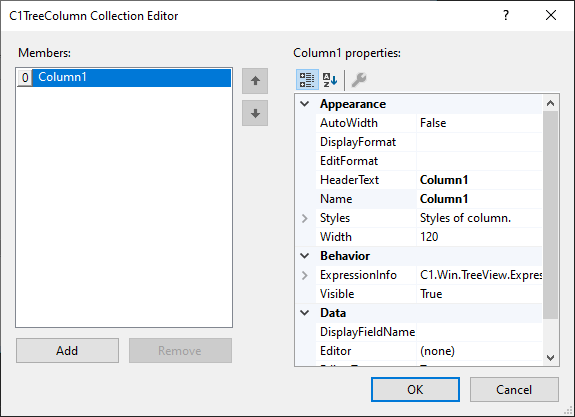
C1TreeColumn Collection Editor allows you to add and remove columns in or from TreeView seamlessly. The editor lets you customize the appearance and modify the behavior and data for the added columns.
The editor can be accessed in the following ways:
**Using Smart Tag and Context Menu**
Refer to [Design-Time Support](/componentone/docs/win/online-treeview/concepts/DesignTimeSupport) for more information.
**Through the Properties Window**
Perform the following steps to access TreeNodes Editor through the Properties window:
1. Right-click on the **TreeView** control.
The context menu appears.
2. Select **Properties**.
3. Navigate to the **Columns** field in the **Properties** window.
4. Click the **Ellipsis** button next to the **Columns** field.
**C1TreeColumn Collection Editor** appears.