# Changing the BackColor of the Template
## Content
To change the BackColor of the Template at design time, complete the following:
1. Select the **C1TileControl** and click on its smart tag to open the **C1TileControl Tasks** menu.
2. Select **Edit Tiles**.
The **C1TileControl.Templates Collection Editor** editor appears.
3. Click **Add** to add a template to the Members list.
4. Set the **BackColor** to **DarkGreen**.
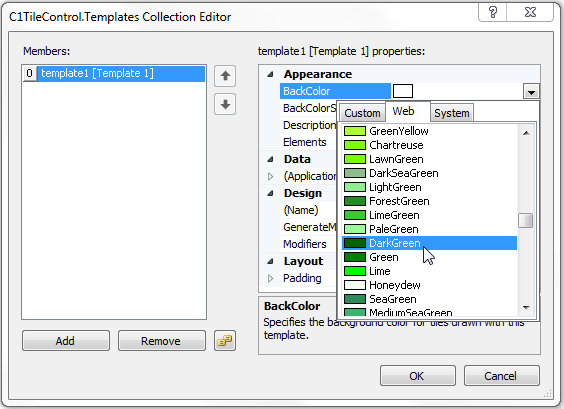
5. Set the **BackColorSelector** to **Unbound**.
This will assign the DarkGreen backcolor to this template rather than the default backcolor. Once the Template is assigned to the specified Tile the new BackColor will appear.
6. Select the first Tile and set its Template property to Template1. The template with the new backcolor will be updated for the first Tile.
**This topic illustrates the following**:
The new backcolor for the template appears in the first Tile.