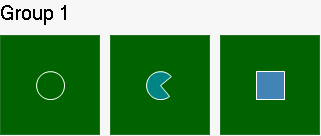
# Drawing an Image at Runtime
## Content
Images can be drawn at runtime using the [Paint](/componentone/docs/win/online-tilecontrol/) event, like the following:
1. Right-click on the **C1TileControl** and select **Edit Templates**.
2. Click **Add** to add a template to the **C1TileControl**.
3. Add the following code to your project to draw an image at runtime:
DOC-DETAILS-TAG-OPEN
DOC-SUMMARY-TAG-OPEN
To write code in Visual Basic
DOC-SUMMARY-TAG-CLOSE
```vbnet
Private Sub template1_Paint(sender As Object, e As C1.Win.C1Tile.TemplatePaintEventArgs)
Dim g As Graphics = e.Graphics
g.SmoothingMode = System.Drawing.Drawing2D.SmoothingMode.HighQuality
Dim rect As Rectangle = e.ClipRectangle
rect.X += (rect.Width - 28) \ 2
rect.Y += (rect.Height - 28) \ 2
rect.Width = 28
rect.Height = 28
Dim brush As Brush = New SolidBrush(e.Tile.GetBackColor())
Dim pen As New Pen(e.Tile.GetForeColor())
Select Case e.Tile.IntValue
Case 1
g.FillPie(brush, rect, 50F, 270F)
g.DrawPie(pen, rect, 50F, 270F)
Exit Select
Case 2
g.FillRectangle(brush, rect)
g.DrawRectangle(pen, rect)
Exit Select
Case Else
g.FillEllipse(brush, rect)
g.DrawEllipse(pen, rect)
Exit Select
End Select
brush.Dispose()
pen.Dispose()
End Sub
```
DOC-DETAILS-TAG-CLOSE
DOC-DETAILS-TAG-OPEN
DOC-SUMMARY-TAG-OPEN
To write code in C#
DOC-SUMMARY-TAG-CLOSE
```csharp
private void template8_Paint(object sender, C1.Win.C1Tile.TemplatePaintEventArgs e)
{
Graphics g = e.Graphics;
g.SmoothingMode = System.Drawing.Drawing2D.SmoothingMode.HighQuality;
Rectangle rect = e.ClipRectangle;
rect.X += (rect.Width - 28) / 2;
rect.Y += (rect.Height - 28) / 2;
rect.Width = 28;
rect.Height = 28;
Brush brush = new SolidBrush(e.Tile.GetBackColor());
Pen pen = new Pen(e.Tile.GetForeColor());
switch (e.Tile.IntValue)
{
case 1:
g.FillPie(brush, rect, 50f, 270f);
g.DrawPie(pen, rect, 50f, 270f);
break;
case 2:
g.FillRectangle(brush, rect);
g.DrawRectangle(pen, rect);
break;
default:
g.FillEllipse(brush, rect);
g.DrawEllipse(pen, rect);
break;
}
brush.Dispose();
pen.Dispose();
}
```
DOC-DETAILS-TAG-CLOSE
4. In design view, right-click on the **C1TileControl** and select **Properties**.
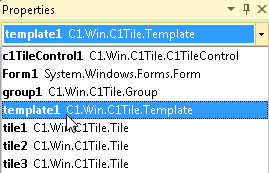
5. Select **Template1** from the Windows dropdown listbox.
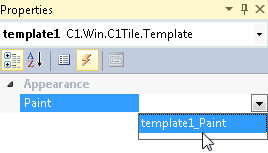
6. Click on the events button and set the Paint event to template1\_Paint.
7. Select tile1 so its **C1TileControl Tasks** menu appears and set its properties to the following:
* **Horizontal Size** to **1**.
* **Vertical Size** to **1**.
* **IntValue** to **0**. This will apply the first drawing to the first tile.
* **Template** to **template1**.
8. Select tile2 so its **C1TileControl Tasks** menu appears and set its properties to the following:
* **Horizontal Size** to **1**.
* **Vertical Size** to **1**.
* **IntValue** to **1**. This will apply the second drawing to the second tile.
* **Template** to **template1**.
9. . Select tile2 so its **C1TileControl Tasks** menu appears and set its properties to the following:
* **Horizontal Size** to **1**.
* **Vertical Size** to **1**.
* **IntValue** to **2**. This will apply the third drawing to the third tile.
* **Template** to **template1**.
10. Run your project and observe the drawings made on the tiles.