# Step 3 of 3: Applying the Template to the Specified Tile
## Content
In the previous step you created a template and added template elements such as panels, images, and text. You also set the alignment and layout properties for the elements in the template. In this step we will apply the template to the specified tile and set a few tile properties such as the BackColor, Template, HorizontalSize, and Text property.
To apply the template to the first tile as well as modify a few properties for the first tile of the **C1TileControl**, complete the following steps:
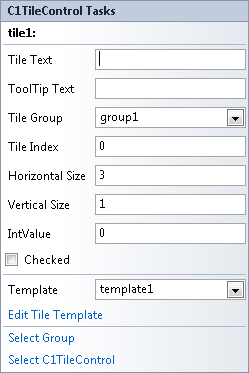
1. Select **Tile 1** to open its **C1TileControl Tasks** menu.
2. In the **C1TileControl Tasks** menu remove the default text, Tile1, set the **Template** property to **Template** and **HorizontalSize** property to **3**.
3. Right-click on the first Tile you have modified and select **Edit Groups**. The **C1TileControl.Groups Collection Editor** appears.
4. Click on the ellipsis button next to the **Tiles** to open the **Group.Tiles Collection Editor** and select tile1[\].
5. Set the **BackColor** property to **DimGrey** for **tile1[\]**.
6. Click **OK** to save and close the **Group.Tiles Collection Editor** and click **OK** to save and close the **C1TileControl.Groups Collection Editor**.
**Run and observe the following**:
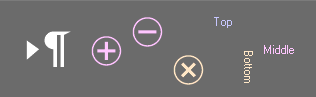
Template1 is applied to the first Tile as well as the Tile settings.
**What You've Accomplished**
Congratulations! You have successfully completed the [C1TileControl](/componentone/docs/win/online-tilecontrol/) quick start. In this topic, you added a C1TileControl to your windows form, created a template for a specific tile, and set a few of the tiles properties.