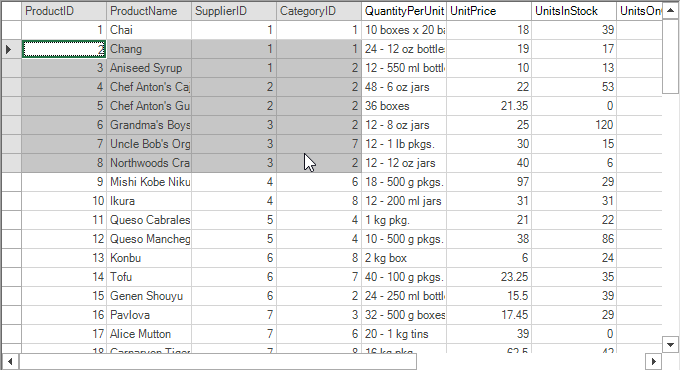
# Create a Custom Control Theme
This topic covers creating custom control theme.
## Content
This QuickStart guide will walk you through creating a new theme for FlexGrid control based on a built-in theme template using the C1ThemeDesigner. The topic comprises of two steps:
* [Step 1: Create a New Theme using ThemeDesigner](/componentone/docs/win/online-themes/create-control-theme#step-1-create-a-new-theme-using-themedesigner)
* [Step 2: Using Theme in Visual Studio](/componentone/docs/win/online-themes/create-control-theme#step-2-using-theme-in-visual-studio)
### Step 1: Create a New Theme using ThemeDesigner
In this step, you will create a new theme for FlexGrid control based on the Standard built-in theme template. For more information, see [C1ThemeDesigner Application Overview](/componentone/docs/win/online-themes/ThemeDesignerAppOverView).
1. Open the **C1ThemeDesigner** from the _C:\\Program Files (x86)\\ComponentOne\\Apps\\v4.0_ folder.
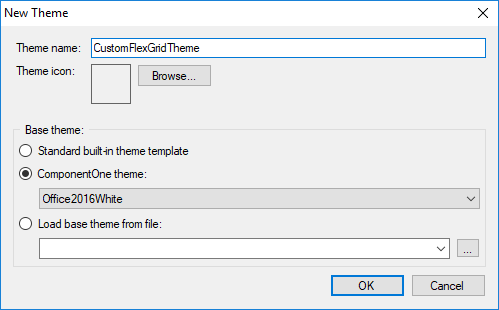
2. Click on Create New Theme from the Topic Bar. The **New Theme** dialog box appears.
3. Enter a suitable name for the theme and select **Office2016White** from the ComponentOne theme dropdown.
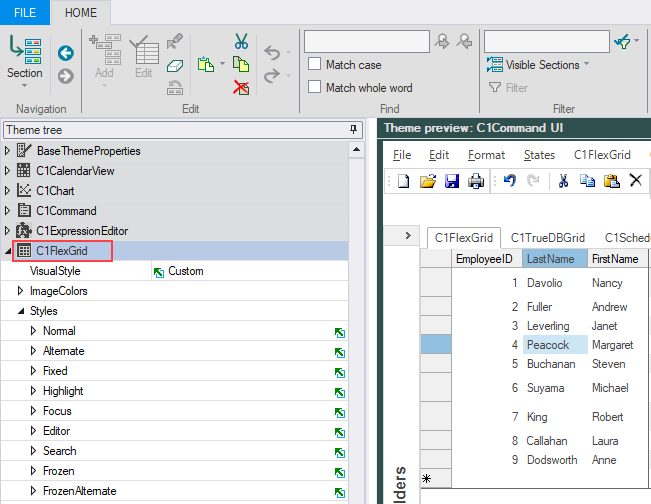
4. Click the right-pointing arrow beside **C1FlexGrid** in the Theme tree pane and, then select **Styles**.
5. Expand the **Normal** section and set the following properties.
| **Property** | **Value** |
| --- | --- |
| Background | White |
| Border > Color | 212; 212; 212; |
| Border > Style | Flat |
| Border > Width | 1 |
| Font | Calibri; 11.25 |
6. Expand the **Alternate** section and set the following properties.
| **Property** | **Value** |
| --- | --- |
| Background | White |
| Font | Calibri; 11.25 |
7. Expand the **Fixed** section and set the following properties.
| **Property** | **Value** |
| --- | --- |
| Background | White |
| Border > Color | 171; 171; 171 |
| Border > Direction | Both |
| Border > Style | Flat |
| Border > Width | 1 |
| Font | Calibri; 11.25 |
| ForeColor | ControlText |
8. Expand the **Highlight** section and set the following properties.
| **Property** | **Value** |
| --- | --- |
| Background | 198; 198; 198 |
| Border > Color | 165; 165; 165 |
| Border > Direction | Both |
| Border > Style | Flat |
| Border > Width | 1 |
| Font | Calibri; 11.25 |
| ForeColor | 68; 68; 68 |
9. Expand the **Focus** section and set the following properties.
| **Property** | **Value** |
| --- | --- |
| Background | White |
| Border > Color | 33; 115; 70 |
| Border > Direction | Both |
| Border > Style | Double |
| Border > Width | 2 |
10. Expand the **SelectedColumnHeader** and set the following properties.
| **Property** | **Value** |
| --- | --- |
| Background | 225; 225; 225 |
| ForeColor | Black |
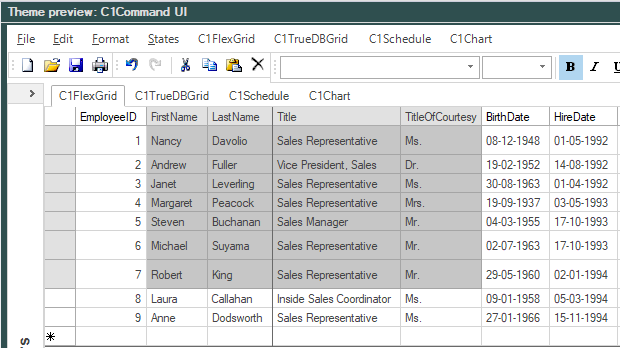
Notice that the changes made in the properties appear in the **Theme preview** pane.
11. Select **File | Save As** from the **File** menu to save the current theme in .c1themez file format.
### Step 2: Using Theme in Visual Studio
To add and use the custom control theme in your application, perform the following steps.
1. Open a form belonging to your FlexGrid application in the Visual Studio's forms designer.
2. Add the **C1ThemeController** from the toolbox onto your form. Make sure to provide reference to C1.C1Zip.4.dll in your project.
3. Click on the C1ThemeController component's **Add theme...** action item. This will show a file open dialog.
4. Browse and select the theme file ( .c1themez) in your system and then click **OK**. The selected theme will be added to your C# or VB project as an embedded resource in a **Themes** folder, and will be available for selection from the themes list provided by the C1ThemeController.
5. Run the application and observe the theme applied on your control.