# Using HTML
## Content
If you choose to create a ToolTip by using all of your own HTML code, you can enter it on the **Html** tab of the **C1SuperTooltip Editor**.
To add a **C1SuperTooltip** using HTML, complete the following steps:
1. In your project, select the control for which you are creating a C1SuperTooltip.
2. In the Properties window, click the **ellipsis** button next to the **ToolTip on C1SuperTooltip1** property for the control to open the **C1SuperTooltip Editor**.
3. Select the **Html** tab.
4. Enter the following HTML code in the **Html** text box:
```
Click here to view a C1SuperLabel showing
some of the cool features of C1SuperTooltip.
```
A preview of the C1SuperTooltip appears in the **Preview** window.
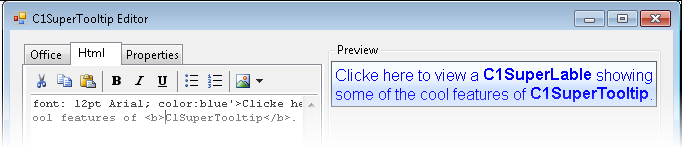
5. Click the **Properties** tab. Notice the ForeColor property is set to **InfoText** and the Font property is set to **Tahoma, 8pt**, by default, but the preview of the ToolTip shows the forecolor as blue and the font as Arial, 12pt. This is because when **\** tags are used to format the text in your HTML code, they cannot be overwritten by the properties specified in the **Properties** tab of the editor.
6. Click **OK** to close the editor.