# Add Images
## Content
**SuperTooltip for WinForms** supports adding images, including animated images, at design time. First, add the image to the C1SuperTooltip Image collection, and then specify the image in the **C1SuperTooltip Editor**.
1. Add a C1SuperTooltip control to your form.
2. Select the C1SuperTooltip control and click the **ellipsis** button next to the Images property in the Properties window. The **Edit Image Collection** editor appears.
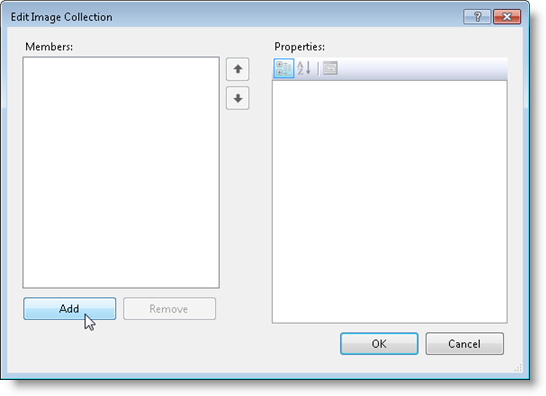
3. Click the **Add** button and browse to find the image you want to use.
4. Select the image and click **Open**. The image is added to the ToolTip's image collection.
5. Click **OK** to close the **Edit Image Collection** editor.
6. Select the control being associated with the C1SuperTooltip.
7. Click the **ellipsis** button next to the **ToolTip on C1SuperTooltip1** property.
The image you added to the ToolTip's image collection can be selected from the **Image** or **Subimage** drop-down list on the **Office** tab. If you are using your own HTML code, click the **Html** tab and reference the image in your code like this:
```
 ```
```